The Logs and Results can be accessed in two ways:
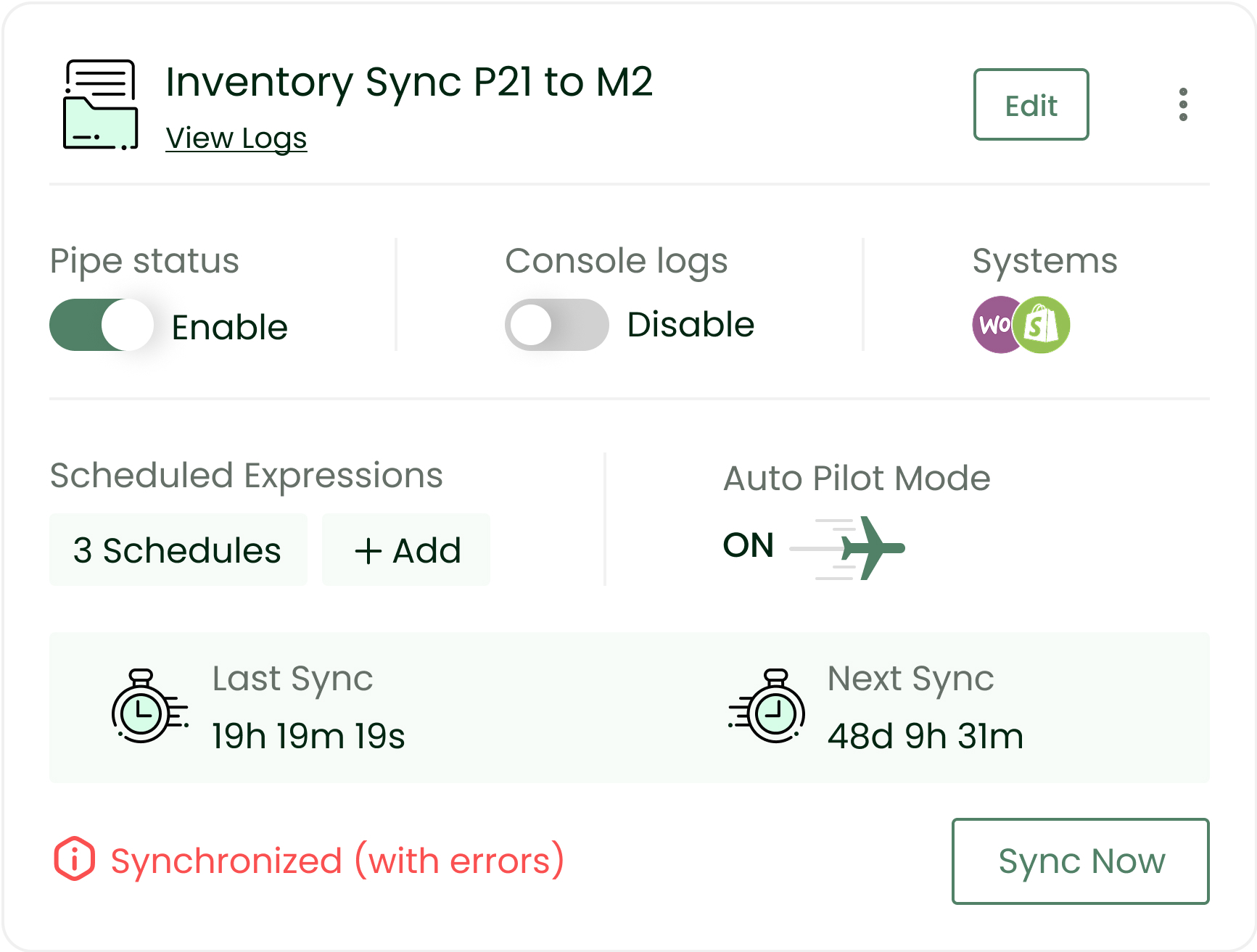
- From the Integrations page: Click on View Logs under the Sync Now/ Copy URL button
- From the Projects Navigation Menu: Click on the Logs icon.

- If a sync fails, then the “Synchronized (with error)” icon will also redirect to the Logs page.
The Logs page displays the following fields in tabular form:
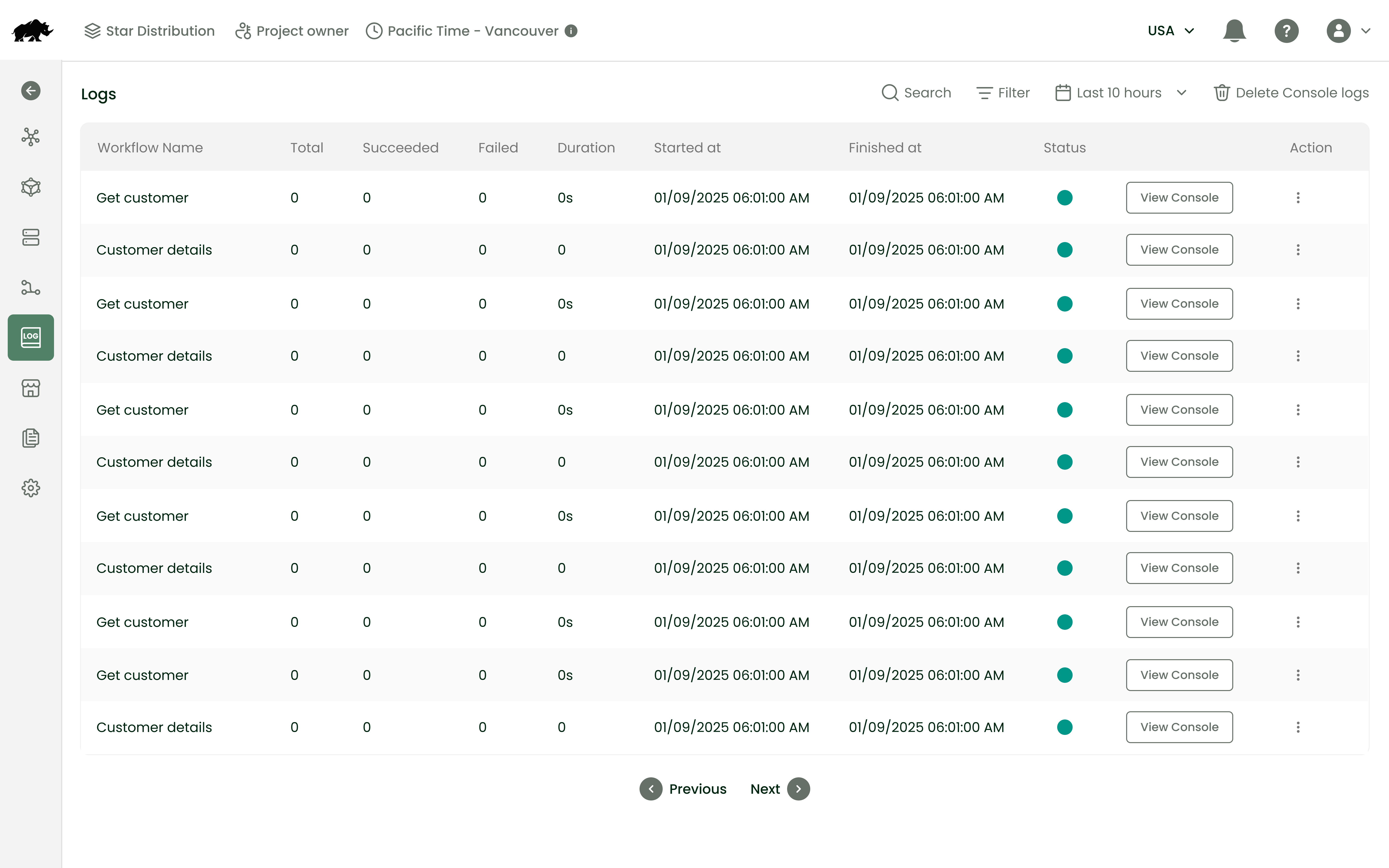
| Field name | Description |
|---|---|
| Pipe Name/Workflow Name | The Integration name |
| Total | Total number of records processed in that sync |
| Succeeded | Number of records processed successfully |
| Failed | Number of records that were not processed |
| Duration | Time taken for the sync to complete. |
| API Time | Time taken for an API call in a synchronization |
| Started At | Time when the sync was started |
| Finished At | Time when the sync process ended |
| Status | Status of the sync |
| View Console button | The Console Log file can be downloaded from here. (The Console Log is defined by the ‘Console’ statement in the Flow) |
| Action |
|
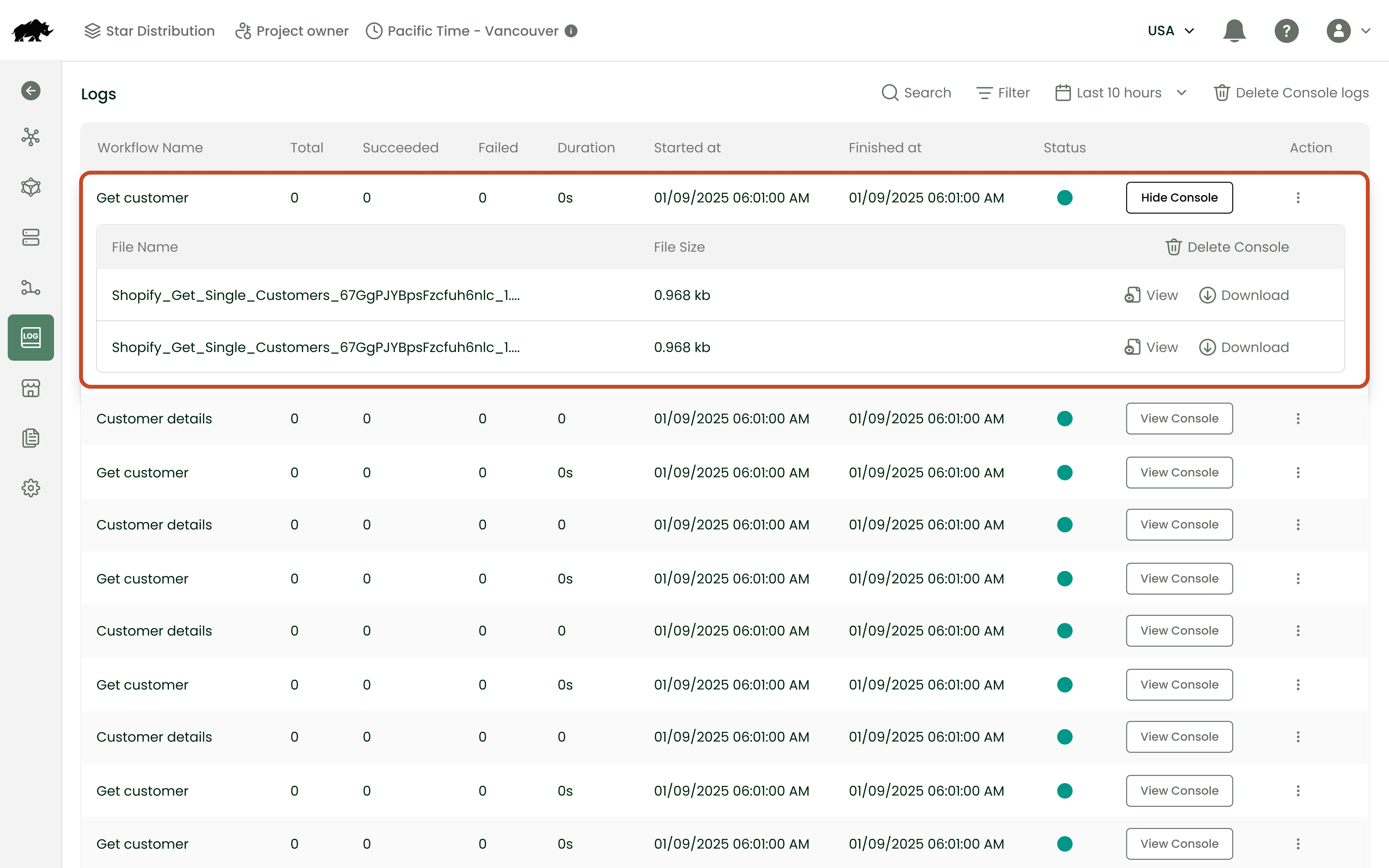
Console Logs
Logs Duration
The duration split-up information for every synchronization is displayed upon hovering over the Duration field. You can then click “View all APIs” to see detailed information such as System Name, API Name, API Count (number of times the API was called), Average Duration, and Total Duration.
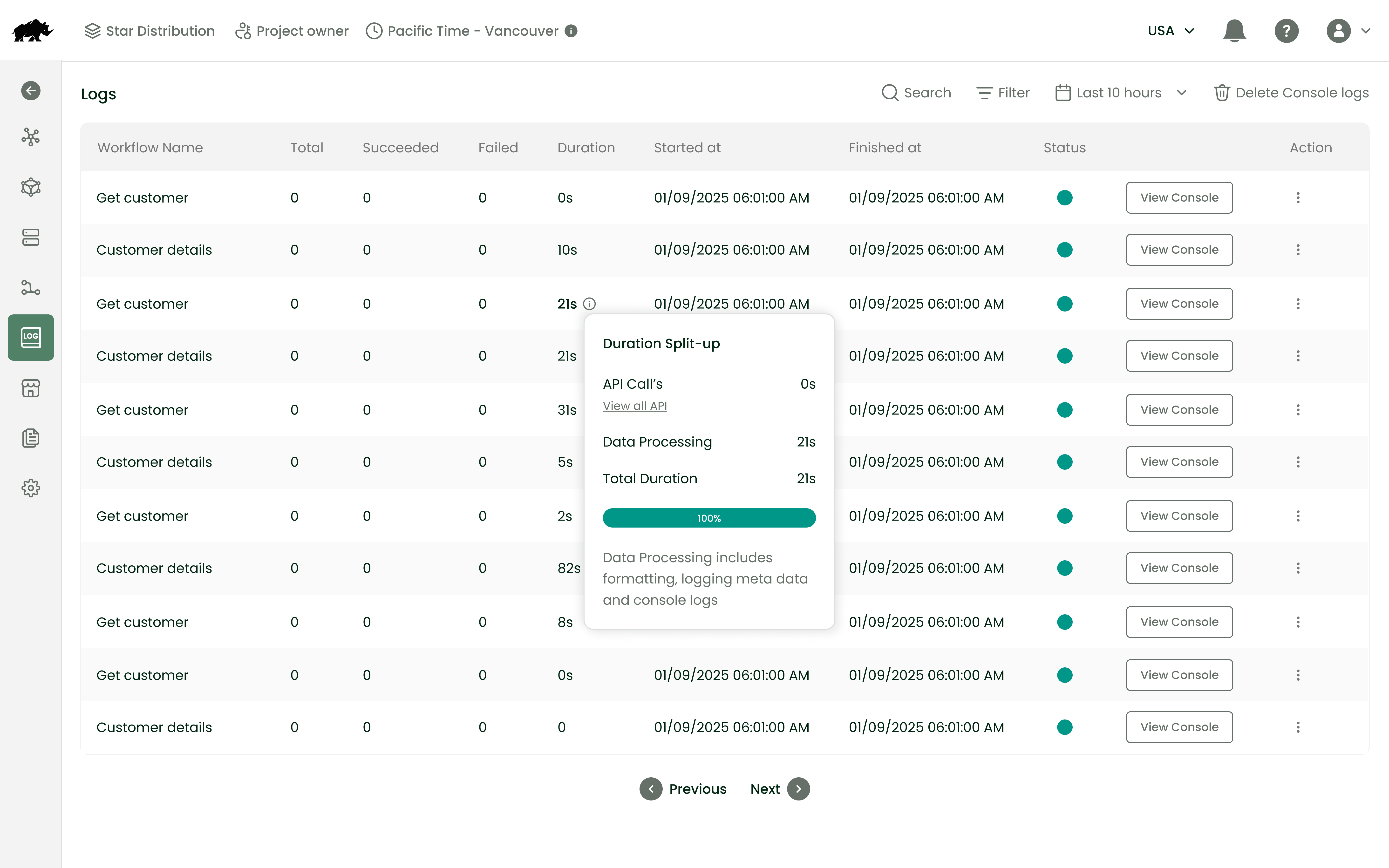
Logs Duration with records
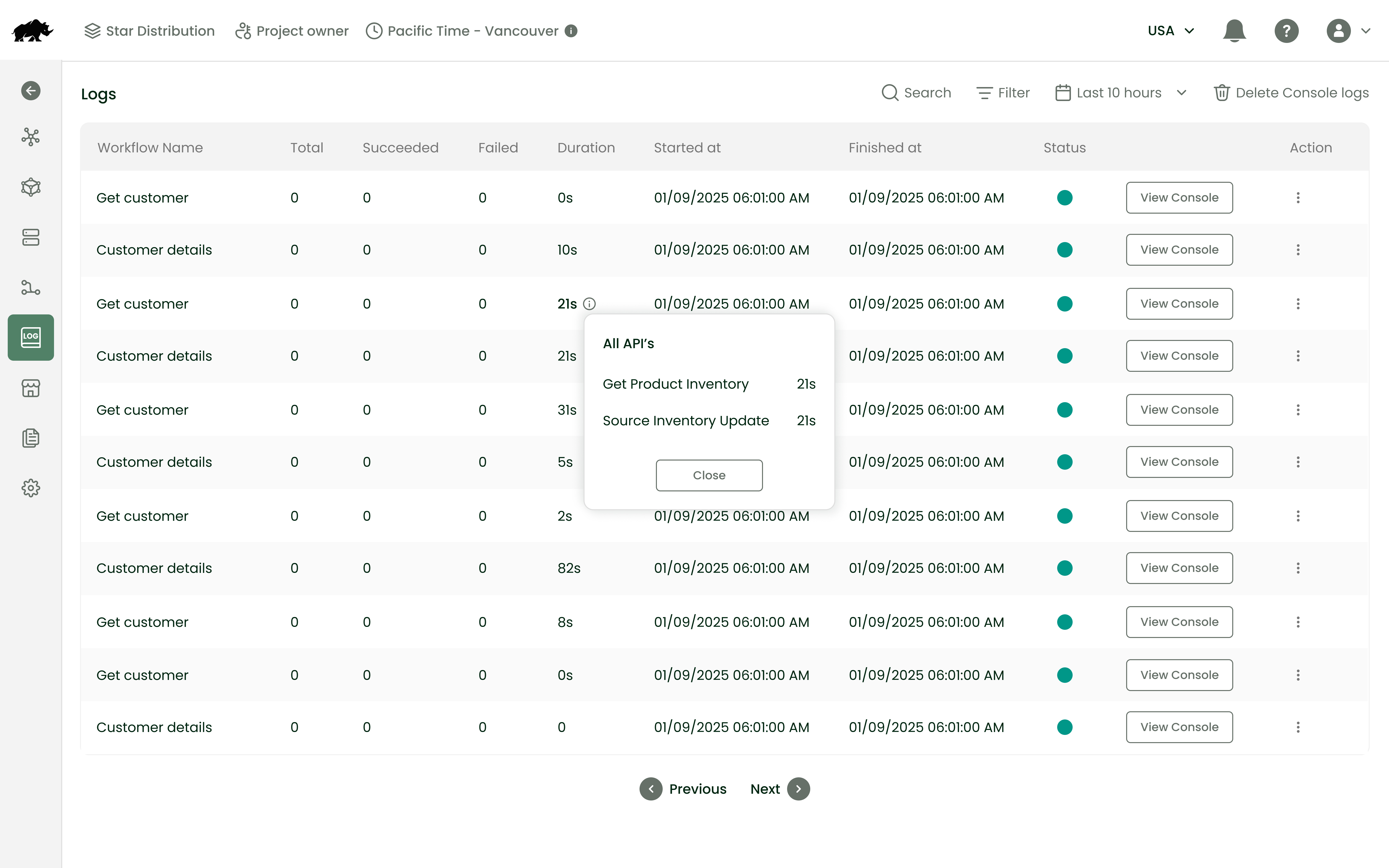
Logs Duration Split-up on API Level
Logs Filter
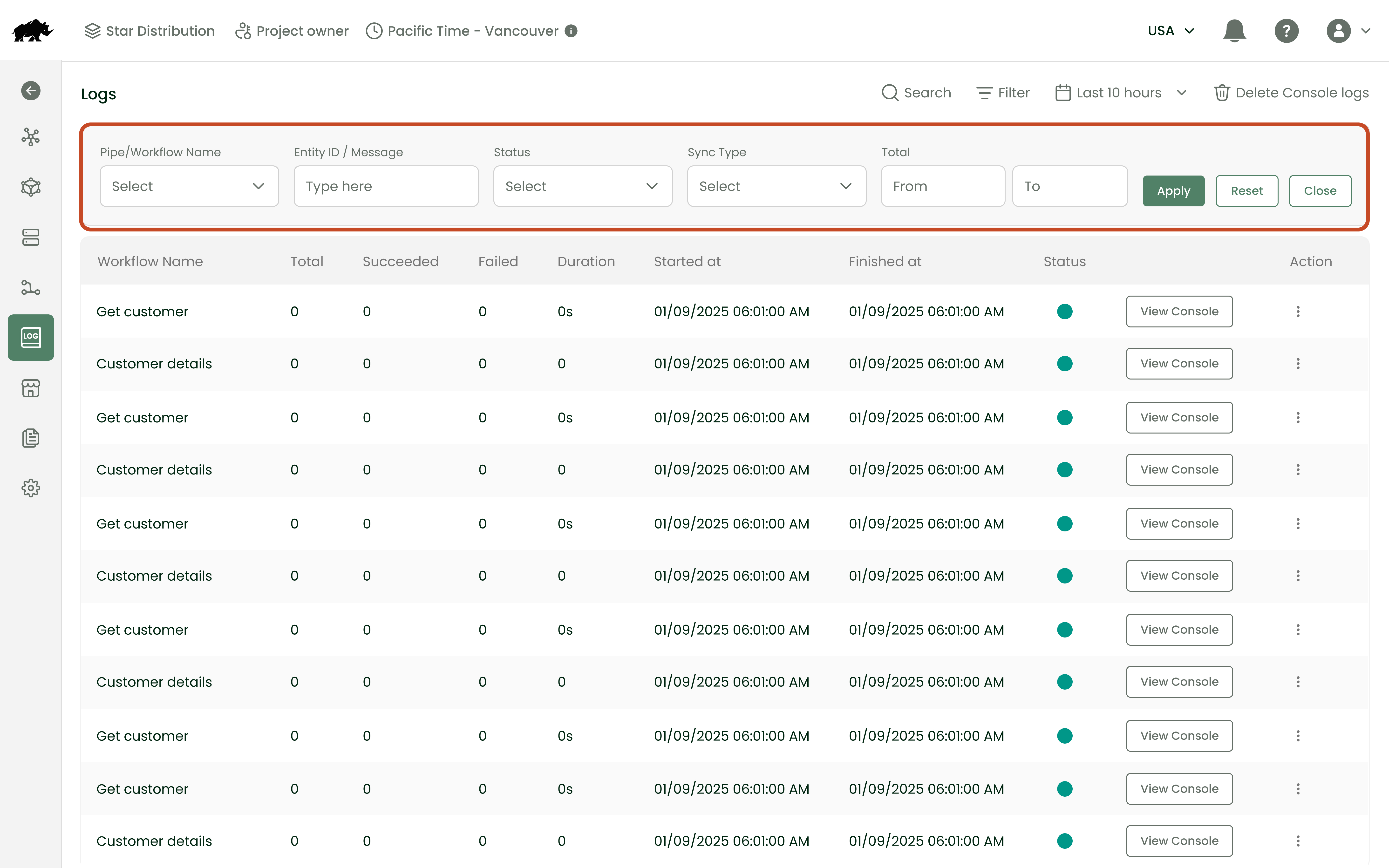
Logs Filter
The Logs can be filtered based on:
- Pipe Name
- Entity ID
- Status of the Logs
- Total records
Default Date Filter
The default date filter is automatically added to logs page to improve performance. Users can choose from predefined time ranges, such as recent hours or days, to quickly filter logs. (e.g., Last 3 hours or Last 7 days)
Users can also specify a custom date range (e.g., Jan 01, 2025, 12:00 AM – Jan 10, 2025, 12:00 AM)
By default, logs from the last 7 days are displayed.
Logs Timezone
- All times are displayed in respective project timezone. If not configured, Default Timezone is UTC (Coordinated Universal Time).
- If a user overrides a project timezone by account timezone in account settings, Logs will be displayed in the account timezone set by the user. This change will be reflected only for that user.
Pipes Reprocessing
This feature allows the ability to reprocess the pipes with the same information again. This can be used when errors in a pipe are fixed, and users wish to resync the same data.
Pipes Reprocessing enable/disable options
The Option to enable and disable logs is found within the project settings as displayed in the image below:
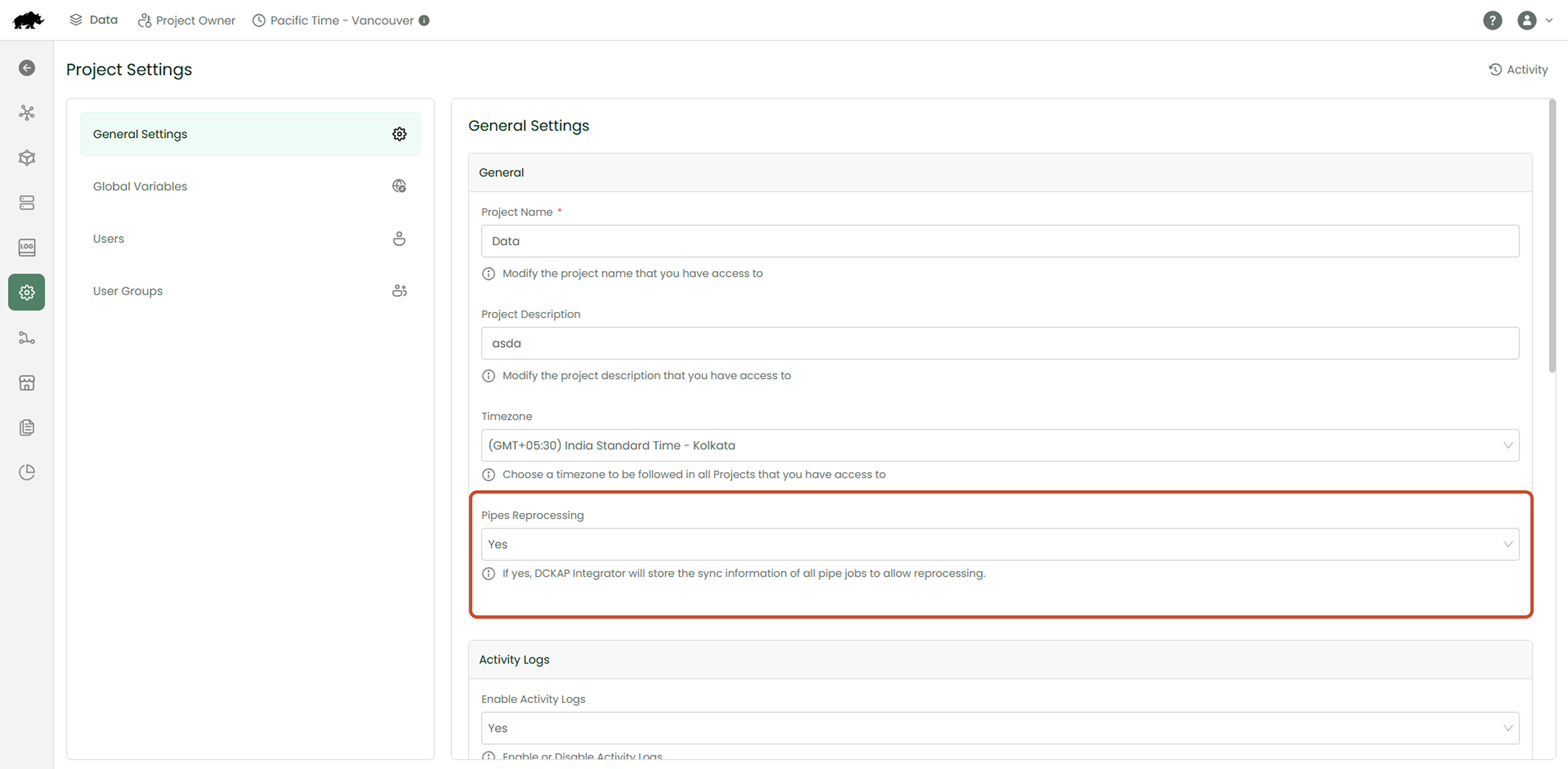
On enabling the pipes reprocessing option, DCKAP Integrator logs the information of the pipe on the first run, to reprocess the same data again.