The EDI Transaction Logs provide a dedicated page where users can view, search, and filter all inbound and outbound EDI files processed by the platform. It gives visibility into what each file contained, which trading partner it involved, and how it was processed — without needing to open raw EDI files or rely on technical support.
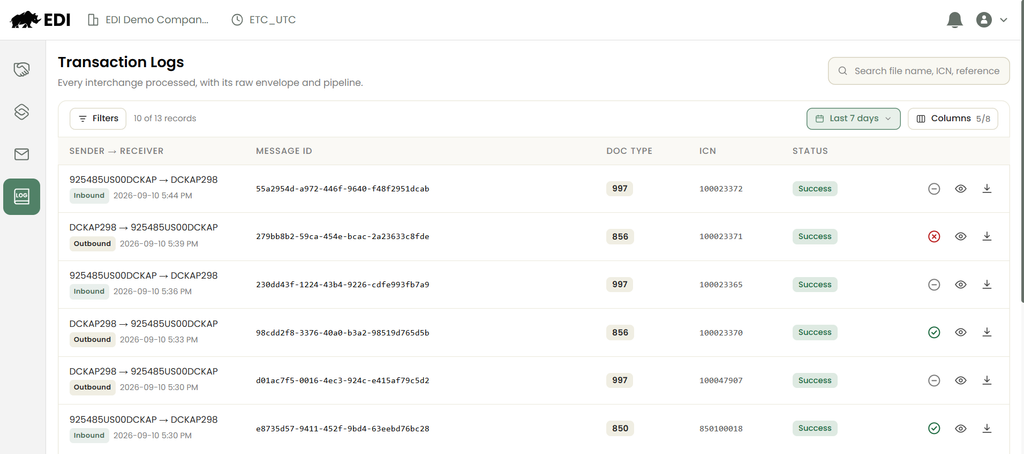
Transaction Logs allow you to:
- Track all EDI files exchanged with trading partners.
- Instantly see the processing status of each file via color-coded badges.
- Access detailed information about each transaction, including acknowledgments and related documents.
- Navigate seamlessly between transport-level AS2 messages and content-level transaction logs.
Key Benefits and Value
| Benefit | What this means for you |
| Faster issue resolution | Filter logs by partner, transaction type, or status to quickly identify problems. |
| Self-service visibility | See what was sent or received without raising support tickets. |
| Improved readability | Raw EDI files are displayed with formatting and color highlights, making them easier to understand. |
| Linked context | Related documents (e.g., an 850 Purchase Order and its 997 acknowledgment) are connected, reducing manual tracking. |
Prerequisites
Before you begin, confirm the following:
- Your role has Read access to Messages.
- You belong to the company whose logs you want to view.
Note: Users without company membership will receive a 403 (Access Denied) error.
Finding and Reviewing a Transaction Log
Step 1 – Navigate to Transaction Logs
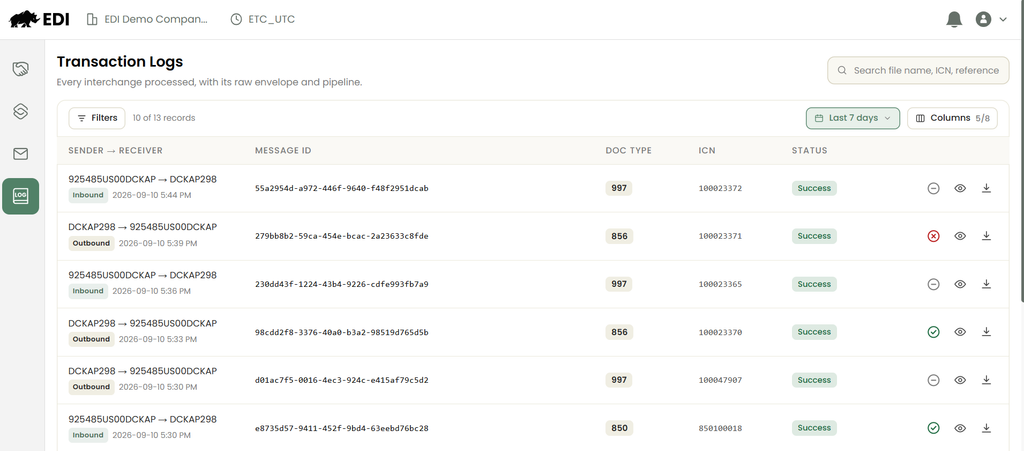
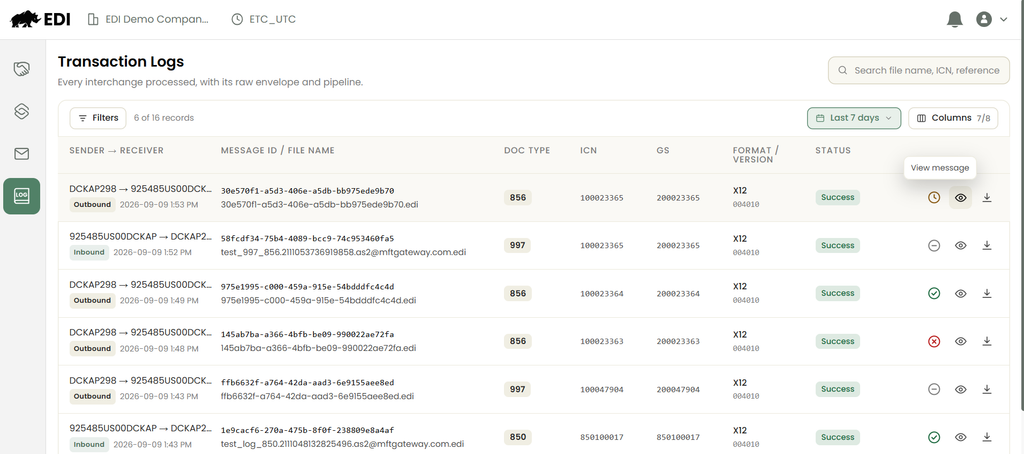
Go to the DCKAP platform menu and click Logs. The Transaction Logs list view will open, showing all inbound and outbound EDI files in a paginated grid.
Step 2 – Filter or search for a specific file
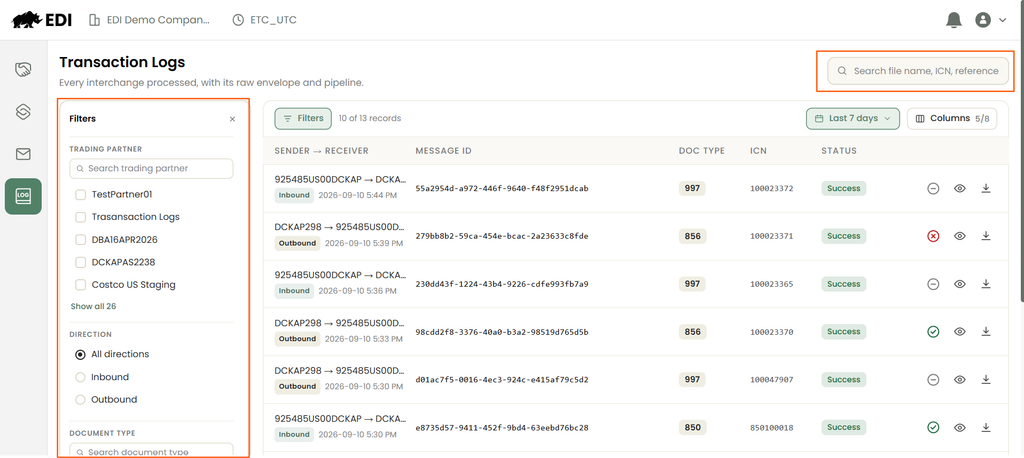
Use the available filters or the search bar to narrow down results.
Filters available:
- Trading Partner
- Direction (Inbound/Outbound)
- Document Type
- Status
- Acknowledgment Status
- EDI Version
Search by:
- File Name
- ICN (Interchange Control Number)
- Reference Number
Step 3 – Review the list
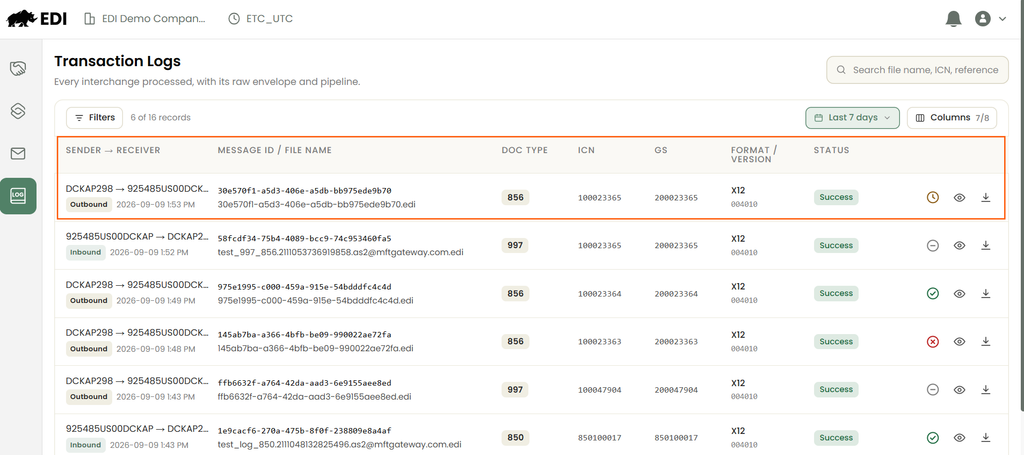
Each row will display:
- Trading Partner
- Message ID
- Direction (Inbound/Outbound)
- Transaction Type(s)
- ICN & Group Control Number
- Acknowledgment Status (Success, Rejected, Pending, Not Applicable)
- Timestamp
- Actions (View Details, Download Message)
Step 4 – Open a transaction log’s details
Click any row to open its details. Open the transaction log details by clicking the View Message icon.
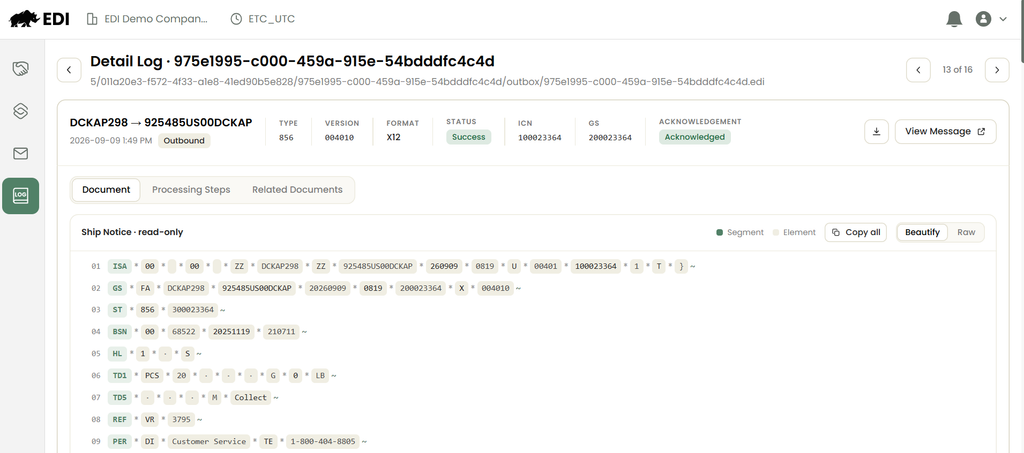
Switch between the following tabs:
- Raw EDI: Read-only view of the file with color-highlighted segments.
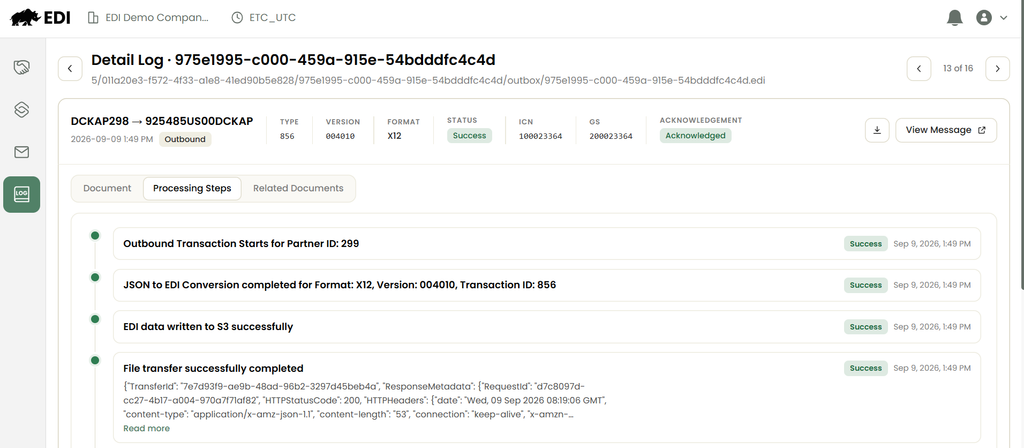
- Processing Steps: Timeline of each pipeline stage with pass/fail indicators.
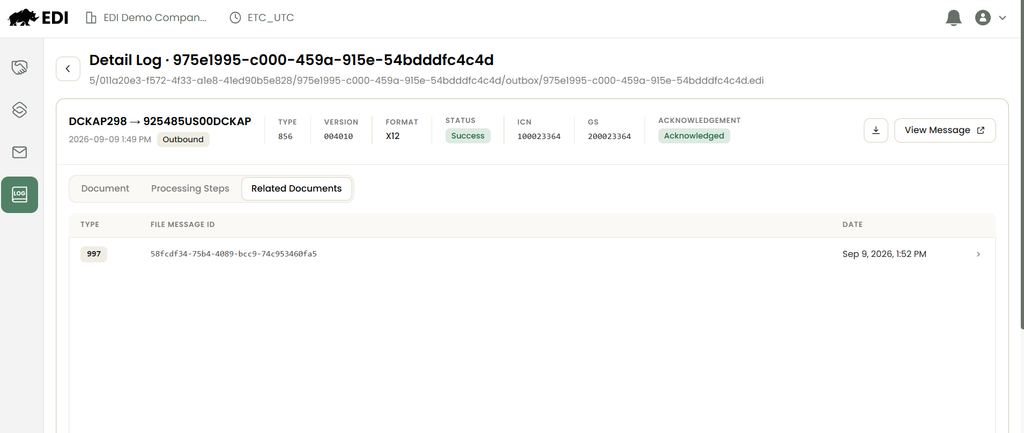
- Related Documents: Linked transactions (e.g., 997 acknowledgment of an 850).
Troubleshooting
| Issue | Likely Cause | The Fix |
| 403 – Access Denied when opening Logs | You are not a member of the company that owns the logs | Request company membership from your admin, or confirm you’re viewing the correct company context |
| Can’t find an expected file in search results | File predates feature release, or filters are too narrow | Clear filters and confirm the file falls after the release date (historical logs are not backfilled) |
| Acknowledgment Status stuck on “Pending” | Trading partner has not yet returned a 997 | Allow processing time; if prolonged, contact the trading partner or support |
| No Related Documents shown for a file | Transaction type doesn’t generate a 997, or linking wasn’t available before release | Check the Acknowledgment Status — “Not Applicable” confirms no link is expected |
Important Settings & Permissions
- Role Requirement: Read access to Messages.
- Company Membership: Required to view logs.
- Access Scope: Limited to permitted trading partners and company.
- Read-only Access: No editing of EDI content or logs.
Glossary
- EDI (Electronic Data Interchange): Standard for exchanging business documents electronically.
- ICN (Interchange Control Number): Unique identifier for an EDI interchange.
- Group Control Number (GS06): Identifier for a functional group of transactions.
- 997 Functional Acknowledgment: Confirms receipt and acceptance/rejection of an EDI transaction.
- AS2 Message: Transport-level record of EDI file transmission.