“Flows” are a set of statements like pseudocode, written using simplified language, for implementing integrations.
Introduction to Flows
Flows act as a neural schema for system integration, carrying out the whole integration process end to end. The flow is responsible for handling business logic, making API calls to the targeted system, formatting and validating data, logging transactions and so on.
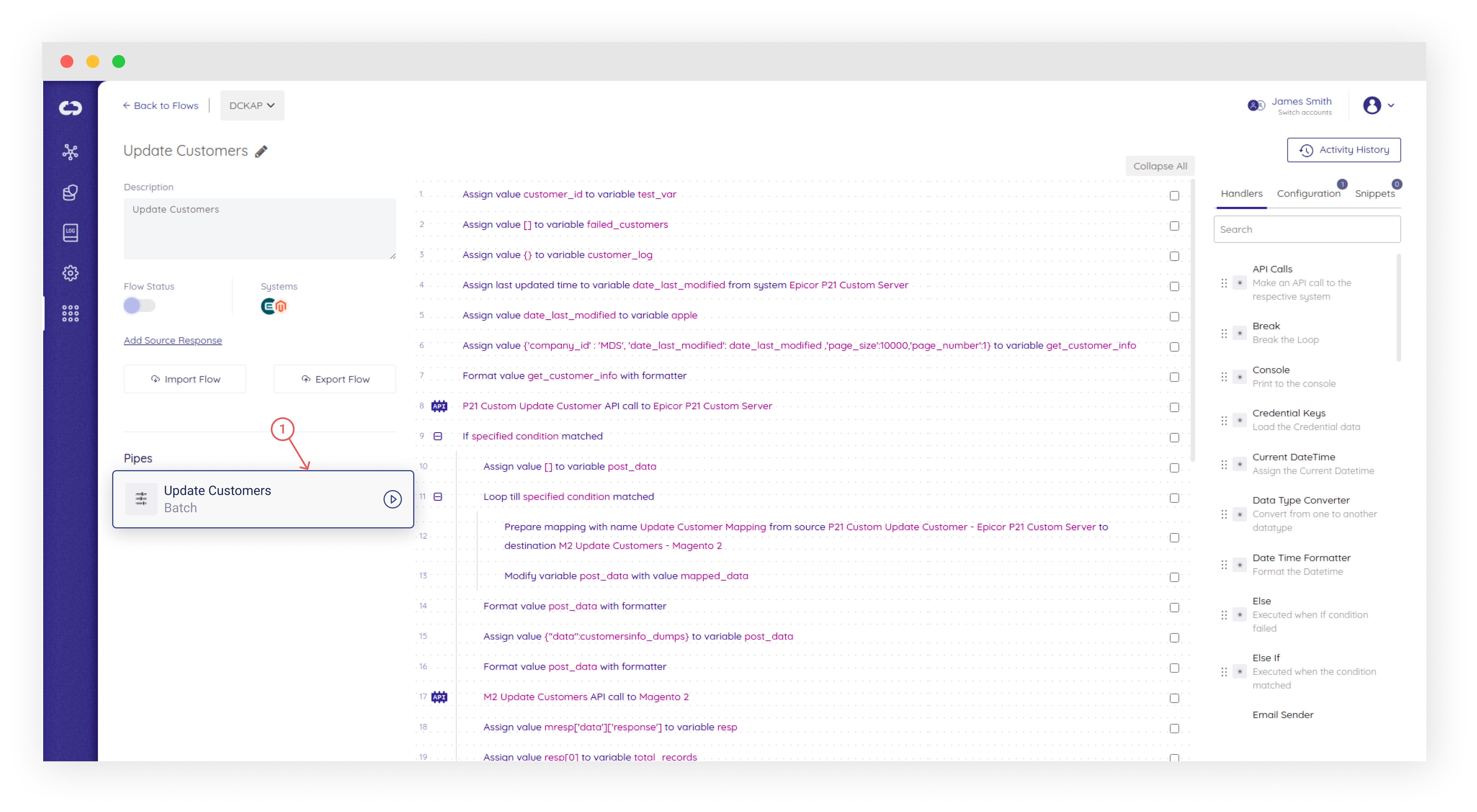
Flows are created by developing a logical program sequence using lines of code-representation known as Handlers. Handlers form the backbone of every Flow.
What are Handlers?
Handlers are statements used to build a flow, in the form of code-representation by following an algorithmic approach. Every handler has its functional logic and requires a certain set of parameters to be defined to carry out its activities. Multiple Handlers are available to the user to build their flow.
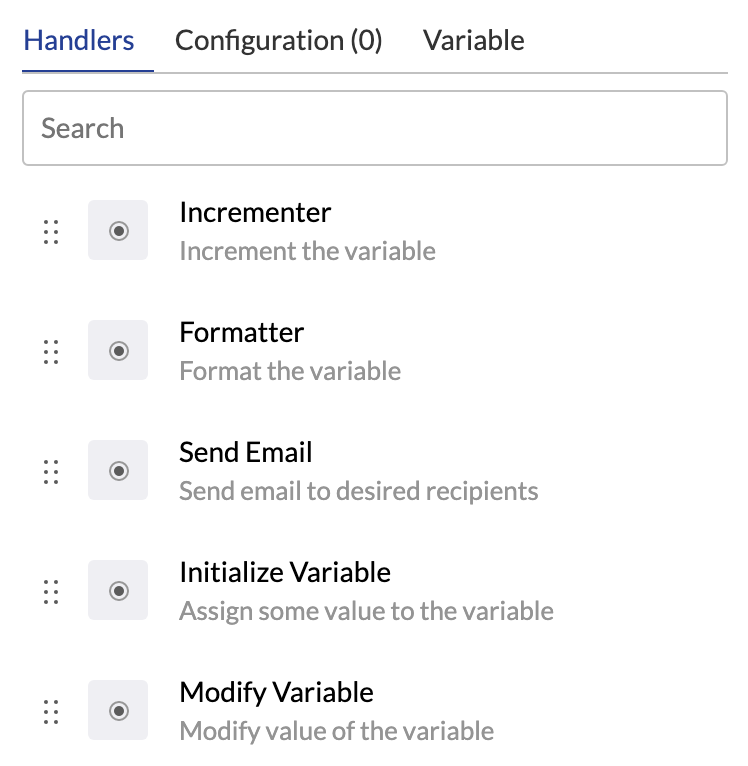
Some example functionalities that Handlers can perform include
- :arrow_upper_right: Making API calls to any system
- :aries: Assigning data to variables
- :twisted_rightwards_arrows: Mapping of the API fields
- :notepad_spiral: Display log messages
- :fast_forward: Sending data to the destination system in the required format
- :envelope_with_arrow: Sending emails and so on
The same handler can be used N number of times in a Flow.
How to use Handlers?
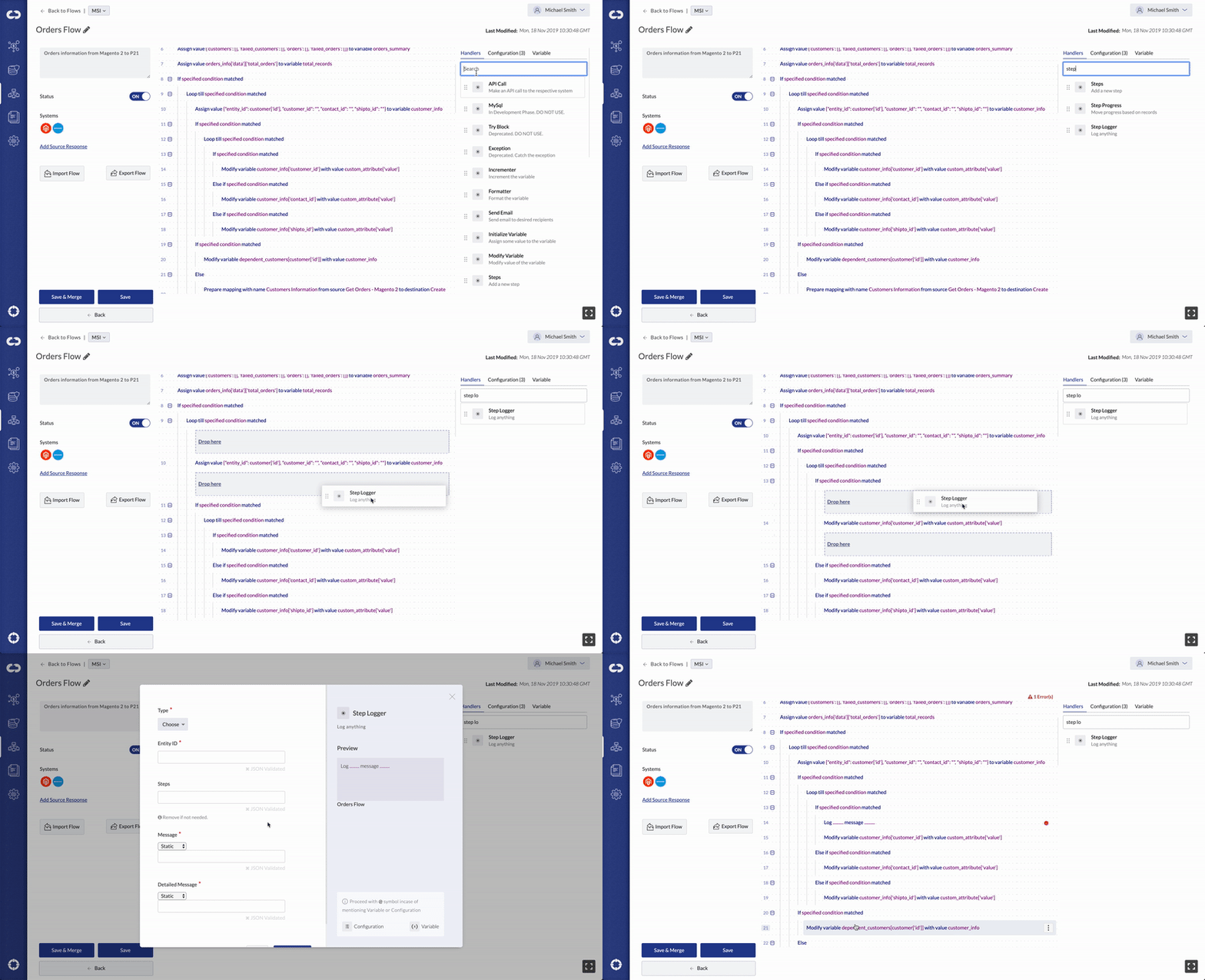
Simply drag and drop Handlers to the ‘Play Area’ to include them in your Flow. Once it is positioned in the coding area, its parameters need to be assigned. These parameters are different for each handler and are discussed in detail below.
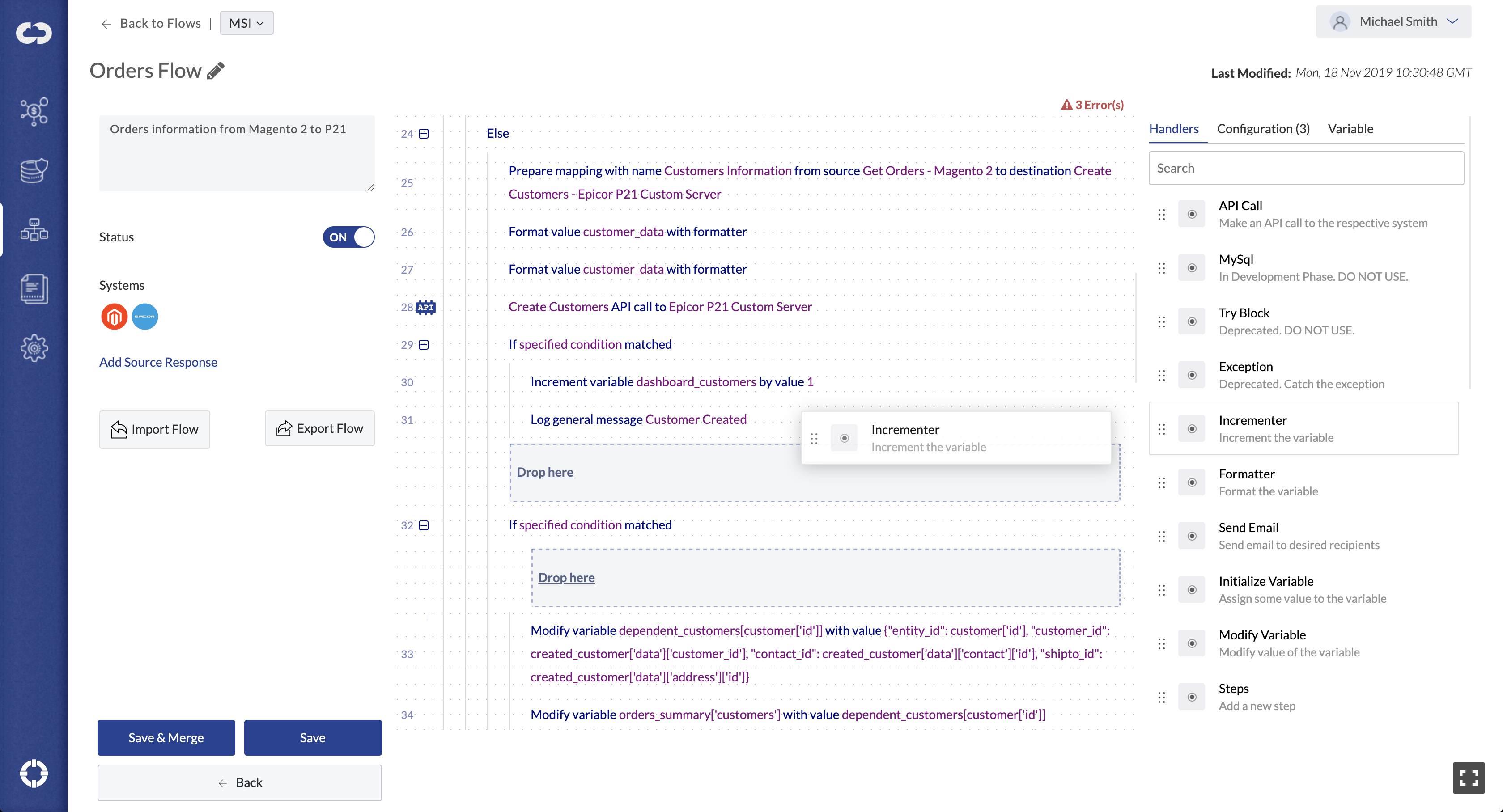
Handlers can also be copied, moved, and commented on within the Play Area and can also be deleted when they are no longer needed.
Selecting Multiple Handlers
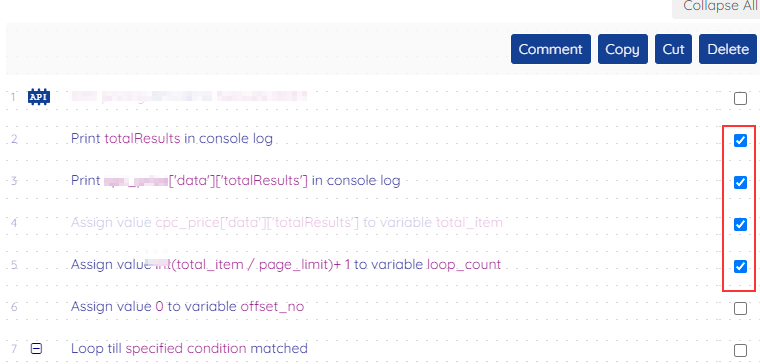
Multiple Handlers can be selected by selecting the checkbox alongside each handler statement. Once the handlers are selected, user may Cut/Copy/Delete/Comment the statements as needed.
Available Handlers
API Calls
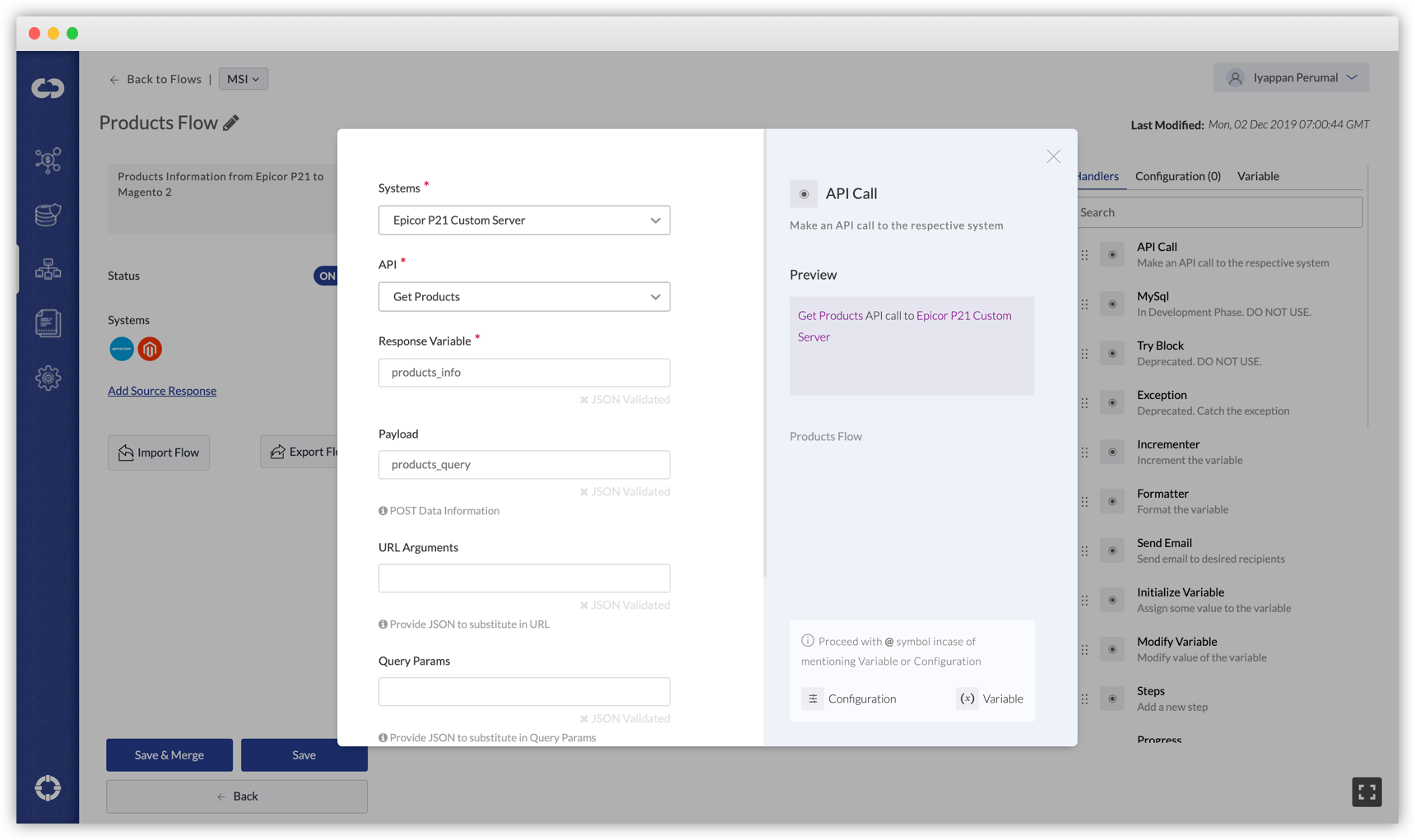
Triggers an API Call in which you can pass parameters and payload to any system. The API responses will be stored in a defined variable which is available for further usage in the Flow.
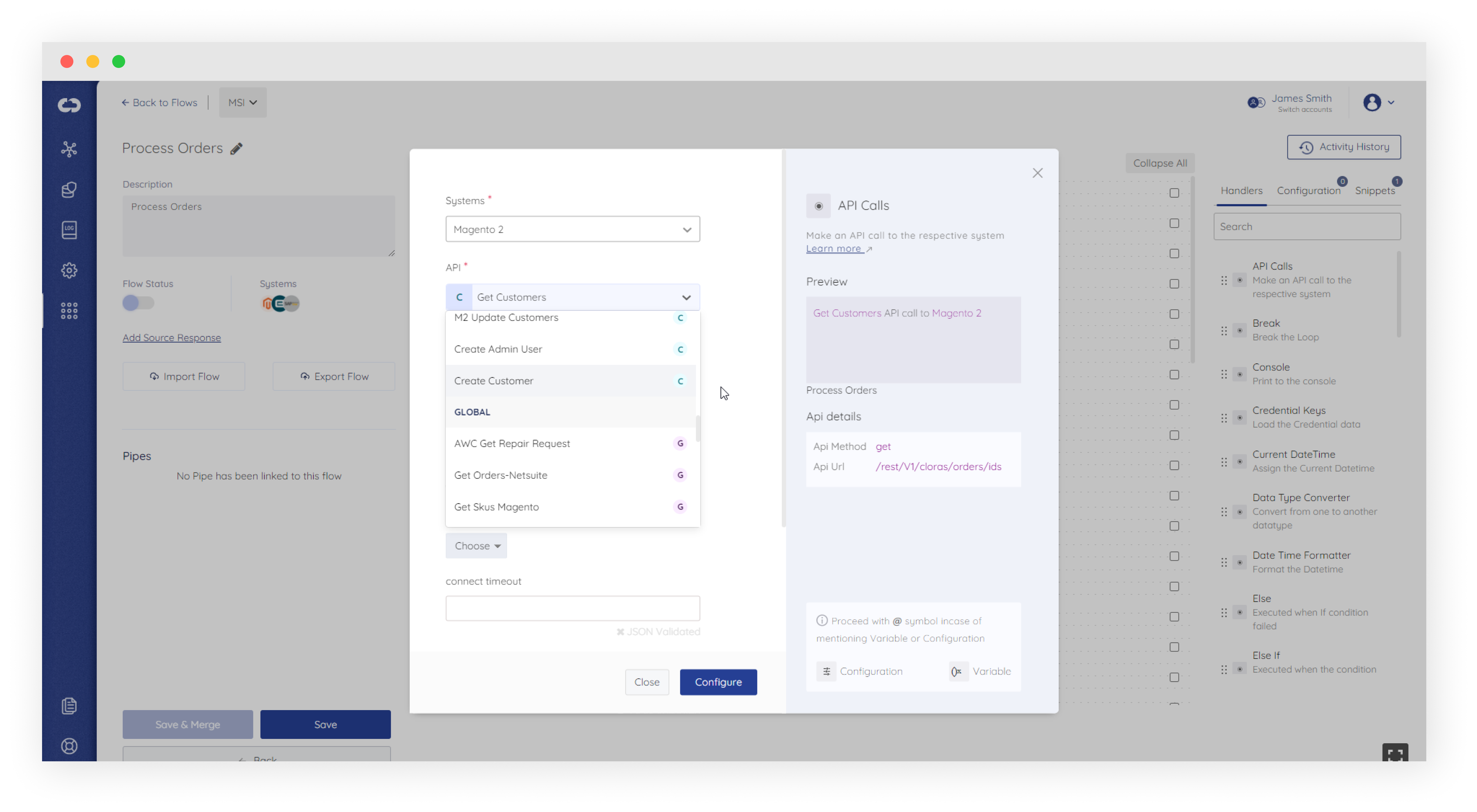
While clicking on the API dropdown list, a differentiator to identify public and private APIs will be seen. See image below:
| Parameters | Definition | Type |
|---|---|---|
| Parameters | Definition | Type |
| Systems | Platform to send and receive responses | DropDown |
| API | API endpoints of the selected system. Depending on the Platform chosen, the list of API’s in the dropdown changes. | DropDown |
| Response Variable |
Stores API response Example: |
Variable |
| Payload | Request Body. Information sent along with the API call | Variable (defined), JSON, Array |
| Files |
Upload one or many files contents. Example:
|
Variable (defined), JSON, Array |
| Headers |
Request Headers Example:
|
Variable (defined), JSON |
| URL Arguments |
Arguments used in a dynamic URL. API URL: URL Argument: Formatted URL: In this case, |
Variable (defined), JSON |
| Parameters |
Request parameters API URL: Query Params: Formatted URL: Here, |
Variable (defined), JSON |
| Override time | To override the timeout at Flow level. Read more below. |
For XML Payload (Examples)
Plain request
{'plain_request': {'key1':'value1','key2':'value2'}}
Not a plain request
{'body':{'key1':'value1','key2':'value2'}}
- DCKAP Integrator accepts API responses in JSON, CSV and Text formats.
- API Call Handler also has the facility to add headers from Flows.
To add additional envelope namespace
Along with the above request, add another key “envelope_namespace” to add additional namespace with default namespace
XML Request Body
<soapenv:Envelope xmlns:soapenv="http://schemas.xmlsoap.org/soap/envelope/" xmlns:urn="urn:enterprise.soap.sforce.com">
   <soapenv:Header>
   </soapenv:Header>
   <soapenv:Body>
      <urn:login>
         <urn:username>user1@ddckap.com</urn:username>
         <urn:password>user1@123</urn:password>
      </urn:login>
   </soapenv:Body>
</soapenv:Envelope>
Converted JSON request Body
{
    "envelope_namespace": "xmlns:urn='urn:enterprise.soap.sforce.com'",
    "body": {
        "urn:login": {
            "urn:username": "user1@ddckap.com",
            "urn:password": "user1@123"
        }
    }
}
MySQL
Connects to the SQL database and allows users to configure data in the SQL database.
| Parameters | Definition | Type |
|---|---|---|
| Variable | Stores the response data (SQL response) | Variable |
| Systems | System to connect to | DropDown |
| Database Name | Database name to connect to | |
| Action | Operation to be performed on the data. See below for examples. | DropDown |
| Data | Data to be configured in the database | String/Non-string |
| Table Name | Table name in the database | String/Non-string |
| Condition | Condition to validate to configure the data | String/Non-string |
| Limit | Number of records needed | String/Non-string |
Different Action Types with examples:
Action: Insert
Description: Used to insert a record into a table
Example:
INSERT into table_name (name, email, contact_no) values ('John Smith', 'johnsmith@gmail.com', '+17427772299');
Action: Insert Many
Description: Used to insert multiple records into a table
Example:
INSERT into table_name (name, email, contact_no) values ('John Smith', 'johnsmith@gmail.com', '+17427772299'), ('Max Roger', 'roger@gmail.com', '+17217772299'), ('Mike Hussey', 'hussey@gmail.com', '+17347772299');
Action: Replace
Description: Used to insert records into a table if there is no record found already, otherwise records will get updated
Example:
INSERT into table_name (name, email, contact_no) values ('John Smith', 'johnsmith@gmail.com', '+17427772299'), ('Mike Hussey', 'hussey@gmail.com', '+17347772299') ON DUPLICATE KEY UPDATE name=VALUES(name), email=VALUES(email), contact_no=VALUES(contact_no);
Action: Update
Description: Used to update a record from the table
Example: UPDATE table_name SET name='Steve Smith', contact_no='+17433773377' WHERE email='steve@gmail.com';
Action: Delete
Description: Used to delete a record from the table
Example:
DELETE from table_name WHERE email='hussey@gmail.com';
Action: Select
Description: Used to retrieve a record from the table
Example: SELECT * FROM table_name WHERE email='johnsmith@gmail.com' limit 10;

To retrieve column names from the table below example query should be executed,
Query: SELECT * FROM table_name WHERE 1=0;
Incrementer
Increments the value of a specified variable by a given step.
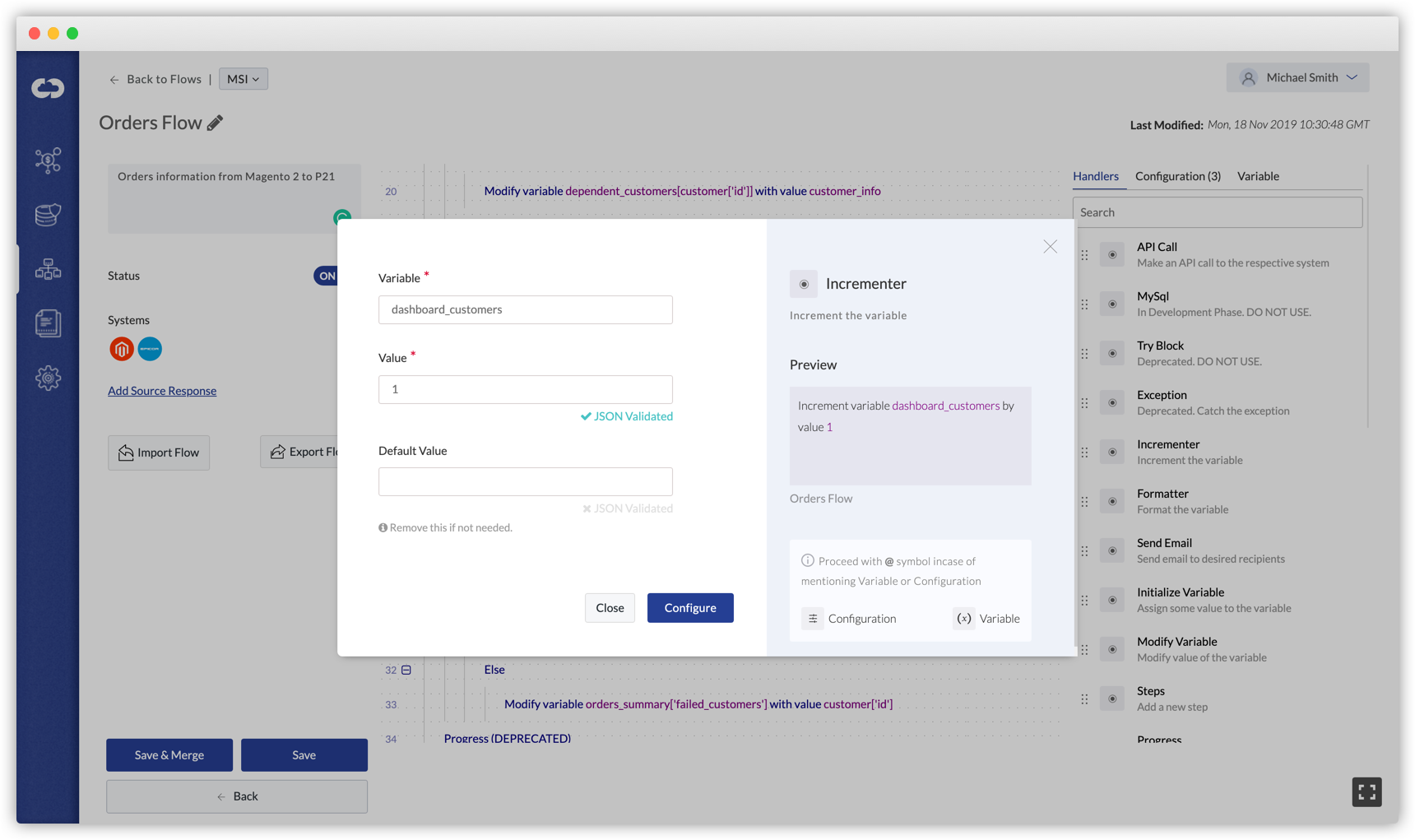
| Parameters | Definition | Type |
|---|---|---|
| Variable |
Variable to be incremented. Example: |
Variable (defined) |
| Value | Value by which the respective variable is increased | Numeric, Variable (defined) |
Example
Increment variable line_number by 1
Here, the variable line_number will be incremented by value 1
Formatter
The formatter is used to stringify/dump the JSON.
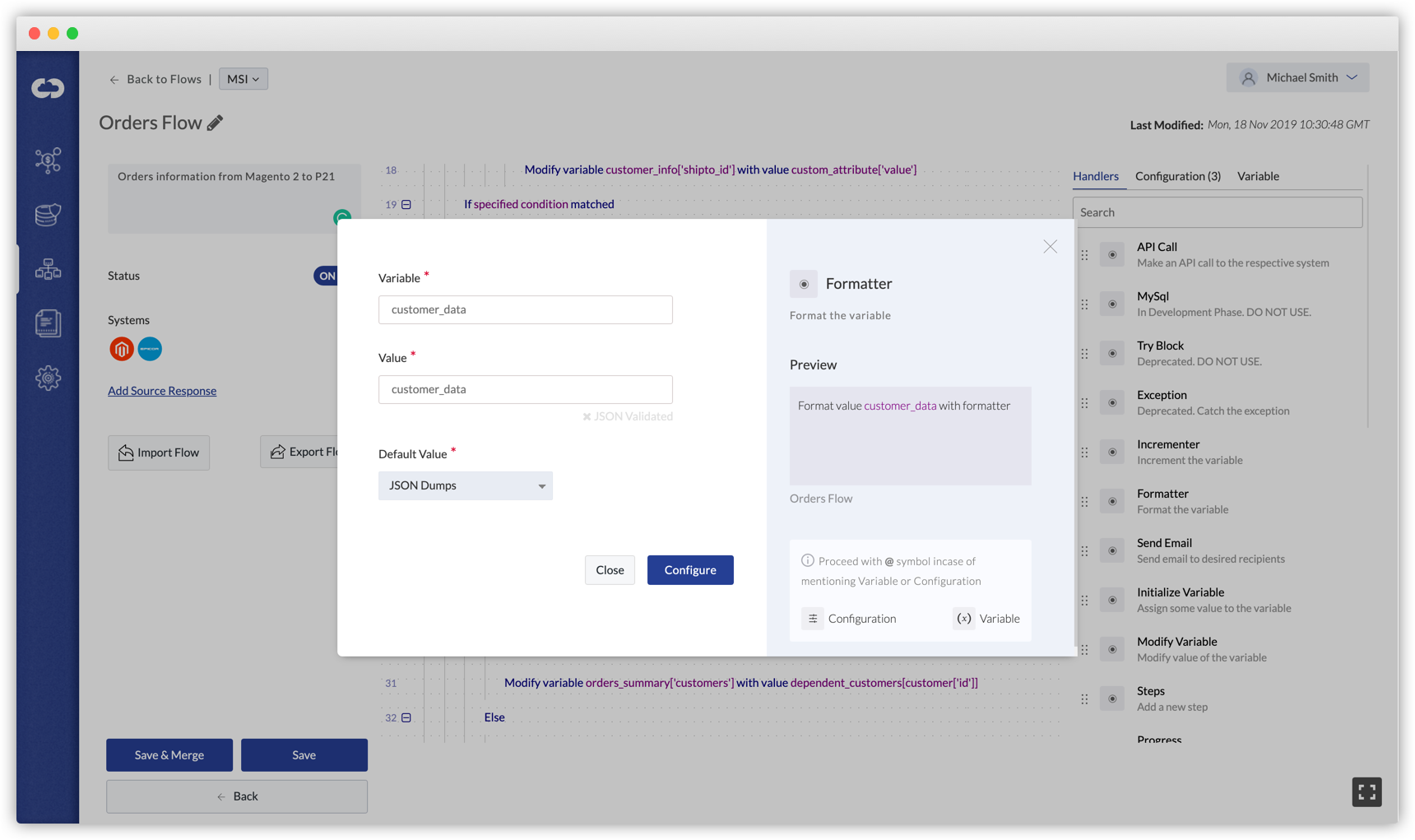
| Parameters | Definition | Type |
|---|---|---|
| Value |
Data to be formatted. Example: |
Variable (Defined), Array, Dictionary |
| Variable | Stores formatted value | Variable |
| Delimiter | One or more characters for specifying boundary between separate entities | |
| Line ending | ||
| Default Value |
Available Options
|
Try Block
The Try Block is used to catch an error.
Exception Block
The Exception block handles the exceptions caught by the Try Block
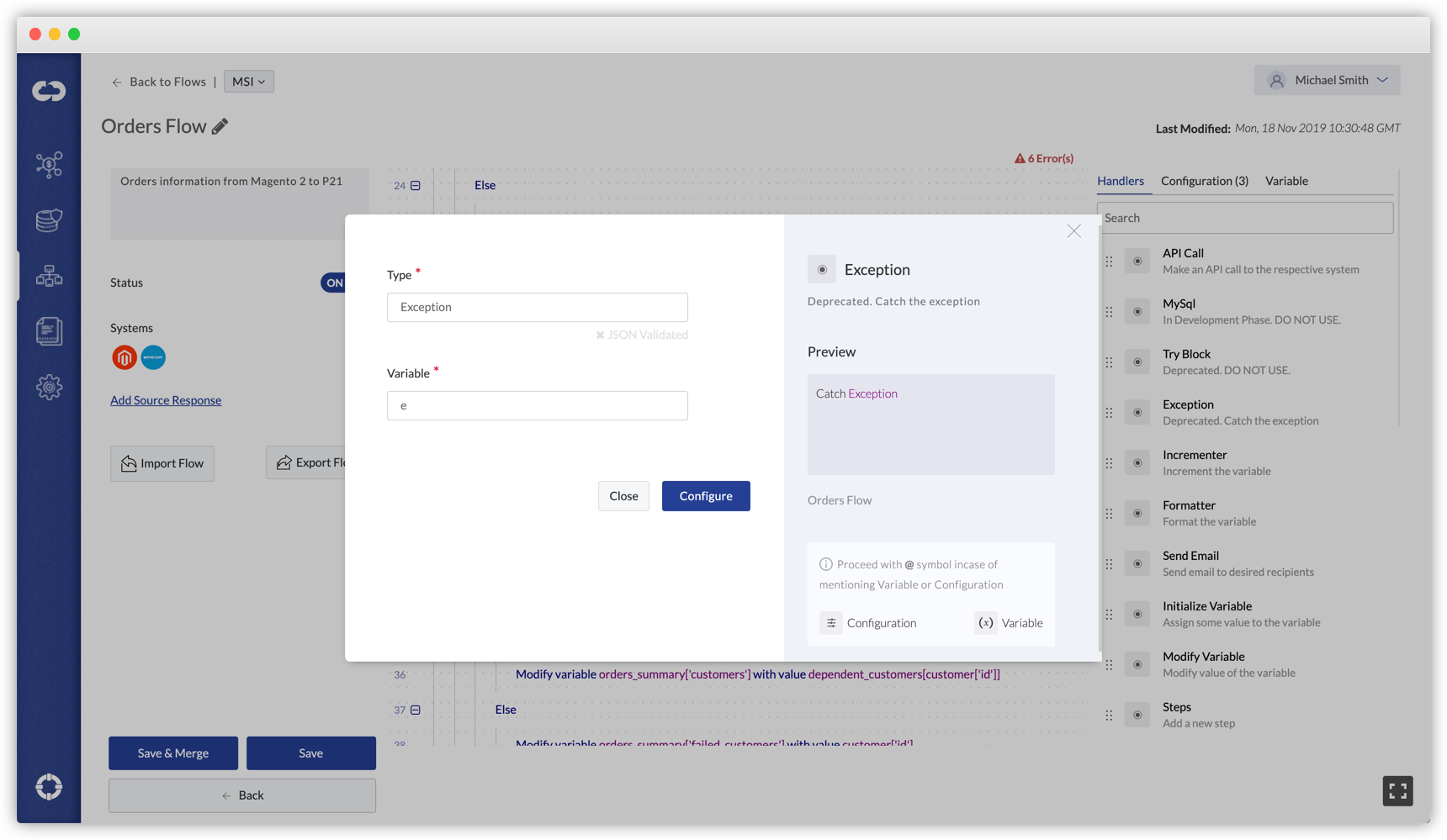
| Parameters | Definition | Type |
|---|---|---|
| Catch |
Types of Exception Example: |
String |
| Variable | Stores exception data | Variable |
Email Sender
Sends an email from the Flow to the assigned recipient list.
| Parameters | Definition | Type |
|---|---|---|
| Send To | Recipient emails in comma-separated values | String |
| Subject | Subject Line of the email | String |
| Character Set | Choose one option from the drop-down for the character set type to be interpreted in the emails |
Choose from drop-down:
|
| Content Transfer Encoding | Mail encoding method |
Choose from drop-down:
|
| Message Type |
|
Choose from drop-down:
|
| Dynamic Data |
a) if there is dynamic data, pass it as a dictionary here b) else leave it blank |
Dictionary |
| Message |
|
String/ Non-string |
Example 1

Message Type: Plain Text
Dynamic Data: Leave it blank
Message: String
Dear Sir,
This is to inform you that we received your ticket.
Example 2

Message Type: HTML
Dynamic Data: Leave it blank
Message: Non-String
<html>
   <head>
      <h1> Line1 </h1>
   </head>
   <body>
      <i>This is a mail to communicate that we are working on your ticket </i>
   </body>
</html>
Example 3

Message Type: HTML
Dynamic Data:
{"keys": ["Name","Age","Company"],
"records":
[
{"name": "Alex", "age": 25, "company": "DCKAP"},
{"name": "David", "age": 28, "company": "DCKAP"}
]
}
Message: Non-String
<!DOCTYPE html>
<html>
   <head>
      <style>
         table, th, td { border: 1px solid black; }
      </style>
   </head>
   <body>
      <table>
         <tr>


            <td>{{key}}</td>


         </tr>
         <tr>


                              <td>{{value}}</td>


                      <tr></tr>


         </tr>
      </table>
   </body>
</html>
Initialize Variable
Assigns and stores data in the specified variable which can be used in the Flow, after the variable declaration.
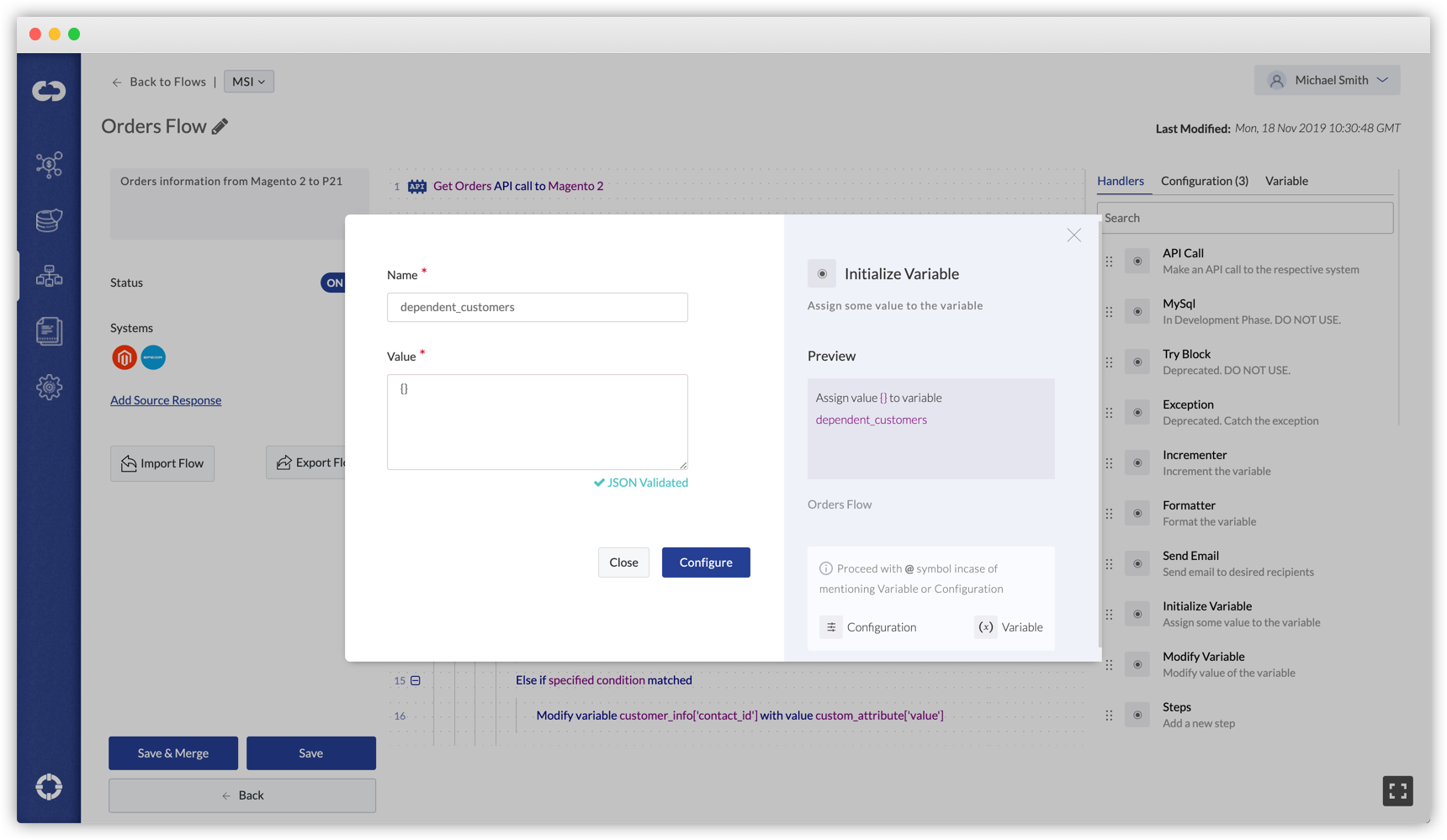
Available Options
| Parameters | Definition | Type |
|---|---|---|
| Value | String/Non-String | DropDown |
|
Value or data assigned to a variable Examples:
|
Mixed | |
| Name | Variable that stores the assigned value. | Variable |
Example 1
Assign value 0 to variable Area_Code
Here, 0 is assigned to the variable: Area_Code
Example 2
Assign value orders_info[‘data’][‘customers’] to variable customers
Here, the value in the dictionary: orders_info[‘data’][‘customers’] is assigned to a variable: customers
Example 3
Assign value {"entity_id": customer['id'], "shipto_id": ""} to variable customer_info
Here, the dictionary {"entity_id": customer['id'], "shipto_id": ""} is assigned to variable customer_info
Example 4
Assign value dependent_customers]['customer_id'] to
variable mapped_orders['hdr']['customerId']
Here, the value in dictionary dependant_customers is assigned to variable mapped_orders['hdr']['customerId']
Modify Variable
The handler is used to change or modify the contents of a variable (mainly array and dictionary), that has already been used in the flow.
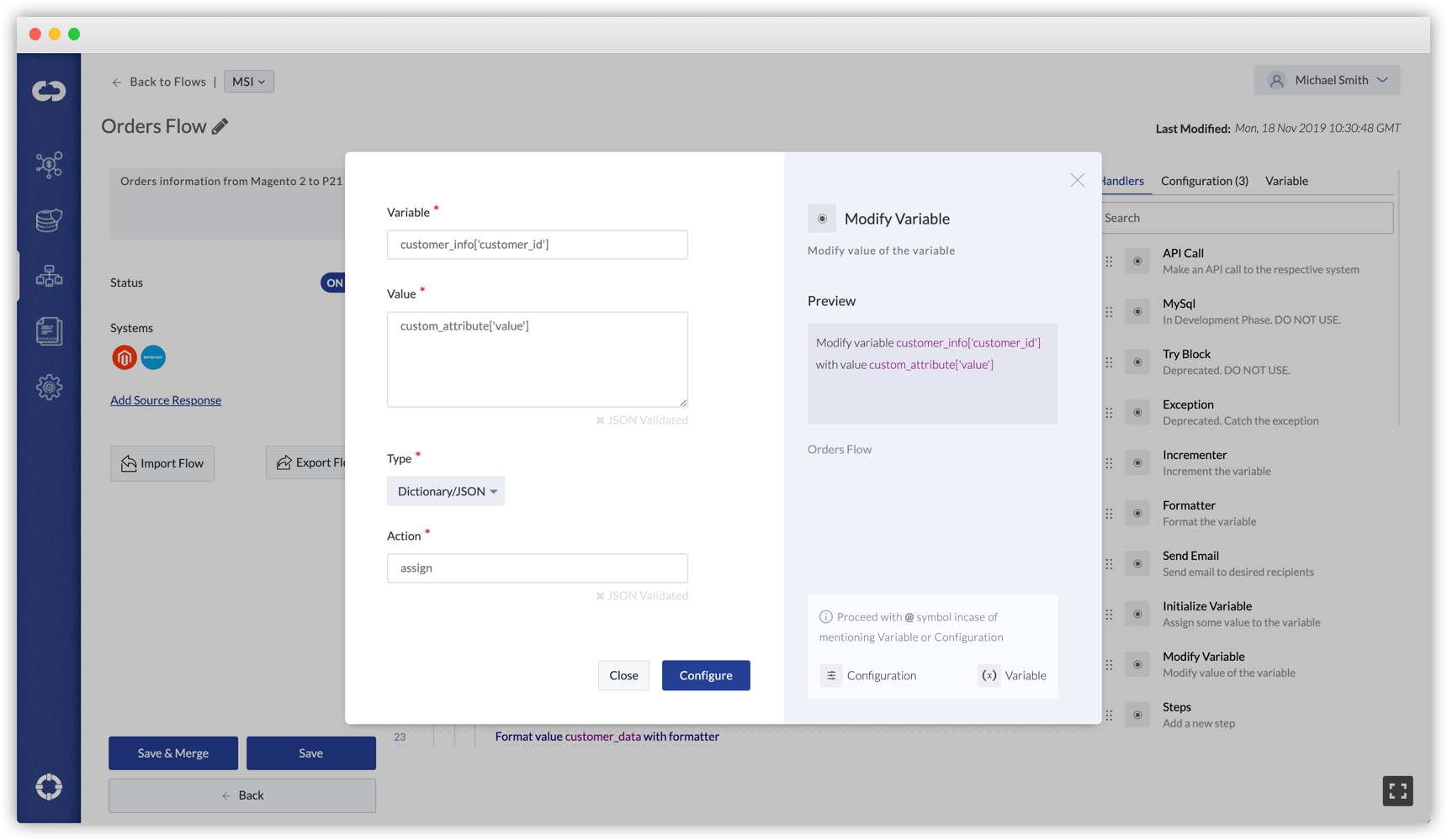
Available Options
| Parameters | Definition | Type |
|---|---|---|
| Variable | Variable to be changed or updated. This variable should be already used in the flow and is to be modified | Variable (defined) |
| Value | String/Non-String | DropDown |
| The data to replace or change in the variable | JSON, Array | |
| Type |
Type of data to be modified
|
DropDown |
| Action |
Action to modify existing data
To learn more, find the use cases below |
String |
Use Case 1 – Dictionary(Action: Assign)
Modify variable customer_info['customer_id'] with value custom_attribute['value']
- Assume the variable customer_info is a dictionary/JSON and contains the value
{“entity_id”:12, “name”: “Alice Blue”} - To add more keys with values to the dictionary, the modifier handler is used
- The below step adds
customer_idto the dictionary - After processing, the
customer_infovariable contains the value{“entity_id”:12, “name”: “Alice Blue”, “customer_id”: custom_attribute[‘value’]}
Use Case 2 – Array(Action: Append)
Modify variable customer_info['customer_id'] with value custom_attribute['value']
- Assume the variable customer_info is an array/list and contains the value
[{“entity_id: 1}, {“entity_id: 2}, {“entity_id: 3}] - To add an item to the array, the Modify Variable handler is used
- The below step adds
customer_idto the Array - After processing, the
customer_infovariable contains the value[{“entity_id: 1}, {“entity_id: 2}, {“entity_id: 3}, {"custom_attribute['value']}]
Mapping
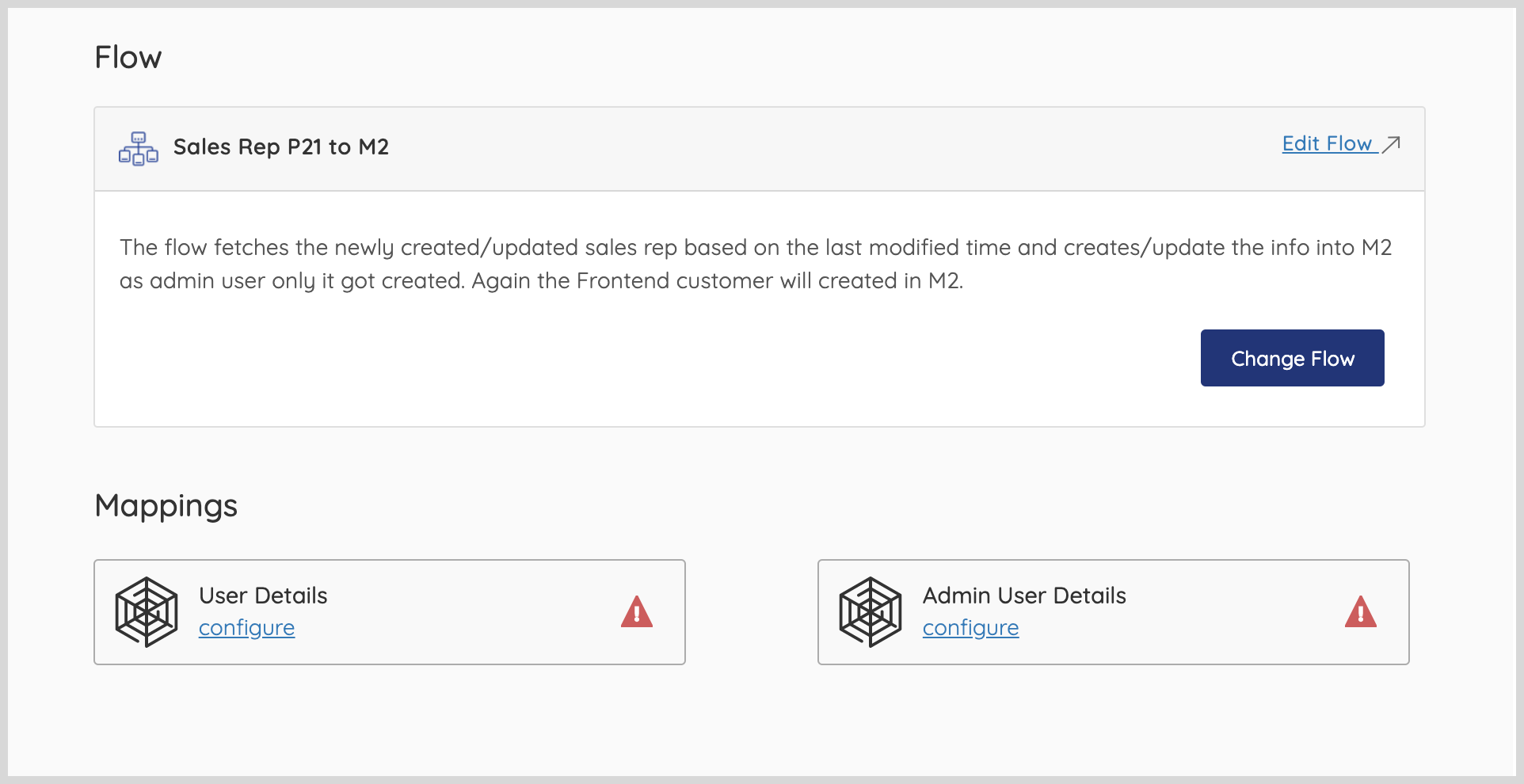
Provides the ability to get mappings from the user and format data between two different system APIs.
Based on the Mapping configuration, the destination payload will be prepared from the source data.
Available Options
| Parameters | Definition | Type |
|---|---|---|
| Display name | Mapping name displayed in the pipe | Alphanumeric |
| Source | API used to request data from the Source system | DropDown |
| Destination | API used to send data to the Destination system | DropDown |
| Variable | Stores mapped data | Variable |
| Source Data | Source data that will be formatted and sent to destination API as per the mapping configuration | JSON, Array |
| Ignore Keys | Keys that should be ignored by the system, while processing data in the mapping structure defined by the user. | Alphanumeric |
Example
Prepare mapping with name Customers Information from source Get Customers- Magento 2
to destination Create Customers - Epicor P21 Custom Server
Creates a mapping node in the pipe to provide the mapping of data between the specified source and destination APIs.
Use Case – Ignore Keys
{
  "customer": [
    {
      "name":"alice",
      "address": {
        "street": "Jarvis St.",
        "door_number": "5A"
      }
    },
    {
      "name":"bob",
      "address": {
        "street": "Marvel St.",
        "door_number": "7D"
      }
    }
  ]
}
Assume the field street is mapped from source to destination system and the path generated for this field will be customer/address/street.
During Mapping, when the user sends this customer data(Parameter: Data) inside a loop, one entry at a time, to get the street address, the resulting path generated will be address/street.
In this case, the user should mention the parent keys to be ignored. In this case customer. If multiple keys need to be ignored, then the user should mention them as comma-separated values.
If, Else If & Else
To define and check for decision-making conditions inside the Flow.
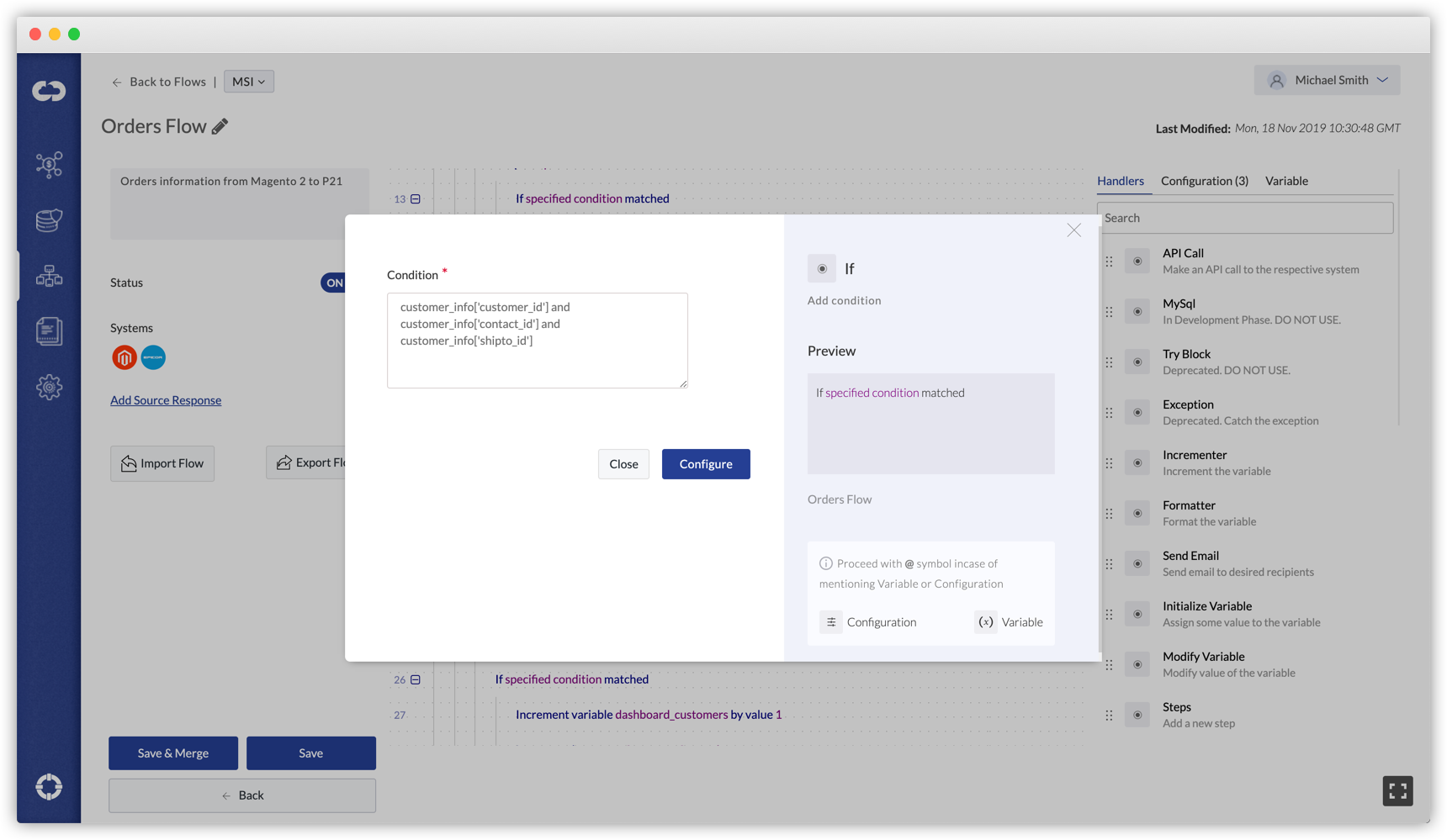
Condition parameters are defined for the If and Else If handlers. If this condition is satisfied, the children of If will be executed. Otherwise, the children of Else will be executed.
Available Options
| Parameters | Definition | Type |
|---|---|---|
| Condition |
Condition that needs to be satisfied for the children-statements to be executed Example: If the value is |
Mixed |
Examples
If specified condition matched
Some example conditions that can be used with the If statement, which need to be true for the proceeding children-statements to be executed
customers['status'] |
If the condition returns true |
customers["status"] == 200 |
If the condition is satisfied |
orders and customers |
If both order and customers variables contain values |
orders or customers |
If either one variable has value |
'customer_id' in item |
If the dictionary item has key customer_id |
Loop (Works like a For Loop)
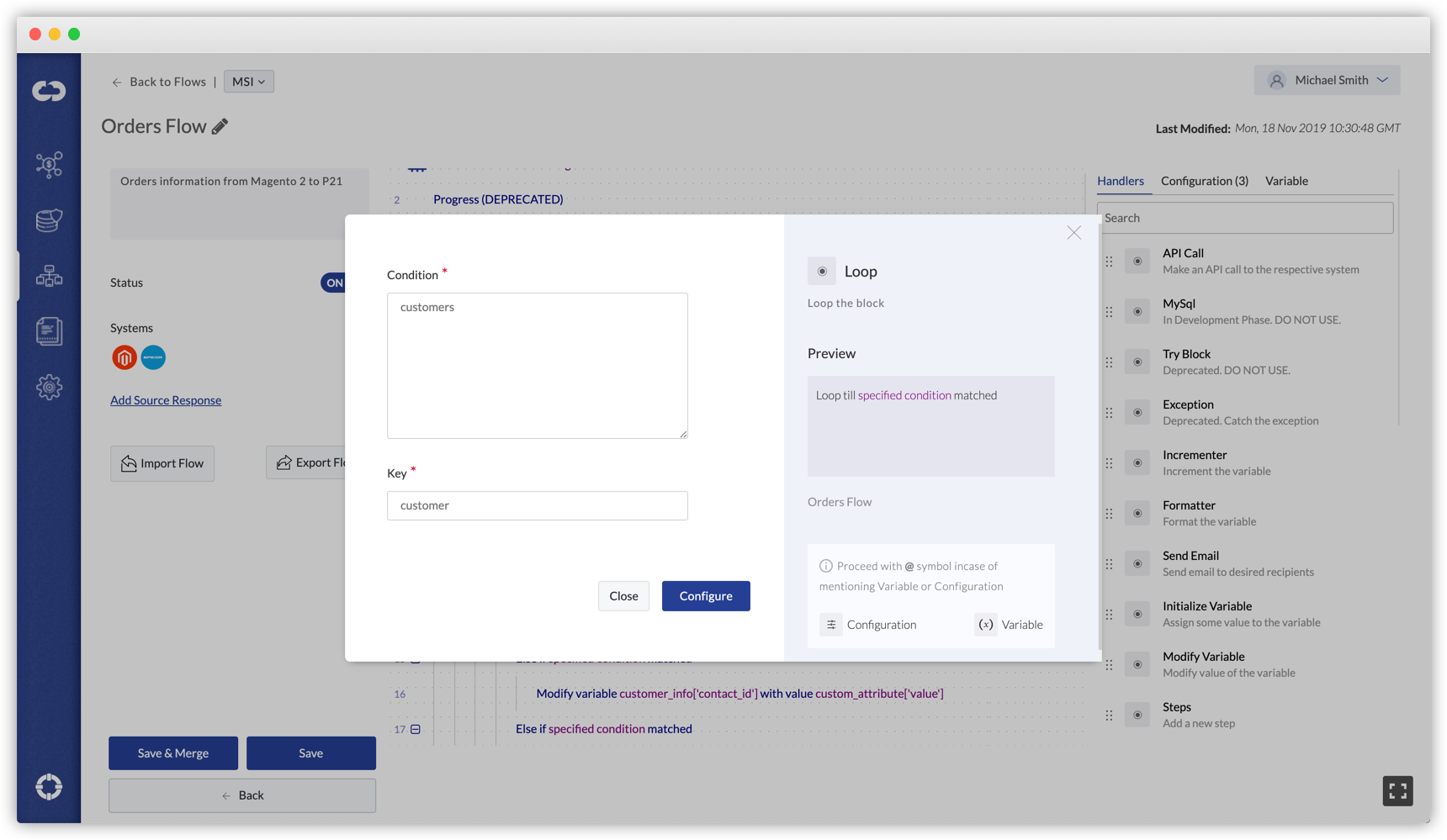
Executes a block of code repeatedly in a cyclic fashion, each time with a different value.
Available Options
| Parameters | Definition | Type |
|---|---|---|
| Iterable |
Data to be iterated/looped Example: The loop will keep running until there is an item in the data |
Array |
| Key |
Variable assigned to the loop counter Example: |
Variable |
Examples
Loop till specified condition matched
ordersmapped_orders["lines"]
MSSQL
Connects to the Microsoft SQL database and allows users to configure data in the SQL databases.
| Parameters | Definition | Type |
|---|---|---|
| Variable | Stores the response data (SQL response) | Variable |
| Systems | MSSQL System to connect to | DropDown |
| Database Name | Database name to connect to | |
| Action | Operation to be performed on the data. See below for examples. | DropDown |
| Data | Data to be configured in the database | String/Non-string |
| Table Name | Table name in the database | String/Non-string |
| Condition | Condition to validate to configure the data | String/Non-string |
| Limit | Number of records needed | String/Non-string |
Step Progress
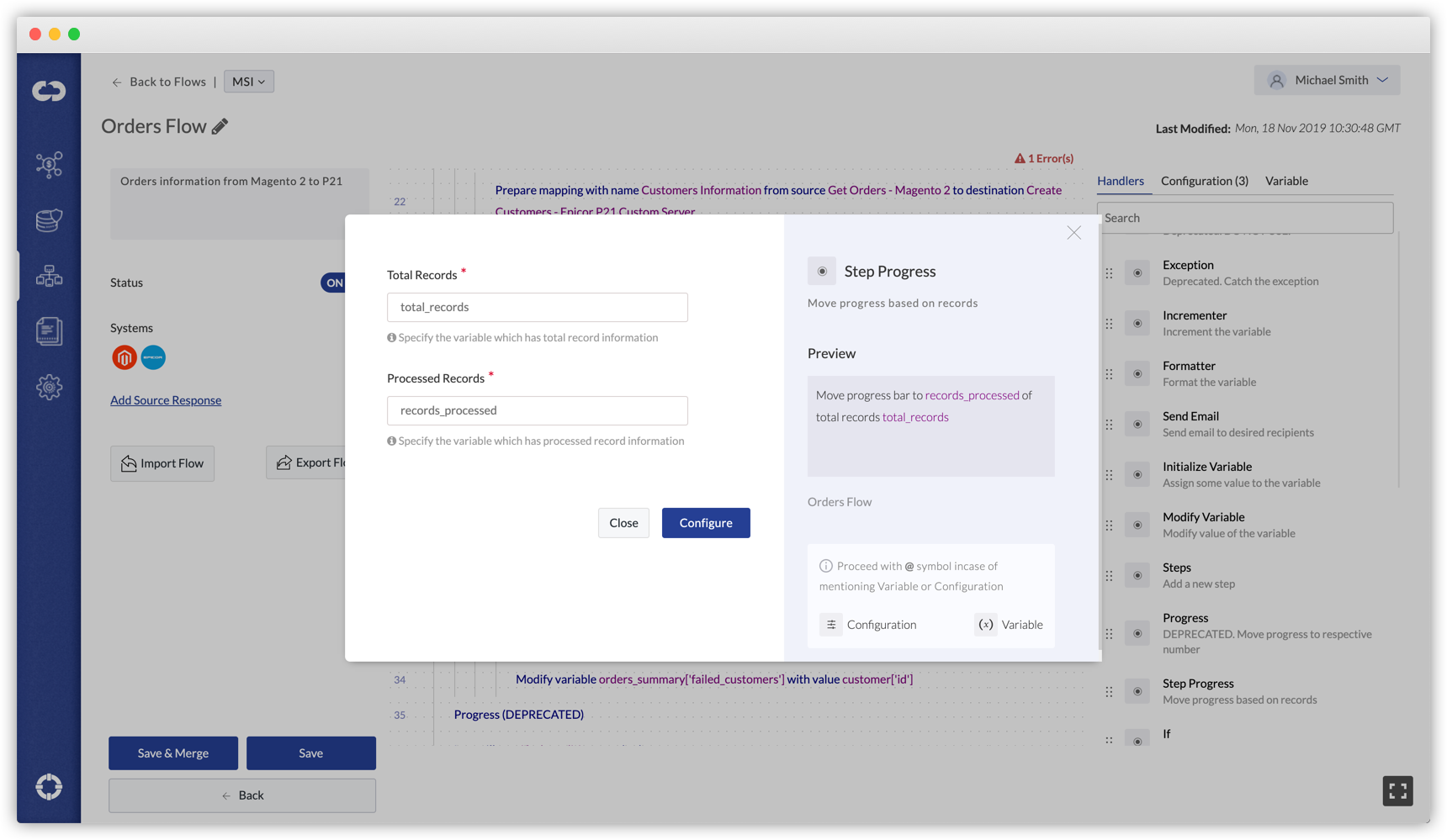
Denotes the progress of data processed inside a loop. The outcome of this handler is visually seen in the progress bar in the Integrations page. This helps in understanding how much data synchronization has been processed.
Available Options
| Parameters | Definition | Type |
|---|---|---|
| Processed Records | Number of records that are processed | Variable |
| Total Records | Total number of records which is to be processed | Variable |
Steps
This handler is placed one level above the previous handler Step Progress. It is used to visually split the business logic of the flow, for better understanding while synchronizing the data.
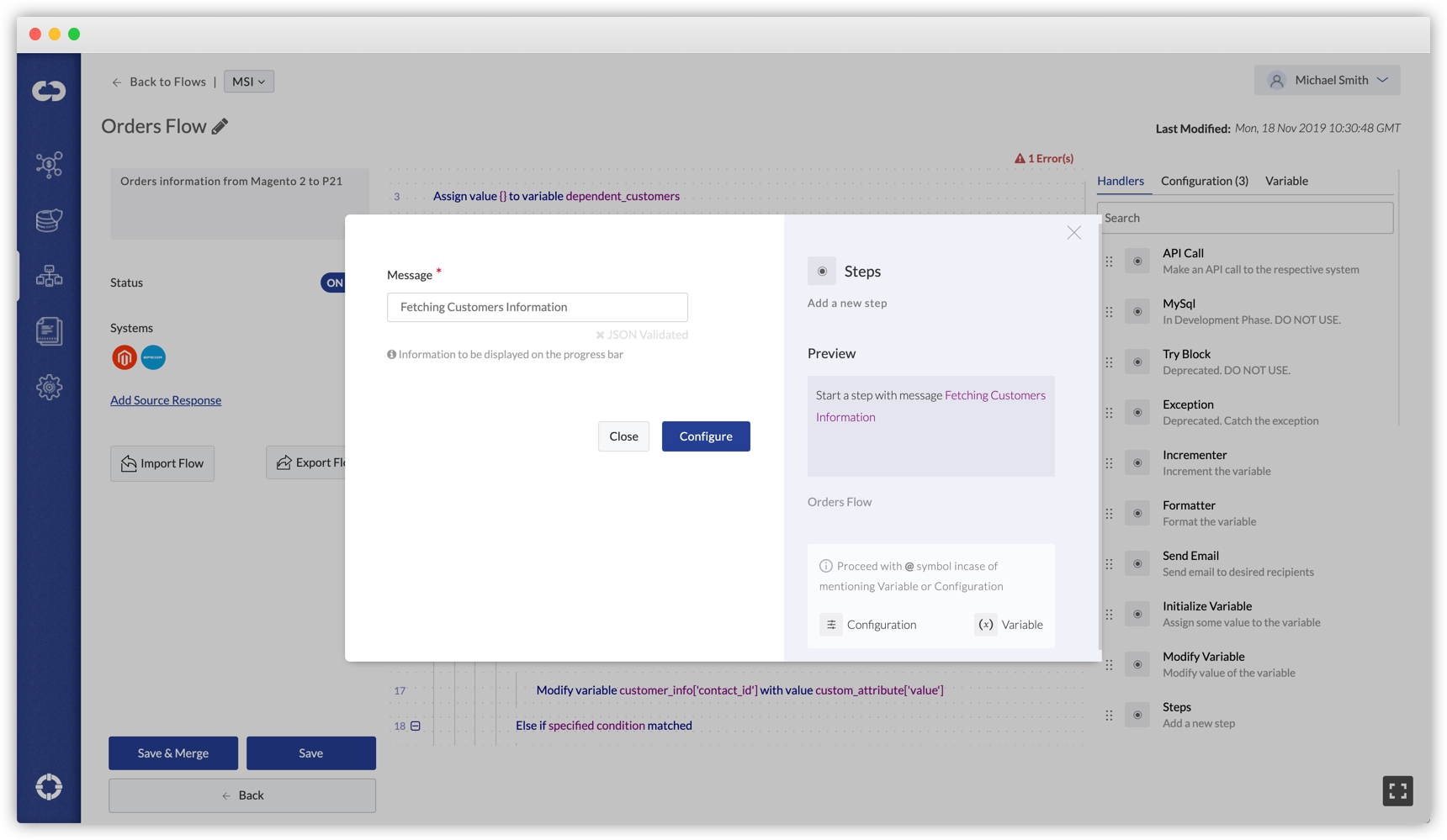
Available Options
| Parameters | Definition | Type |
|---|---|---|
| Message |
Displayed in the progress bar of pipes Examples:
|
Alphanumeric |
Logger
The Logger handler is used to log any errors or warnings in the flow. The Logs menu in the project area displays all the logs from the synchronization.
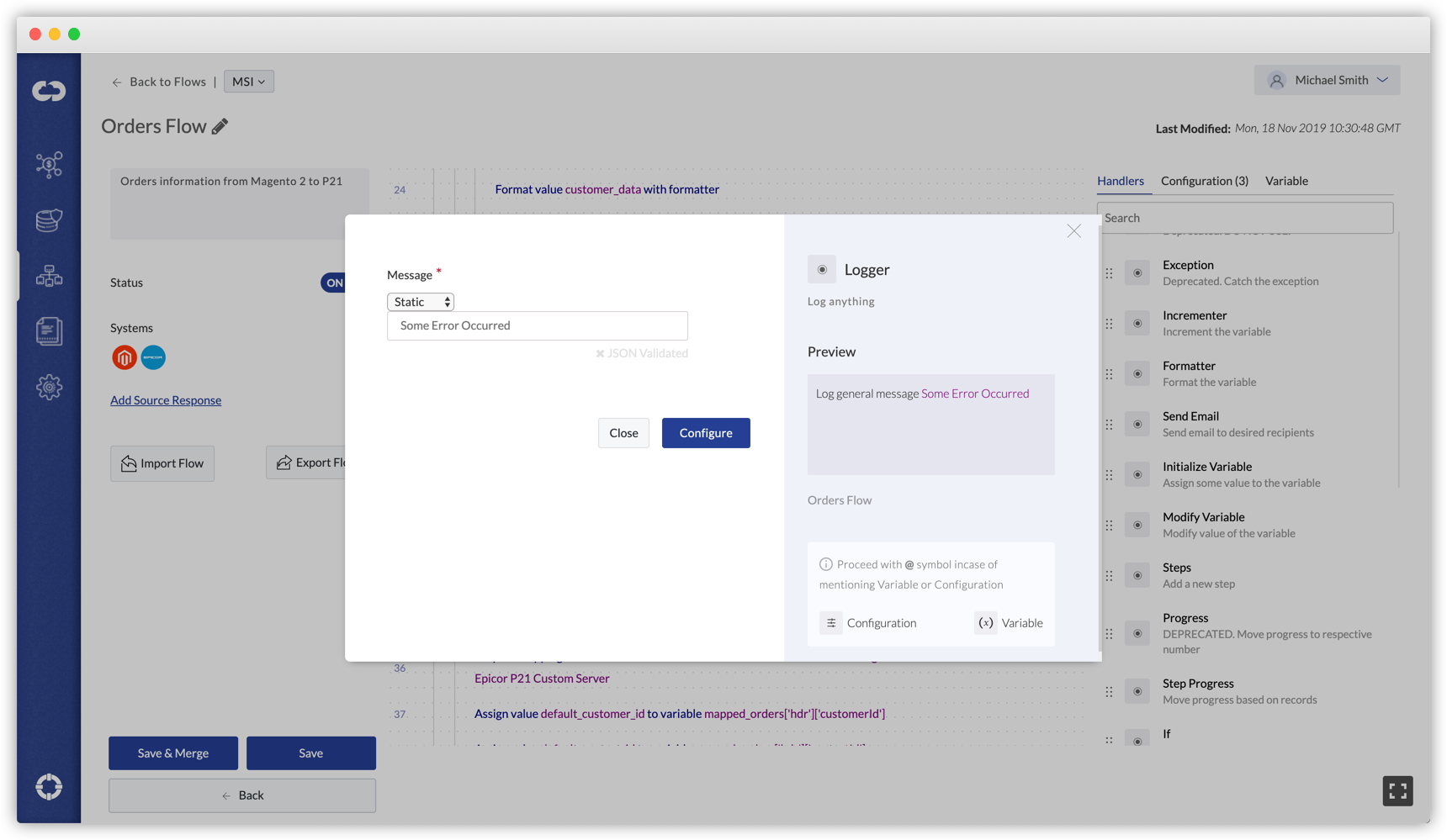
This is a general level log and to log at the entity level, click here.
Available Options
| Parameters | Definition | Type |
|---|---|---|
| General Message | Content that needs to be logged | Mixed |
Step Logger
The Step Logger handler is similar to the Logger handler but used to provide logs at the item level. The Step Logger marks every single entity inside the loop as Success or Failure.
This can be viewed by clicking the “View” button in the Logs section.
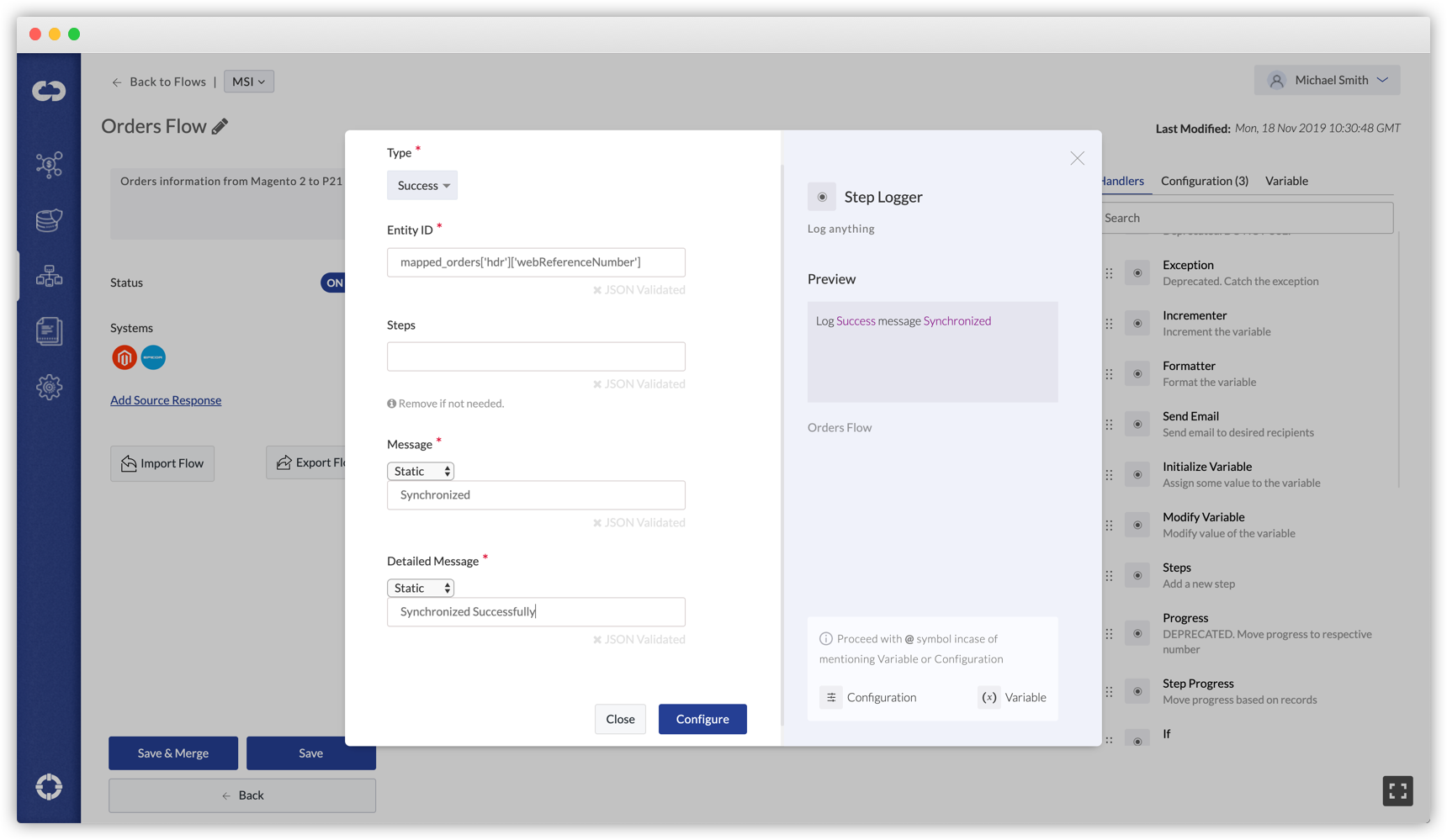
For more general level logging, click here.
Available Options
| Parameters | Definition | Type |
|---|---|---|
| Type | Status of the execution. Success or Failure. | DropDown |
| Entity ID |
ID of the entry. Useful in identifying if the entities succeeded or failed. Example: |
Variable, Number |
| Message | Content that needs to be logged | Mixed |
| Detailed Message | Detailed content to be logged. Verbose. | Mixed |
Console
Displays messages in the Logs section console area. This is especially useful in debugging the Flow itself.
The messages can be either static or dynamic.
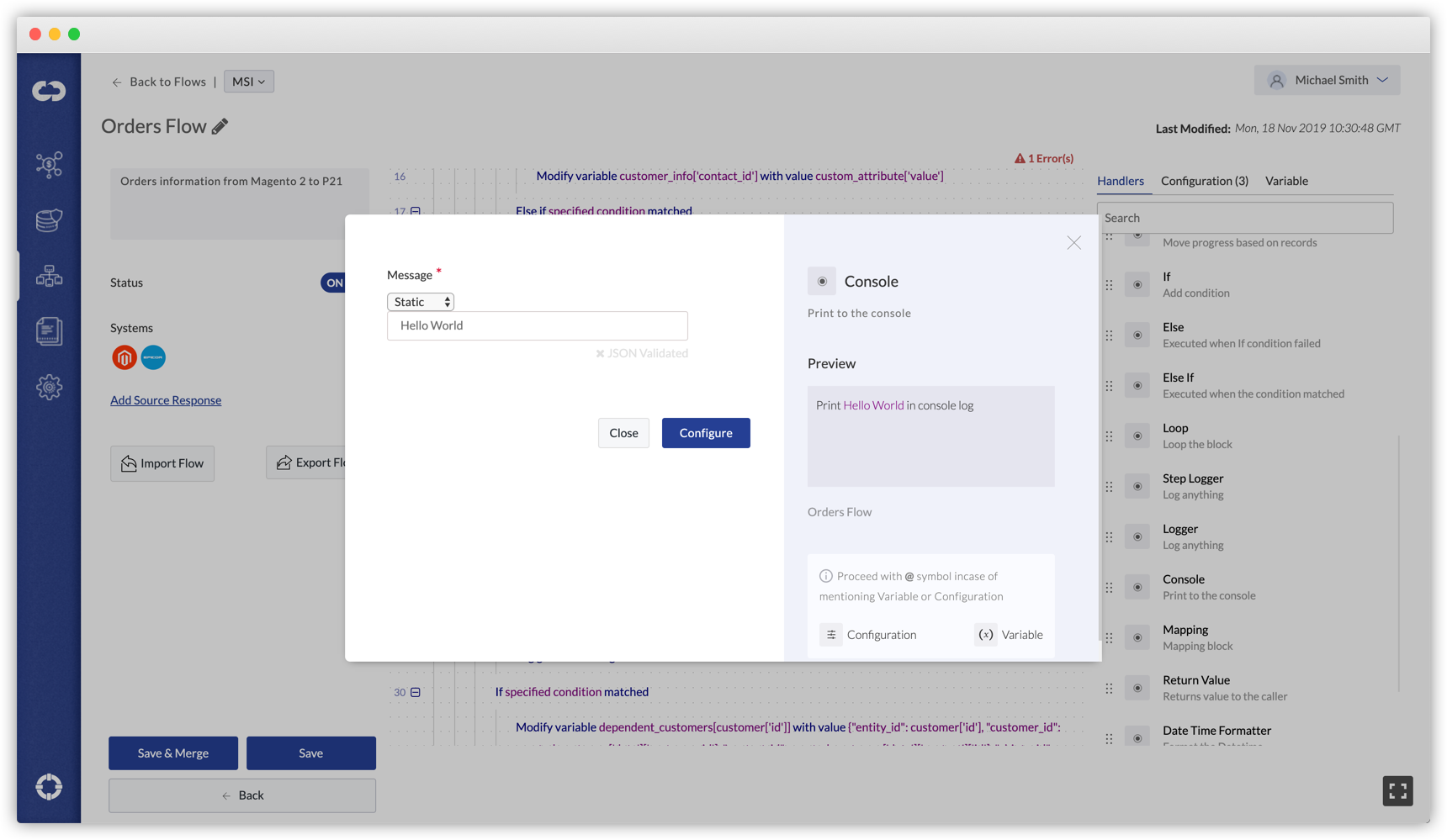
Available Options
| Parameters | Definition | Type |
|---|---|---|
| Message |
Content that needs to be displayed Example: Dynamic ⇒ Variable: Static ⇒ |
Mixed |
Get Last Synchronized Time
Gets the last synchronized time of a system, in the required time zone
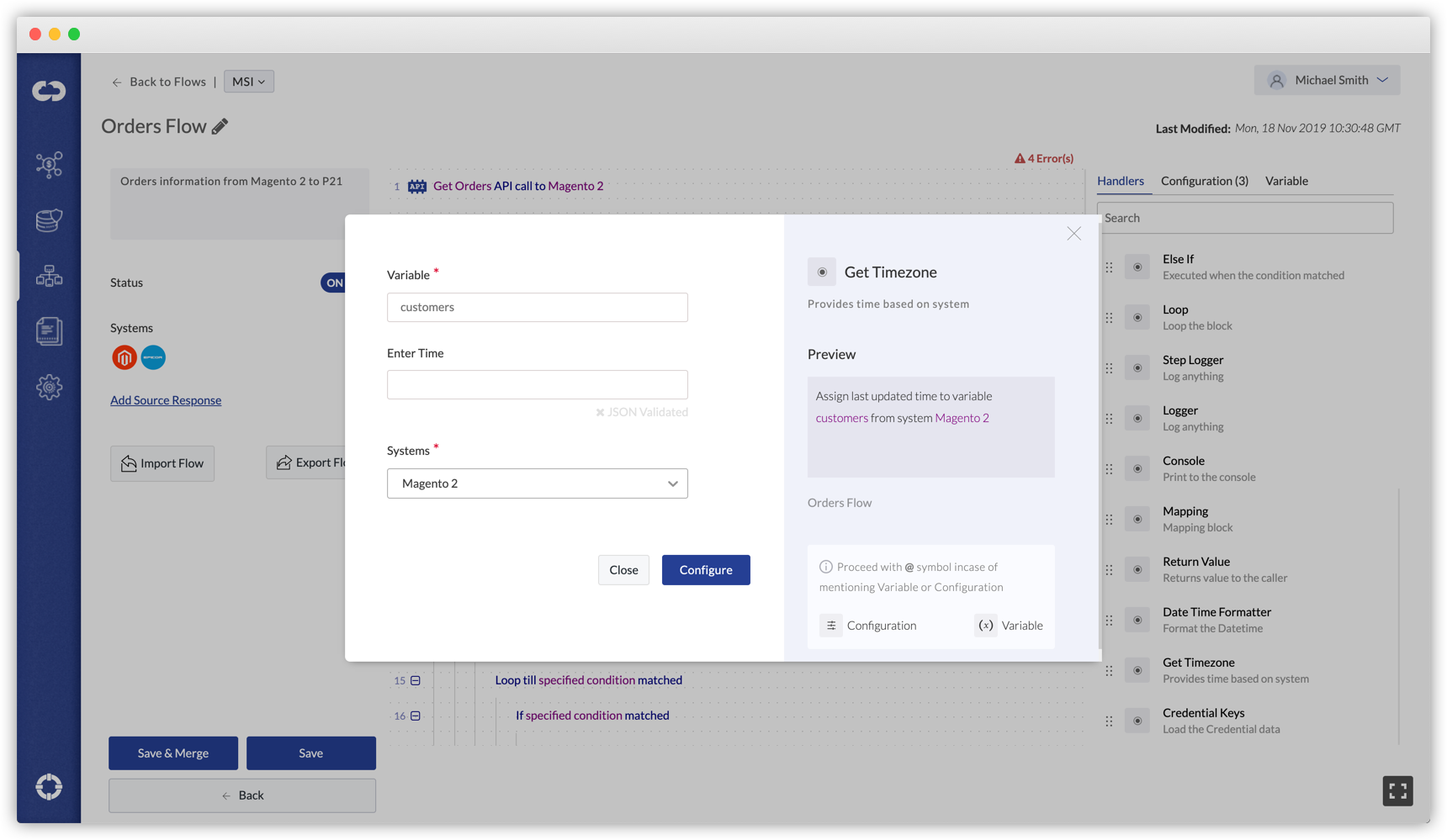
Available Options
| Parameters | Definition | Type |
|---|---|---|
| Variable | Stores the last updated time | Variable |
| Get Last Success Time | If Yes, fetches the last succeeded sync time. If No, fetches the last synced time irrespective of its status. Default is No. | DropDown |
| Systems | The output (Last sync time) is got in this System’s timezone | DropDown |
| Format |
To change the format of the output time Example: Month-Day-Year HH:MM:SS |
DropDown |
Credential Keys
Retrieves any credential details from the respective project. (Example: Name, System, Hostname)
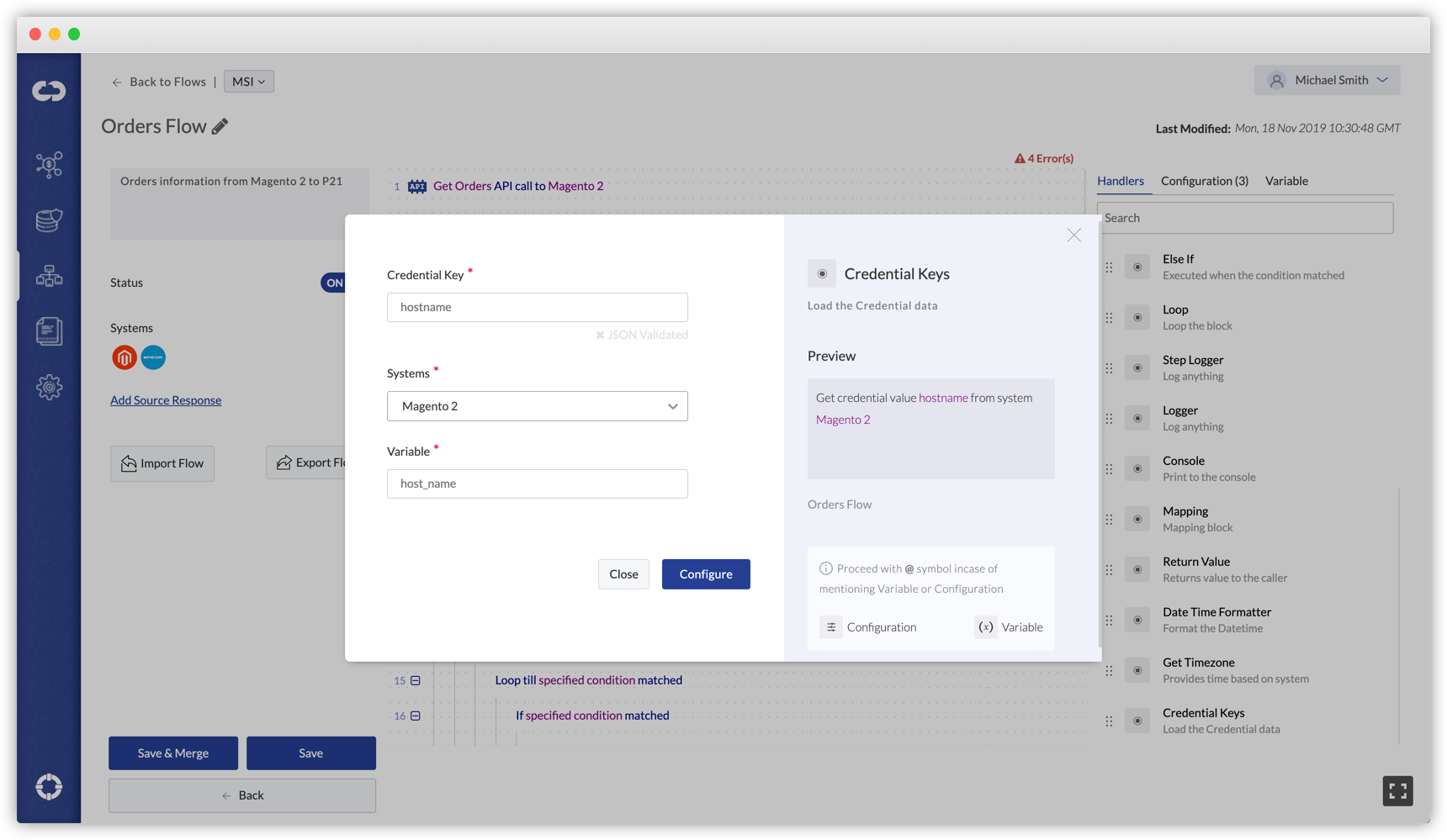
Available Options
| Parameters | Definition | Type |
|---|---|---|
| Value |
Data that were assigned while setting up the credentials of the system Value: |
Alphanumeric |
| System | System from which the credential details are to be obtained | DropDown |
| Variable | Stores the obtained value | Variable |
Return Value
Returns data to the caller, in real-time.
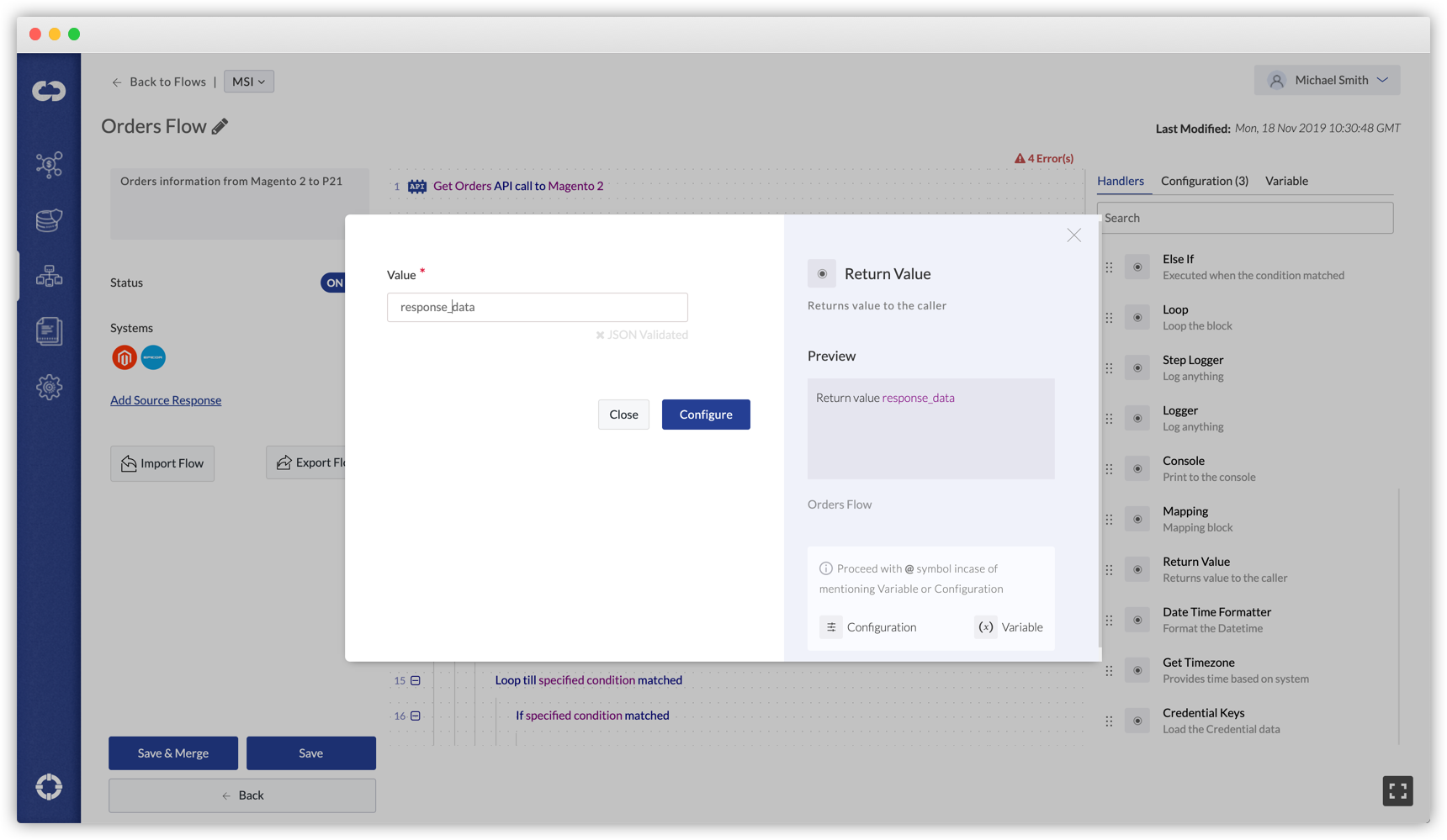
Available Options
| Parameters | Definition | Type |
|---|---|---|
| Return Value | String/Non String | DropDown |
| Payload | Variable, JSON, Array |
Date Time Formatter
Add or subtract minutes or hours from a given time value.
Available options
| Parameters | Definition | Type |
|---|---|---|
| Variable | Stores the output | Alphanumeric |
| Date |
String/Non-string Actual date-time in UTC format or variable name containing the date-time in UTC format |
DropDown |
| Action |
Advance/Recede To add or subtract hours and minutes |
DropDown |
| Hours and Minutes | Value of hours and minutes to be added or subtracted to the given time | Numeric |
Time Converter
Converts Time from one format to the other (12Hr clock to 24Hr clock and vice versa).
| Parameters | Definition | Type |
|---|---|---|
| Convert | The conversion time format | DropDown |
| Variable | Variable to store the output | Alphanumeric |
| Enter Hours | Hours value | Numeric (1-12 or 1-24) |
| Enter Minutes | Minutes value | Numeric (1-60) |
| Enter Seconds | Seconds value | Numeric (1-60) |
| Meridiem | Choose AM or PM | DropDown |
\
Time Zone converter
This handler serves two purposes:
- Converts datetime (object/string) from a time zone to another timezone.
- Generates a timestamp for a given datetime (object/string).
Click here to Learn more about configuring the Timezone Converter and examples.
Data Type converter
Converts data from one data type to another (string to integer or integer to string).
| Parameters | Definition | Type |
|---|---|---|
| Variable | Stores the output | Alphanumeric |
| Value | Value or variable whose data type has to be converted | Alphanumeric |
| Data type |
Data type that the value has to be converted to String/ Integer |
DropDown |
Current DateTime
Converts current time to the timezone of selected system.
Available options
| Parameters | Definition | Type |
|---|---|---|
| Variable | Stores the output | Alphanumeric |
| System | Current time is converted to this timezone | Alphanumeric |
Pagination
To send required paginated data for API calls.
Available options
| Parameters | Definition | Type |
|---|---|---|
| Variable |
Output from the handler (Part of the data (from input data) as per the number of records mentioned)b |
Alphanumeric |
| Response Data |
The input to the handler i.e., the data which needs to divided into smaller arrays. Example: response data will be the output from an API call |
Alphanumeric |
| Number of records | Number of records the user needs in the output every time | Numeric |
While Loop
Loop till specified condition is true.
Available options
| Parameters | Definition | Type |
|---|---|---|
| Condition | Loop till specified condition is true | JSON |
Break
To break a loop.
SFTP Writer
To create files in a remote location using SFTP connection.
Prerequisite: Add SFTP Credentials
| Parameters | Definition | Type |
|---|---|---|
| File | Existing remote folder location followed by file name Example: /tmp/test/file1.csv | String |
| Data | Name of variable containing the data to be written | Alphanumeric |
| Character Set | Encoding character set for the file content | Drop Down |
To write CSV files, it should be in one of the below formats:

String:
Name,Branch,Year\nSanchit,COE,2\nHello,IT,1\nThere,CS,5

Array/List:
[['Name', 'Branch', 'Year', 'CGPA'],['Nikhil', 'COE', '2', '9.0'],
        ['Sanchit', 'COE', '2', '9.1'],
        ['Aditya', 'IT', '2', '9.3'],
        ['Sagar', 'SE', '1', '9.5'],
        ['Prateek', 'MCE', '3', '7.8'],
        ['Sahil', 'EP', '2', '9.1']]
SFTP Reader
To read files from a remote location using SFTP connection.
Prerequisite: Add SFTP Credentials
| Parameters | Definition | Type |
|---|---|---|
| File | Existing remote folder location followed by file name Example: /tmp/test/file1.csv | String |
| Variable | Name of variable to store the data read from the remote location | Alphanumeric |
| Handle CSV Data | If yes, provides a list for easy looping and if no, provides raw bytes. | DropDown |
| Character Set | Decoding character set for the file content | Drop Down |
FTP Reader
To read files from a remote location using FTP connection.
Prerequisite: Add FTP Credentials
| Parameters | Definition | Type |
|---|---|---|
| File Path | File path where the new file to be read exists. Example: /testing/ | String |
| File name | Name of the file to be created with extension Example: file1.txt | String |
| Variable | Name of variable to store the data read from the remote location | Alphanumeric |
| Handle CSV Data | If yes, provides a list for easy looping and if no, provides raw bytes. | DropDown |
| Character Set | Decoding character set for the file content | Drop Down |
FTP Writer
To create files in a remote location using FTP connection.
Prerequisite: Add FTP Credentials
| Parameters | Definition | Type |
|---|---|---|
| File Path | Existing file path where the new file is to be created Example: /testing/ | String |
| File name | Name of the file to be created with extension Example: file1.txt | String |
| Data | Name of variable containing the data to be written | Alphanumeric |
| Character Set | Encoding character set for the file content | Drop Down |
To write CSV files, it should be in one of the below formats:

String:
Name,Branch,Year\nSanchit,COE,2\nHello,IT,1\nThere,CS,5

Array/List
[['Name', 'Branch', 'Year', 'CGPA'],['Nikhil', 'COE', '2', '9.0'],
        ['Sanchit', 'COE', '2', '9.1'],
        ['Aditya', 'IT', '2', '9.3'],
        ['Sagar', 'SE', '1', '9.5'],
        ['Prateek', 'MCE', '3', '7.8'],
        ['Sahil', 'EP', '2', '9.1']]
FTP Advanced
Lists files, deletes, renames, moves & changes permission for file and creates directory in the remote location using the established FTP connection
List files
| Parameters | Definition | Type |
|---|---|---|
| What do you want to do? | Choose the action to be performed as list files. By default, the handler lists files. | DropDown |
| Path |
Location from which the list of files and folders are to be listed Example: /testing/ |
String |
| Variable | Name of variable to store the list of files and folders from the remote location | Alphanumeric |
Delete File
| Parameters | Definition | Type |
|---|---|---|
| What do you want to do? | Delete File | DropDown |
| Path |
Location from which file is to be deleted Example: /testing/ |
String |
| Variable | Name of variable to know the status of the action – whether file is deleted or not | Alphanumeric |
| File Name |
Name of the file to be deleted Example: file1.txt |
String |
Rename File
| Parameters | Definition | Type |
|---|---|---|
| What do you want to do? | Rename File | DropDown |
| Path | Location in which the file to be renamed exists Example: /testing/ | String |
| Variable | Name of variable to know the status of the action – whether file is renamed or not | Alphanumeric |
| File Name |
Name of the file to be renamed Example: old.txt |
String |
| New File Name | New name of the file Example: new.txt | String |
Move File
| Parameters | Definition | Type |
|---|---|---|
| What do you want to do? | Move File | DropDown |
| Path |
Location in which the file to be moved exists Example: /testing/ |
String |
| Destination Path |
Location to which the file has to be moved Example: /testing/folder/ |
String |
| Variable | Name of variable to know the status of the action – whether file is moved from the source path to destination or not | Alphanumeric |
| File Name |
Name of the file to be moved Example: file.txt |
String |
Change Permission
| Parameters | Definition | Type |
|---|---|---|
| What do you want to do? | Change Permission | DropDown |
| Path |
Location in which the file whose permission is to be changed exists Example: /testing/ |
String |
| Variable | Name of variable to know the status of the action – whether file’s permission is changed or not | Alphanumeric |
| File Name | Name of the file whose permission is to be changed Example: file1.txt | String |
| Desired Permission | The desired permission is given as a three digit number – by default, it is 644 meaning read and write for the owner, read for groups and read for the public. | String |
Create Directory
| Parameters | Definition | Type |
|---|---|---|
| What do you want to do? | Create Directory | DropDown |
| Path |
Location in which directory has to be created Example: /testing/ |
String |
| Variable | Name of variable to know the status of the action – whether directory is created or not | Alphanumeric |
| Directory Name | Name of the directory to be created | String |
SFTP Advanced
Lists files, deletes, renames, moves & changes permission for file and creates directory in the remote location using the established SFTP connection
List files
| Parameters | Definition | Type |
|---|---|---|
| What do you want to do? | Choose the action to be performed as list files. By default, the handler lists files. | DropDown |
| Path |
Location from which the list of files and folders are to be listed Example: /testing/ |
String |
| Variable | Name of variable to store the list of files and folders from the remote location | Alphanumeric |
Delete File
| Parameters | Definition | Type |
|---|---|---|
| What do you want to do? | Delete File | DropDown |
| Path |
Location from which file is to be deleted Example: /testing/ |
String |
| Variable | Name of variable to know the status of the action – whether file is deleted or not | Alphanumeric |
| File Name |
Name of the file to be deleted Example: file1.txt |
String |
Rename File
| Parameters | Definition | Type |
|---|---|---|
| What do you want to do? | Rename File | DropDown |
| Path | Location in which the file to be renamed exists Example: /testing/ | String |
| Variable | Name of variable to know the status of the action – whether file is renamed or not | Alphanumeric |
| File Name |
Name of the file to be renamed Example: old.txt |
String |
| New File Name | New name of the file Example: new.txt | String |
Move File
| Parameters | Definition | Type |
|---|---|---|
| What do you want to do? | Move File | DropDown |
| Path |
Location in which the file to be moved exists Example: /testing/ |
String |
| Destination Path |
Location to which the file has to be moved Example: /testing/folder/ |
String |
| Variable | Name of variable to know the status of the action – whether file is moved from the source path to destination or not | Alphanumeric |
| File Name |
Name of the file to be moved Example: file.txt |
String |
Change Permission
| Parameters | Definition | Type |
|---|---|---|
| What do you want to do? | Change Permission | DropDown |
| Path |
Location in which the file whose permission is to be changed exists Example: /testing/ |
String |
| Variable | Name of variable to know the status of the action – whether file’s permission is changed or not | Alphanumeric |
| File Name | Name of the file whose permission is to be changed Example: file1.txt | String |
| Desired Permission | The desired permission is given as a three digit number – by default, it is 644 meaning read and write for the owner, read for groups and read for the public. | String |
Create Directory
| Parameters | Definition | Type |
|---|---|---|
| What do you want to do? | Create Directory | DropDown |
| Path |
Location in which directory has to be created Example: /testing/ |
String |
| Variable | Name of variable to know the status of the action – whether directory is created or not | Alphanumeric |
| Directory Name | Name of the directory to be created | String |
Internal Dynamic Call
To trigger a dynamic pipe from another pipe.
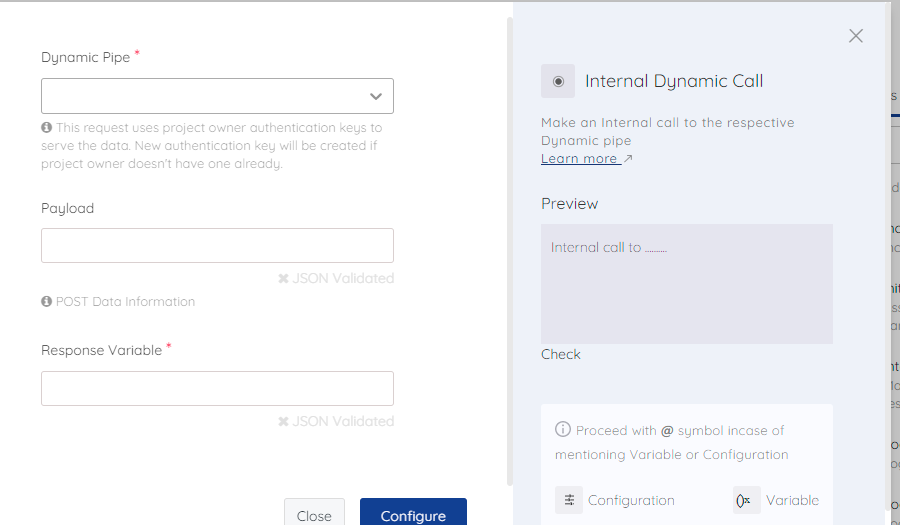
a) Dynamic Pipe: Choose the dynamic pipe to trigger from the dropdown list
b) Payload: The payload field is used to send data to the Dynamic Pipe that is being called. This data will be used in the Dynamic pipe to process the associated Flow.
c) Response Variable: Once the dynamic pipe is triggered from this handler, a variable will be sent back from the dynamic pipe. The ‘Response variable’ field will be used to store that response.