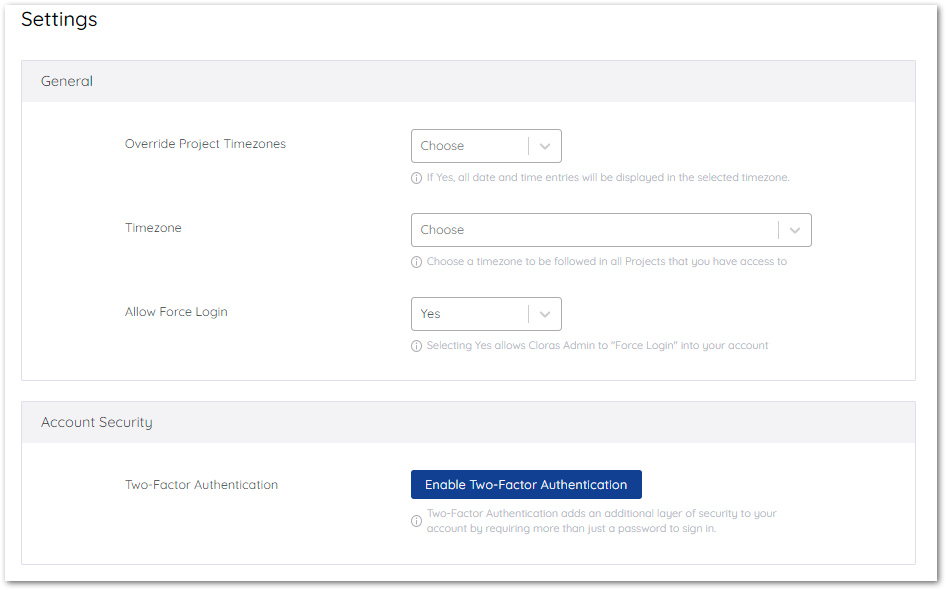
The Two-Factor Authentication feature offers an additional level of security to access DCKAP Integrator. Two-Factor Authentication adds an additional layer of security to your account by requiring more than just a password to sign in.
Steps to enable the 2-factor authentication:
- Log in to DCKAP Integrator.
- Click on the user’s name in the top right section of the Dashboard page.
- Click on Account Settings
- Under “Two Factor Authentication”, click on “Enable Two-Factor Authentication”.
5. Choose one of the two methods in order to enable two-factor authentication:
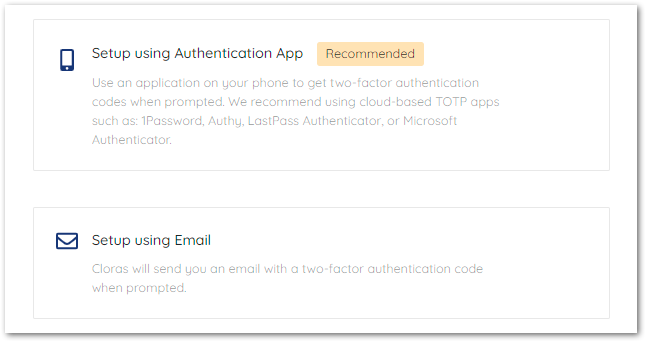
- Method 1 (Recommended): Setup using Authentication App
* Use an application on your phone to get two-factor authentication codes when prompted.
* We recommend using cloud-based TOTP apps such as 1Password, Authy, LastPass Authenticator, or Microsoft Authenticator.
* Click on “Setup using Authentication App” and hit Next.
* A QR code will be displayed.
* Use any Authenticator app on your phone to scan the QR code.
* After scanning the QR code image, the app will display a 6-digit code.
* Enter the code from the application in the space provided and hit “Verify”.
* Two-factor authentication is now enabled for your account.
* Every time you log in to DCKAP Integrator, you will be prompted to enter the Authentication code sent to your Authenticator app. - Method 2: Setup using Email
* DCKAP Integrator will send you an email with a two-factor authentication code when prompted.
* Click on “Setup using Email” and hit Next.
* DCKAP Integrator will send an Authentication code to your email address.
* Enter the code in the space provided.
* Two-factor authentication is now enabled for your account.
* Every time you log in to DCKAP Integrator, you will be prompted to enter the Authentication code sent to your email address.