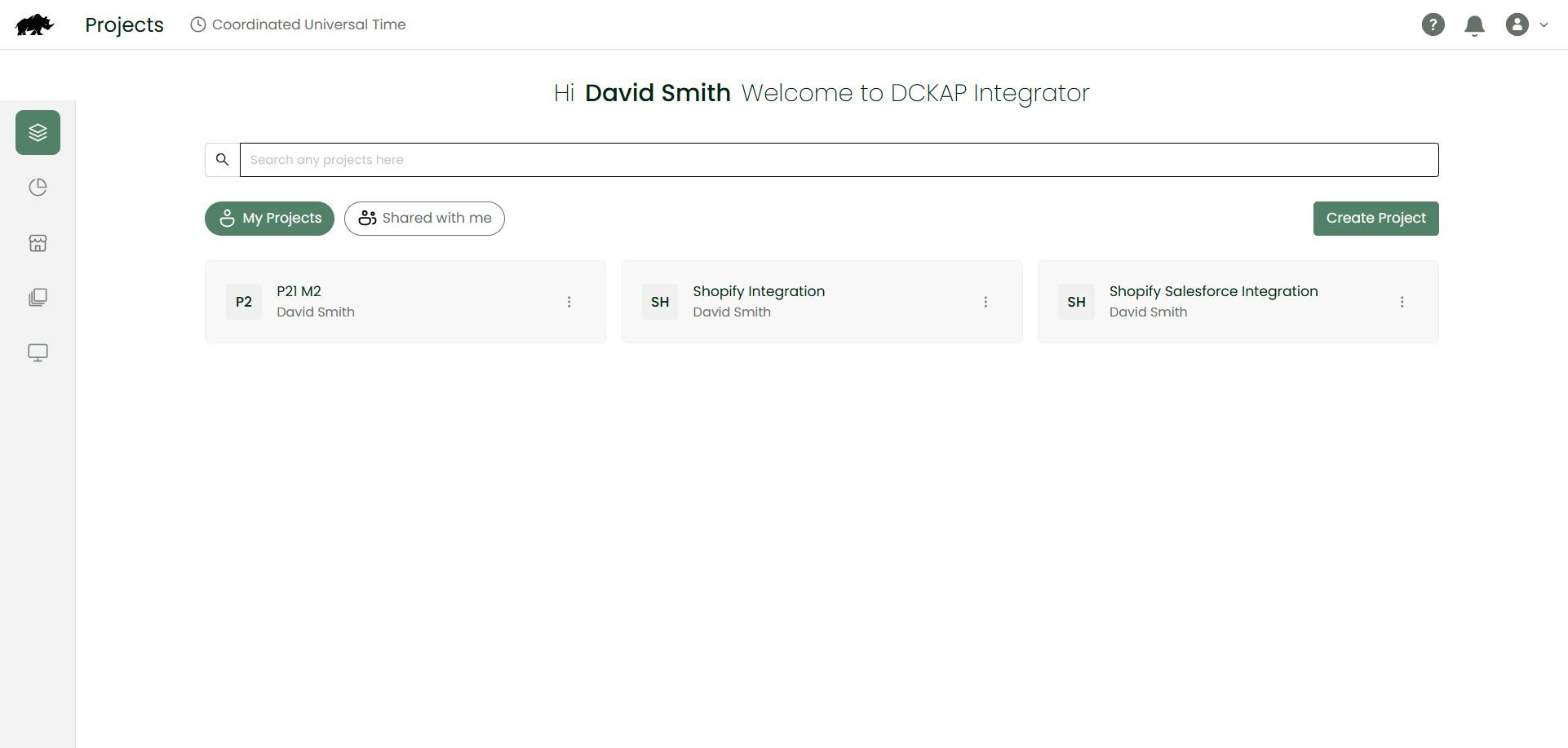
All projects are displayed as individual cards with details – project name and project owner name. Click anywhere on the project card to navigate to the project space, where the user can access, edit, and create different features (Integrations, Systems, Flows and so on) of the project.
Starred Projects
Users can star the most used or favourite projects to make them stand out and easily accessible on the project’s screen.
My Projects
All the projects which the logged-in user owns will be listed here
Shared With Me
All the projects to which the logged-in user got shared access to will be listed here. Please note that the project will be displayed here only after the user accepted the project invite.
Project – More Options
Quick Overview
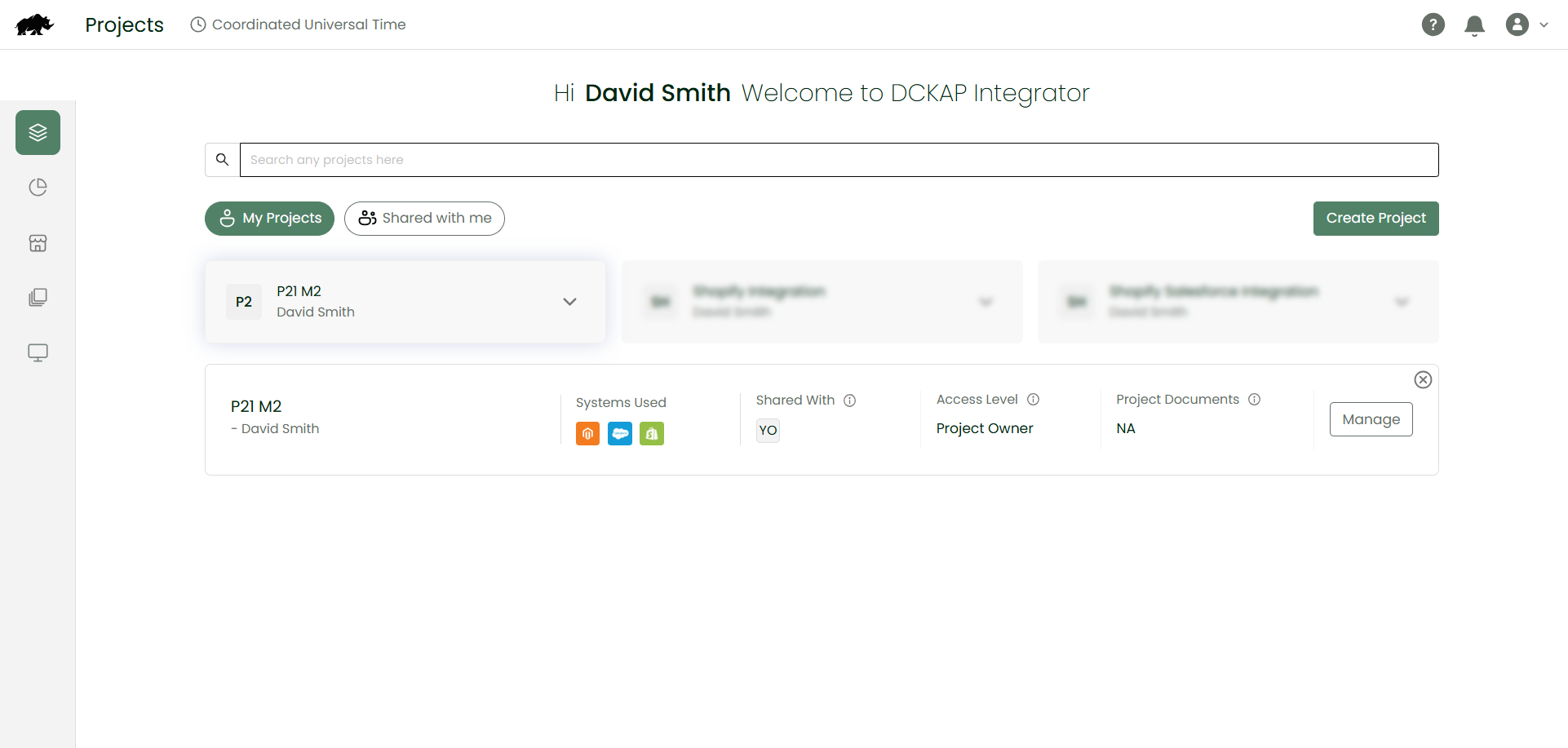
Users can take a look at the project details from this screen itself by clicking the “Quick Overview” of that project. This shows the details like project description, shared access details, project documents, and connected systems.
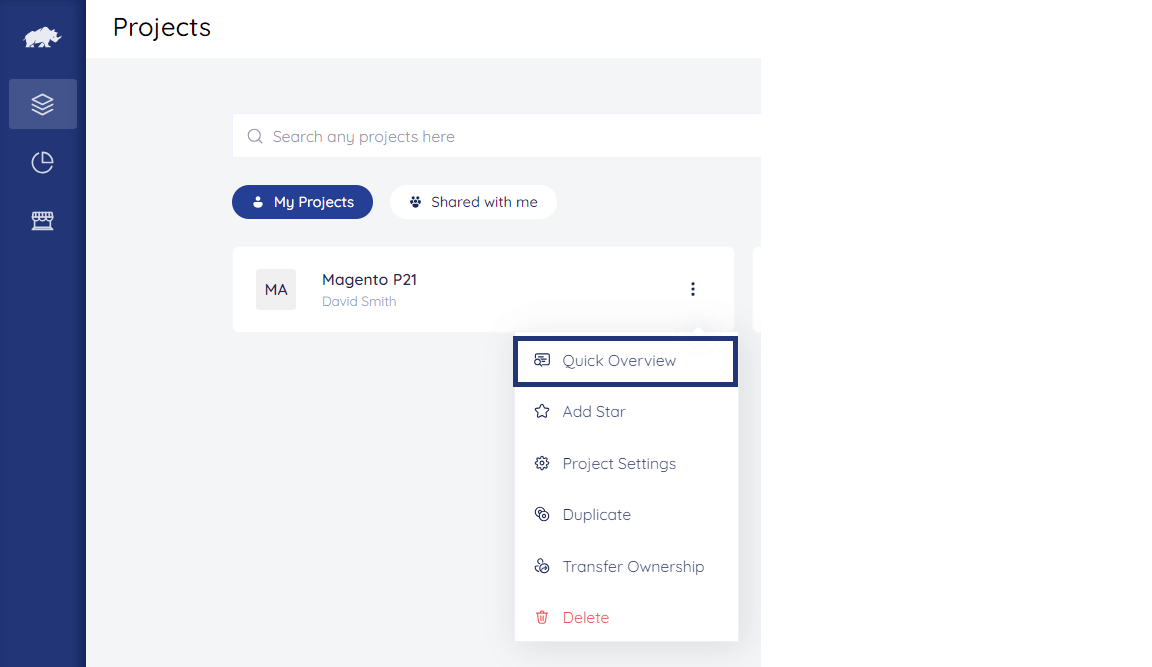
Transfer Ownership
This allows the user to transfer the ownership of the project to another user. Please note the other user should be an administrator of that project. Ownership transfer is allowed only for the projects that the user owns. Learn more
Leave Project
Users can leave access to a shared project. Once left, the user can no longer access the project.
Switch Projects
Once the user is inside the project, the user can switch to a different project by clicking the project name in the top left corner.
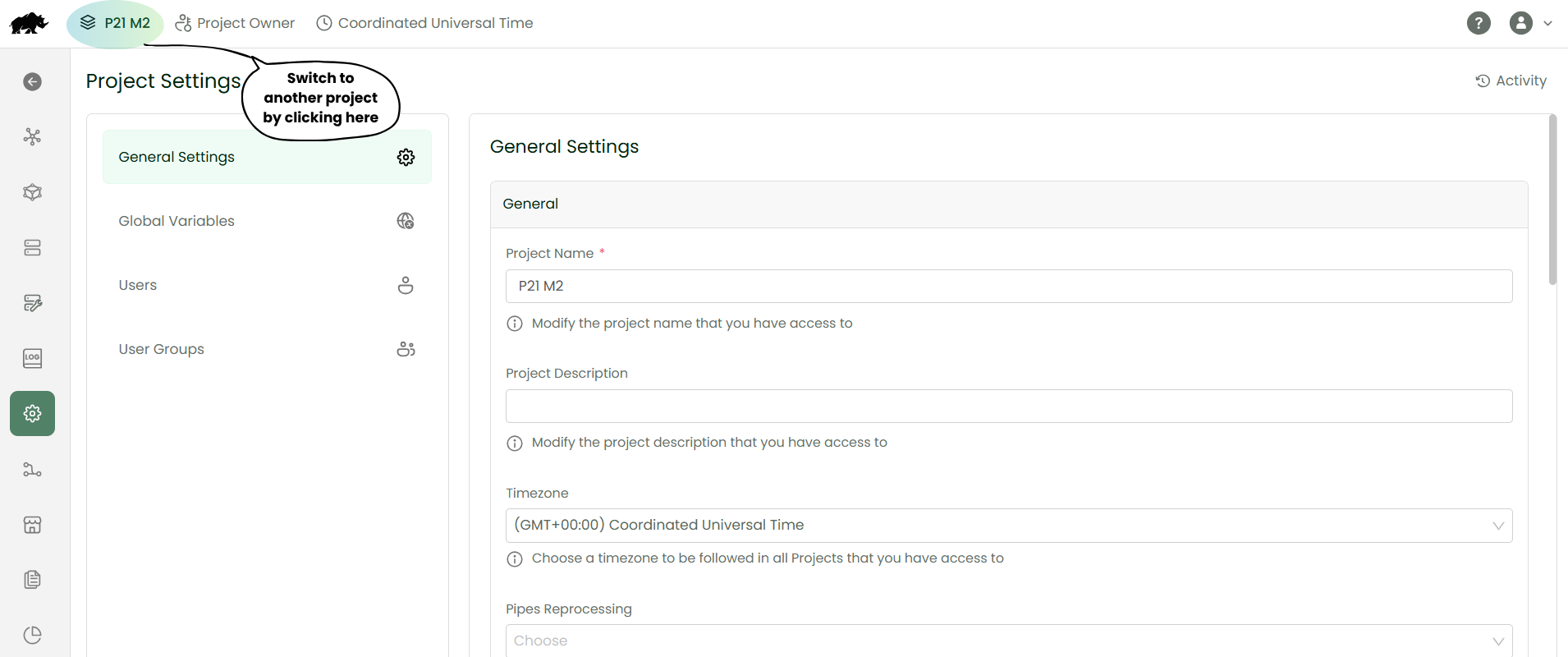
A popup will appear with all the projects to which the user has access. The user can search and choose the project to switch.