The Snippet Import and Export lets you reuse workflow logic across projects. You can export an individual snippet as a standalone file and import it into another workflow, instead of rebuilding the same logic each time.
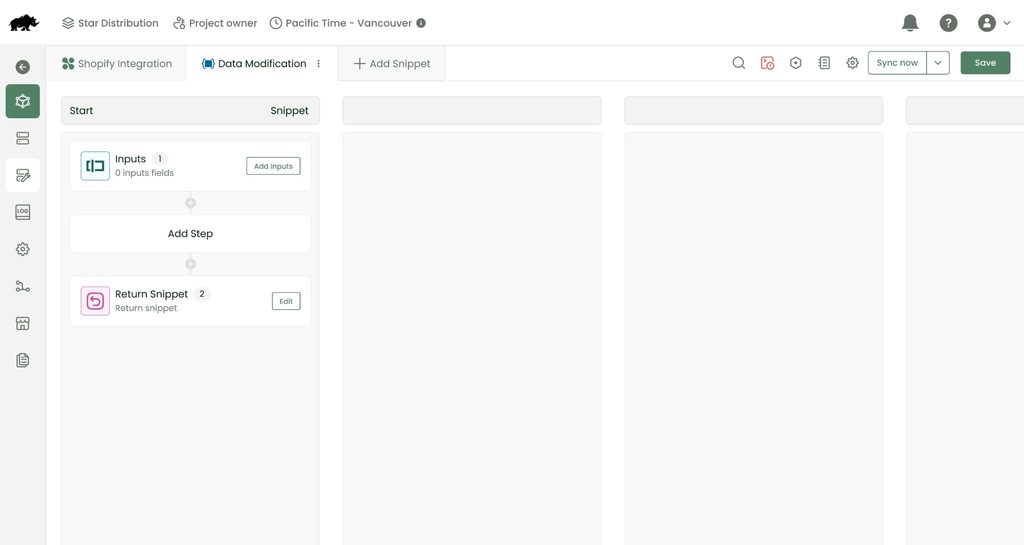
Every import is validated the same way workflow imports already are, so a snippet you bring in is either complete and error-free, or it’s rejected with a clear reason why.
Key Benefits
| Benefit | What this means for you |
| Reusable logic | Export a snippet once and reuse it across as many workflows as you like. |
| Error prevention | Validation ensures only complete, valid snippets are ever imported. |
| Controlled saving | Imported snippets stay unsaved until you explicitly click Save on the workflow. |
| Dependency protection | A snippet referenced by others can’t be deleted until you remove those references first – see Managing Dependencies below. |
Prerequisites
Before you export a snippet:
- Make sure the snippet has no errors and proper return values. Export is blocked while an error exists.
Before you import a snippet or a workflow with snippets:
- Know what systems, APIs, or credentials the snippet references — you’ll be prompted to map these during import, exactly as you already do for workflow imports.
- Remember that a snippet-only file can’t be brought in through Add Workflow it needs the separate Import Snippet flow
Exporting a Snippet
Use this when you want to reuse a snippet in another workflow, or share it with someone else.
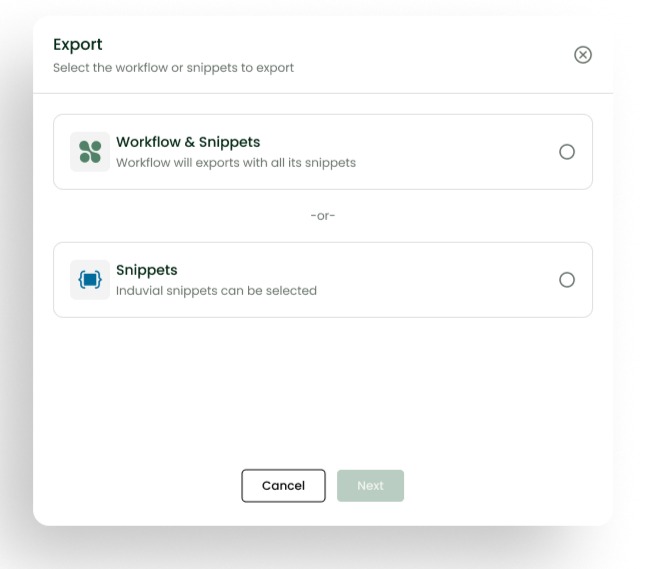
- Open the workflow editor.
- Click the settings icon.
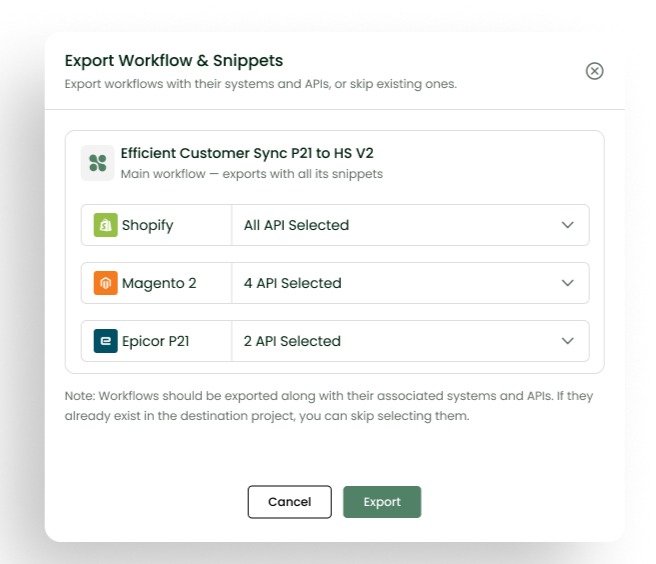
- Select Export, then Snippets.
- Save the JSON file locally.
The downloaded file contains only that snippet’s data — no workflow configuration is included.
Notes:
- If the snippet currently has an error, export is blocked and you’ll see a message explaining why. Resolve the error, then try again.
- If your snippet references another snippet, you can still export it. The export doesn’t check whether that referenced snippet will exist wherever you import it later that’s checked at import time instead.
- If the snippet references a system or API (not just a credential), it resolves the same way it already does for workflow import. There’s no separate mapping flow to learn.
Importing a Snippet
Use this to bring a previously exported snippet into your current workflow, instead of rebuilding it from scratch.
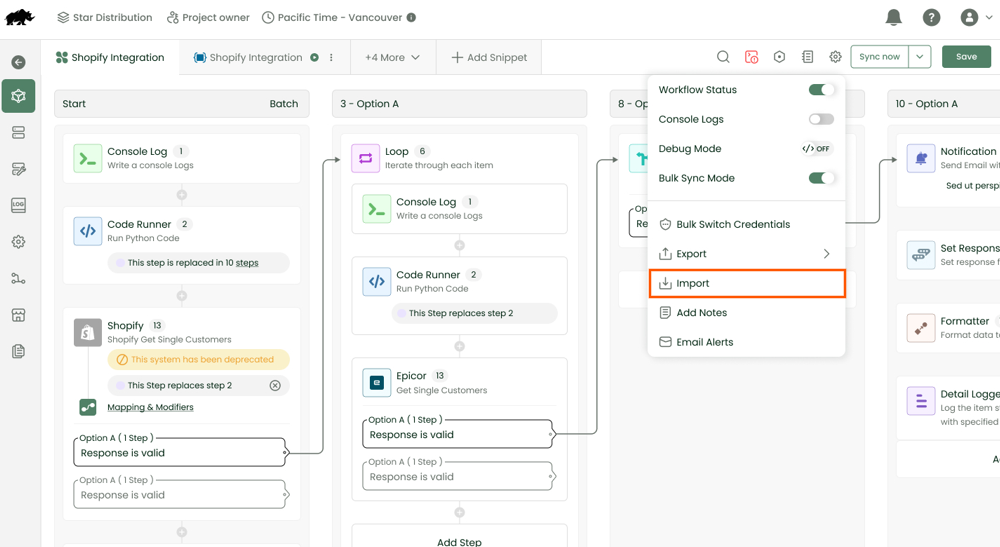
- Open the workflow editor.
- Select Import from workflow settings.
- Upload the snippet JSON file.
- Resolve credentials using the existing credential-mapping flow.
- Review the imported snippet in the editor.
- Click Save to persist your changes.
If a snippet with the same name already exists in the workflow, the import is rejected, and your existing snippet is left untouched.
Importing a Workflow with Snippets
The existing workflow import screen recognizes three kinds of files and handles each one differently:
| File type | What it contains | What happens |
| Workflow-only | Just the workflow configuration | Imported as a workflow |
| Workflow + snippets | A workflow and its snippets together (what Export Workflow already produces) | Imported together in one step — snippets included, no separate action needed |
| Snippet-only | Only snippet data, no workflow | Rejected, with a message telling you to use Import Snippet instead |
Steps:
- From the Add Workflow popup, select Import Workflow.

- Upload the JSON file.
- The system checks whether the file is workflow-only, workflow+snippet, or snippet-only, and follows the matching row in the table above.
- For workflow-only and workflow+snippet files: map any credentials, systems, or APIs the file references, review the workflow (and its snippets, if included), then click Save.
- For snippet-only files: the import is stopped before anything is created. Follow the message’s prompt to use Import Snippet instead.
Note: Snippet or workflow containing v2 system ( systems with beta tag ) are not supported for export and import currently.
Troubleshooting
| Issue | Likely Cause | The Fix |
| Snippet-only file rejected in Add Workflow | Snippet-only JSON can’t be imported via workflow import | Import it from the workflow editor using the Import option in Settings. |
| Duplicate snippet import | A snippet with the same name already exists in the workflow | Rename the snippet before exporting, or rename the existing one before importing |
| Snippet with errors cannot be exported | The snippet is incomplete or has an invalid return value | Open the snippet, fix the error, then export again |
| Missing snippet dependency | The imported snippet references another snippet that isn’t available in this workflow | Export and import the missing snippet first, then re-import or re-save the dependent one. Until then, only the affected step shows an error. The rest of the workflow stays usable. |
Settings & Permissions
Save behavior: Imported snippets remain unsaved until the workflow itself is saved. Nothing is permanent until you click Save.
Managing dependencies: A snippet that’s referenced by another snippet can’t be deleted until those references are removed first. To delete it, open each snippet that depends on it and remove or replace the reference, then delete the original.
Mock data: System steps inside an imported snippet automatically populate with mock data, so the snippet is usable right away in the editor without needing a live connection to test it.
Permissions: Snippet import and export follow the exact same permission rules as workflow import and export — if you can import or export workflows, you can do the same with snippets.
FAQ
Can I export multiple snippets at once?
Not yet – export is one snippet at a time. Exporting several snippets together isn’t supported in this release.
Can I import multiple snippets in one action?
Not as a single action, but you can import them one after another into the same workflow during one editing session.
Will importing a snippet overwrite an existing one with the same name?
No. If a snippet with that name already exists in the workflow, the import is rejected, and your existing snippet is left exactly as it was.
What happens to credentials when I import a snippet?
You’ll be asked to map them, the same way you already do for workflow imports. Exported files never contain hardcoded credential values.
If I import a workflow that has snippets in it, do I need to import the snippets separately?
No – a workflow + snippet file (the kind Export Workflow already produces) is imported as one step, snippets included.
Glossary
- Snippet: A reusable block of workflow logic.
- Workflow: A complete process configuration containing steps and snippets.
- Credential Mapping: Linking imported snippets/workflows to existing system credentials.
- Mock Data: Sample data automatically populated for system steps during import.