Purpose
User groups simplify a Project Owner’s task of managing users for his project. This gives all the users in the group the same permission and access levels to the assigned project.
https://youtu.be/H2V3ObD5rnI?si=-ZRGsmc1-GLTITG1
Managing User Groups
Click on the user icon in the top right section and click on Account Settings.
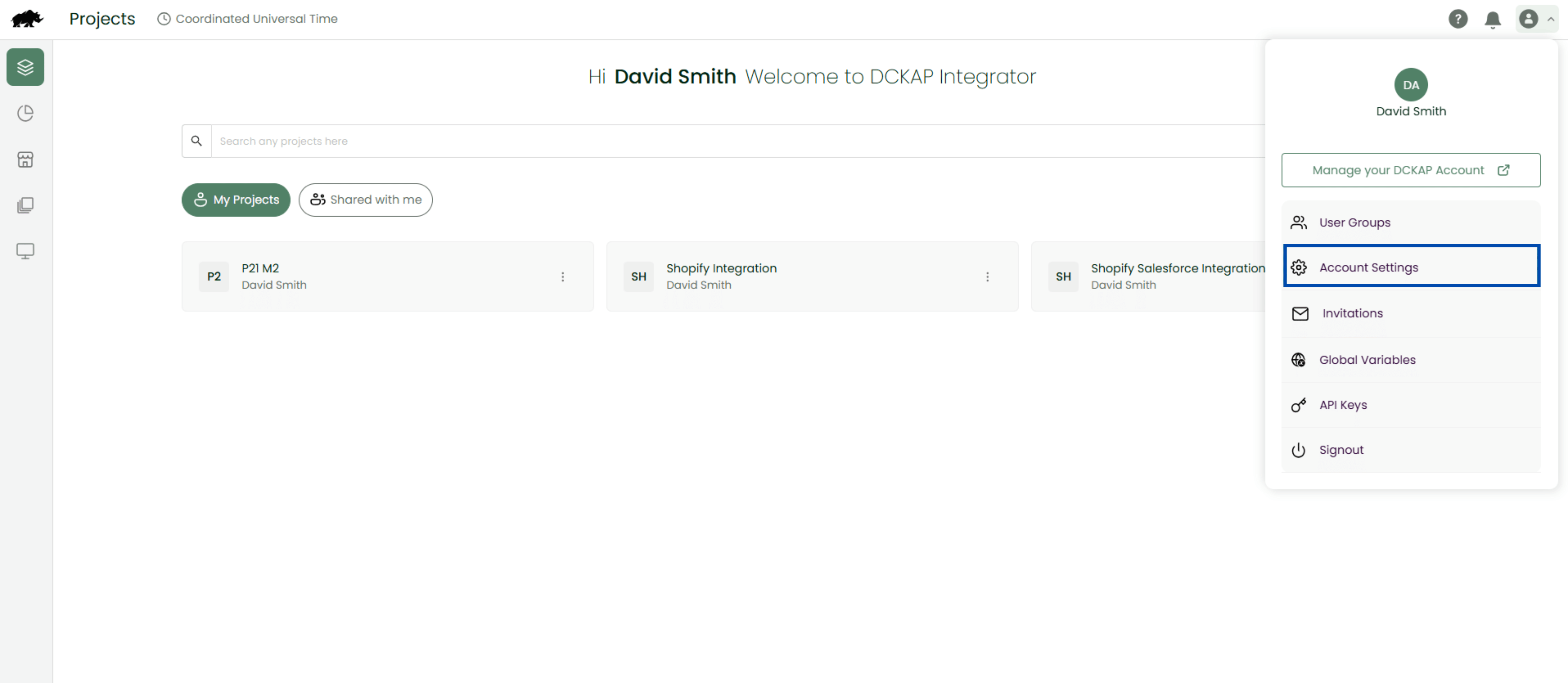
Clicking on the “User Groups” will open the User Groups page with the following details in tabular form:
- Group Name
- Description
- Created By
- Action (Edit/Clone/Delete)
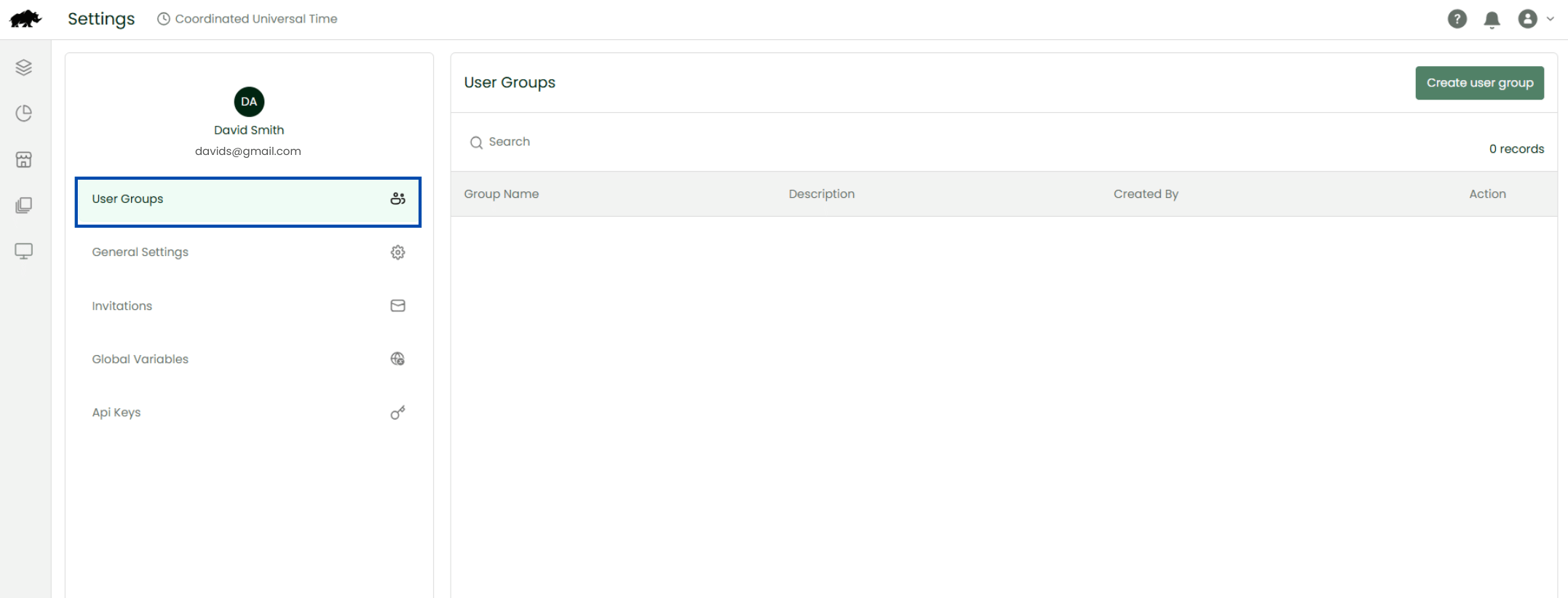
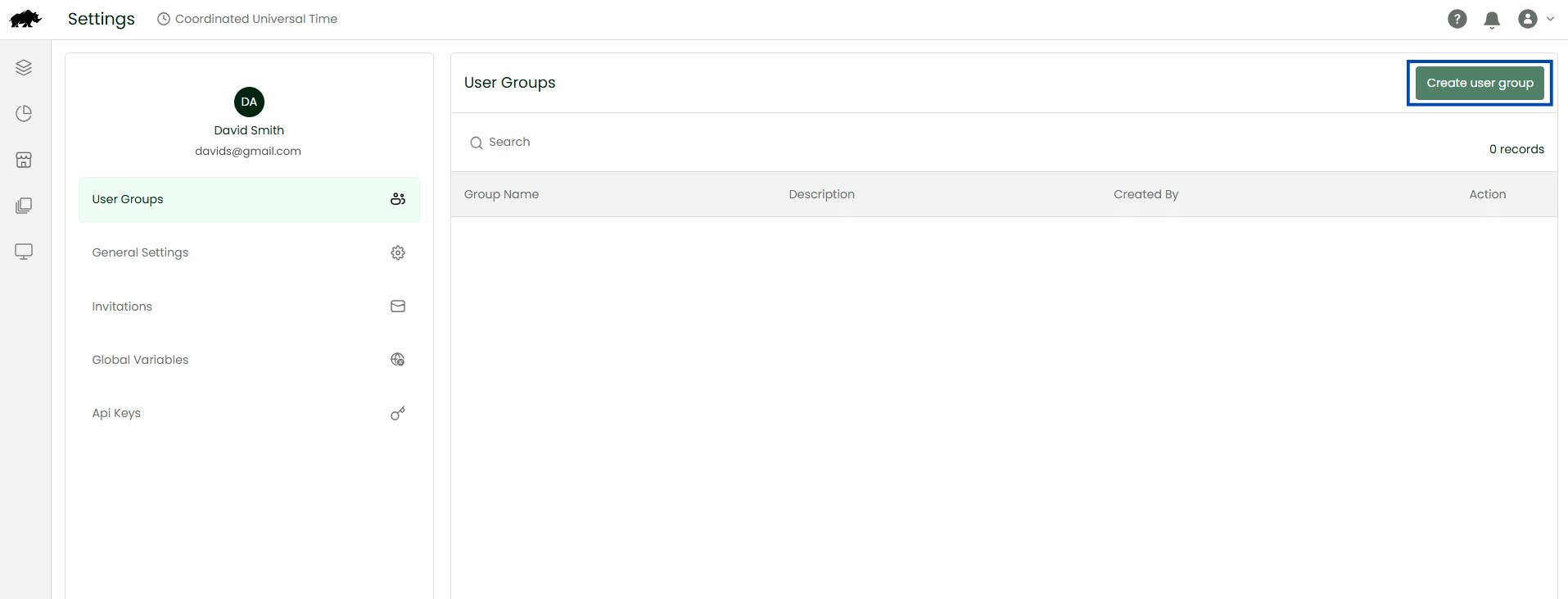
To create a new user group click on the Create User group button in the top right section of the page or the Edit button under the Action field.
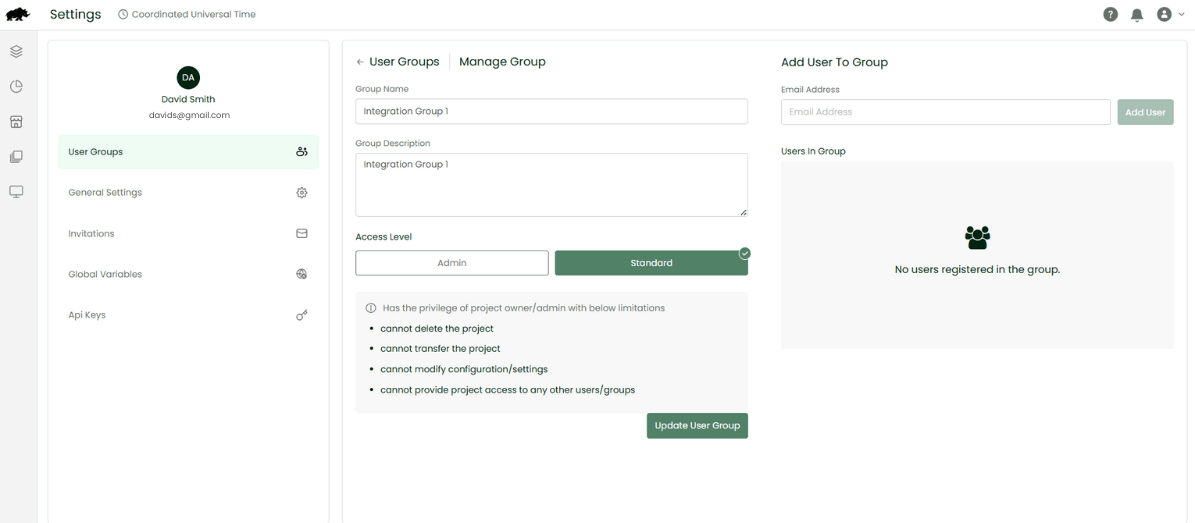
Managing Users
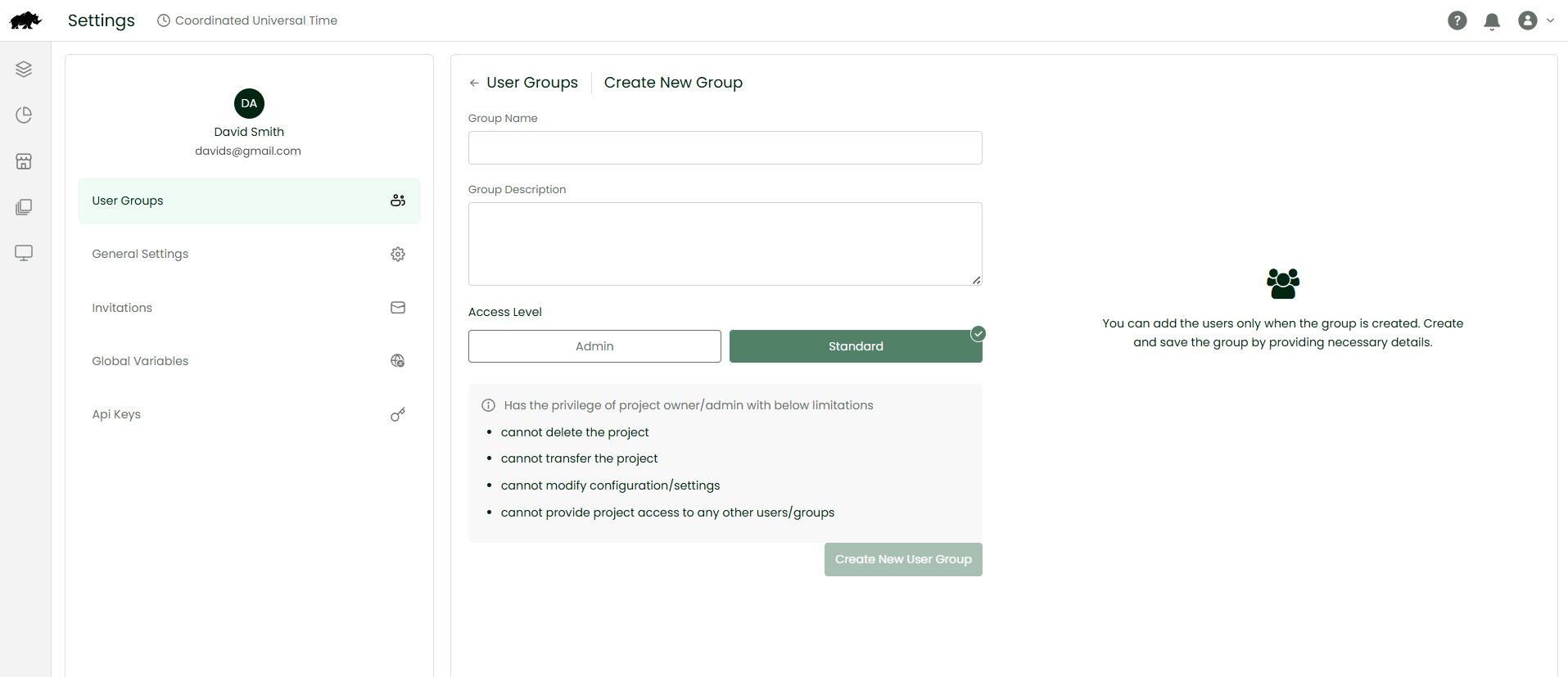
Fill out the following fields in the Add New page:
| Field Name | Description |
|---|---|
| Group Name | Provide a suitable name for your user group |
| Group Description | Provide a brief description for your user group |
| Access Level |
Choose from three options: Admin, Standard, Custom. To learn more about permissions for each access level, click here. |
| Access Control | This shows up only for the Access Level: Custom. Here you can customize the group’s permission level for each of the project resources. |
| Add User |
Add users to the group by providing their email address. An invitation is sent to the User asking for confirmation. Only after the user accepts the invitation, they are added to the group. |
Access Levels
Access levels denote the permission rights of user groups for a project. A user group may be assigned to one of the three available access levels:
Admin
Has complete access to the project except deleting and transferring the project ownership. The admin has the ability to provide project access to any user or user group.
Standard
Has standard access to the project and the ability to do all basic things. This access level is one level below the admin. The standard user has some restrictions which include:
- cannot delete the project
- cannot transfer the project
- cannot change project settings/configuration
- cannot provide project access to any other users/groups
For step-by-step instructions on how to create user groups and also give access permissions to User groups, click below: