What is a Pipe?
A Pipe is a single integration unit, i.e., the sub-unit of every system integration, responsible for synchronizing all entities (Customers, Orders, Products, etc.). Each pipe is mapped to a Flow to carry out the underlying integration logic.
For a quick video explainer of What are Pipes?, click here.

Pipe Types
Batch 
Data synchronization will be handled periodically at certain configured time intervals. This is the most commonly used Pipe type since it offers optimum performance.
Example: Every 2 hours
Dynamic 
Data synchronization is done in real-time using an API call from any system through DCKAP Integrator. For example, services like Pricing may be configured as a Dynamic Pipe to fetch the prices in real-time.
Manage Pipes
The pipes are displayed either as a Grid or a table.
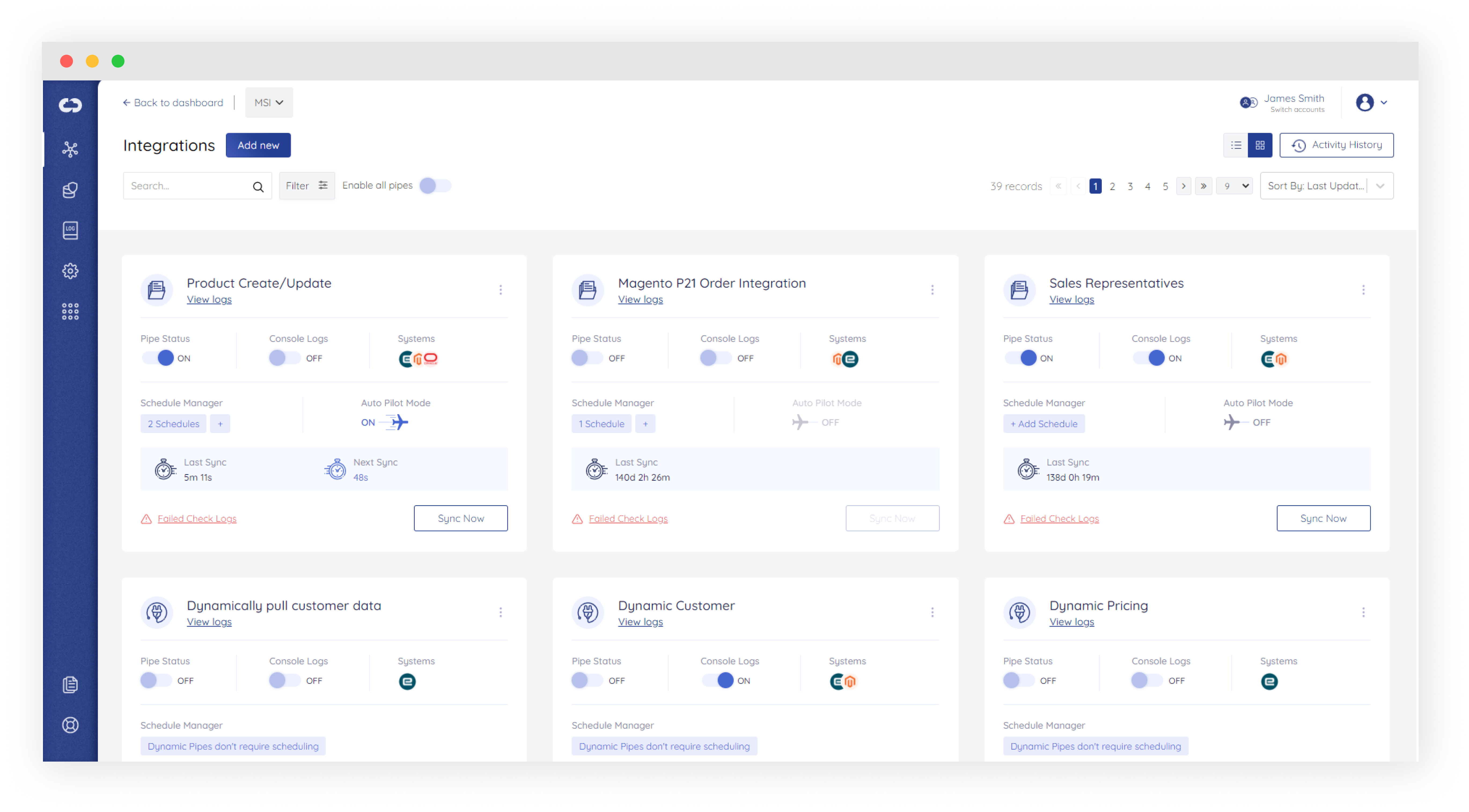
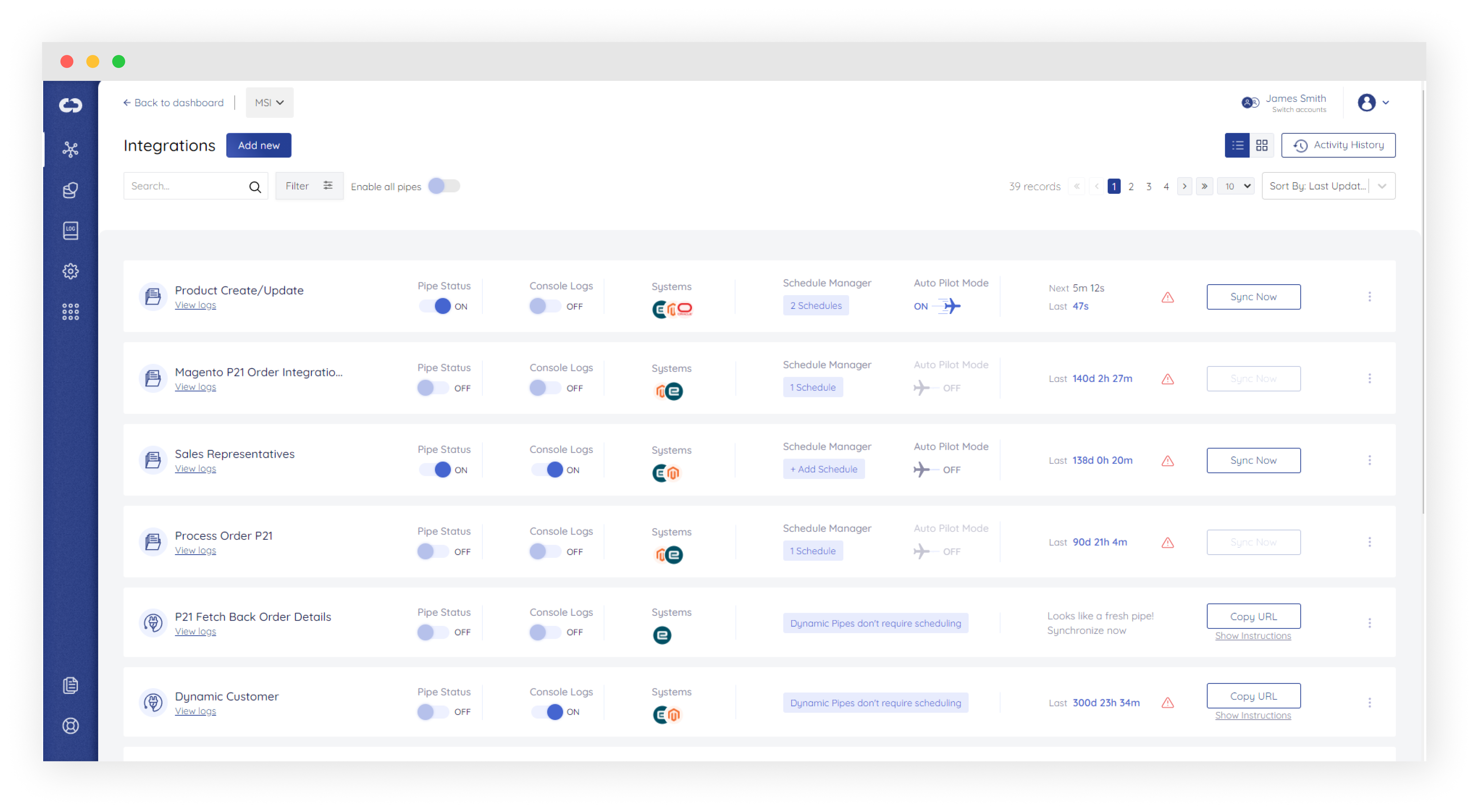
In the Integrations page, the following information is present in grid/tabular form:
| Field Name | Sample | Description |
|---|---|---|
| Status |  |
Enables or disables the working of a pipe, used especially during scheduled synchronization |
| Pipe Name |  |
Displays the name of Integration Pipe |
| Systems |  |
Systems connected in the pipe |
| Type of Integration |
|
|
| Sync status |  |
Displays the time at which the last sync was performed and if the sync was complete or not |
|
Sync Now & Copy URL button |
|
For Batch type Integration ⇒ Start the integration process by manually clicking on the Sync Now button. For Dynamic type Integration ⇒ Copy URL and share across different systems to access data from the system |
| View Logs |  |
To view Logs of this pipe |
| Enable/Disable Autopilot Mode |
|
Only for Batch type Integration. To enable or disable Autopilot mode. For Dynamic pipe, scheduling is disabled. |
| Enable/Disable Console Logs |  |
To enable or disable console logs for this Integration |




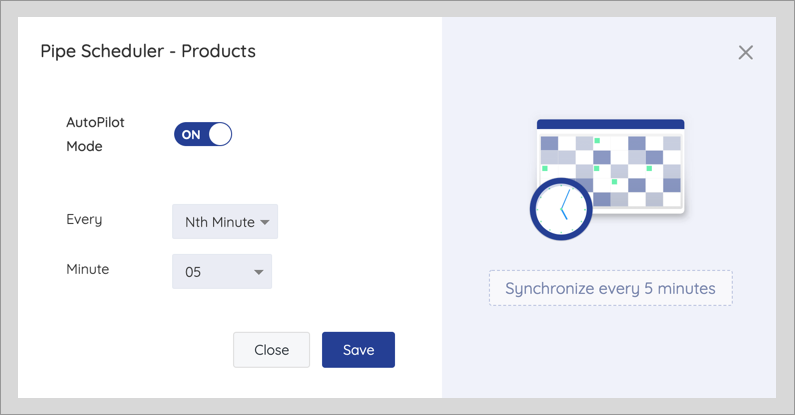
Auto Pilot Mode and Scheduler
The Sync process for Batch type integration can be automated by scheduling it. This is done by clicking on the Enable Auto Mode link present just below the pipe name or clicking the