#### 🧩 Add Notification Step
Go to your Workflow and add a new step.
* Choose the Notification Tool.
💡 **What this does:**\
This step lets your workflow send an email automatically when it runs.
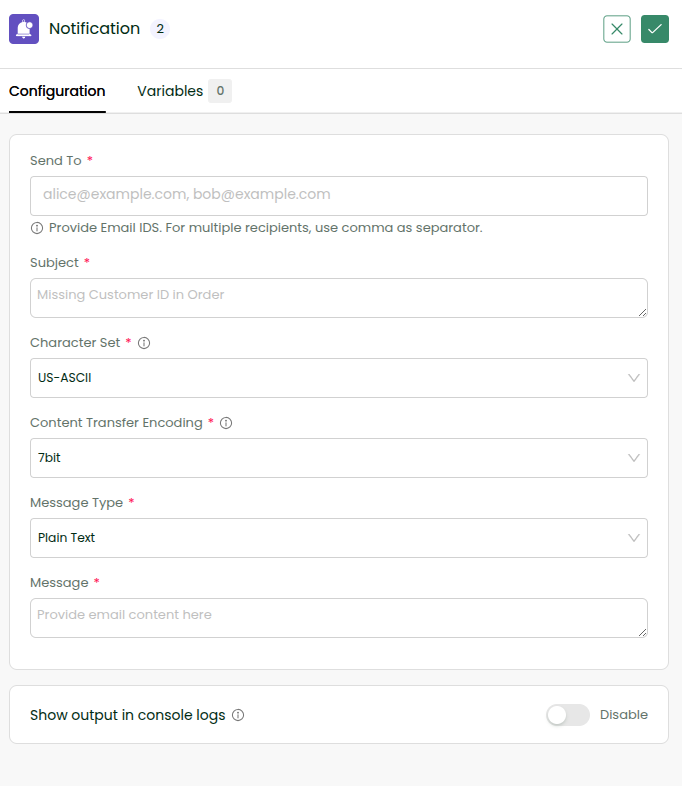
#### ✍️ Configure Email Details
Now you’ll fill in a few simple fields:
Send to → Enter your email address
* Example: `
* For multiple recipients, separate emails with commas
* Subject → `Test Mail from DCKAP Integrator`
* Message → `Hi, I am triggered from workflow.`
Click the ✔ (tick icon) to confirm.
### 💾 Save Your Workflow
Click Save to store your Workflow changes.
### ▶️ Run the Workflow
Click Sync Now.
### 📬 Check Your Email
Open your inbox.
✅ What you should see:\
An email with:
* Subject: `Test Mail from DCKAP Integrator`
* Message: `Hi, I am triggered from workflow.`
If you don’t see the email, check your **Spam/Junk** folder
🎉 Summary
You’ve just learned how to:
- Add an email step to a workflow
- Configure recipients and message
- Trigger real-time email notifications