
The EDI Message Recovery feature helps users recover, correct, and resend EDI transactions directly within the platform.
Instead of recreating transactions manually or reprocessing files outside the system, users can perform recovery actions from the original message record while maintaining a complete audit trail.
This feature provides:
- Resend existing messages
- Edit and resend corrected messages
- Regenerate and send acknowledgments
- View resend history
- Track recovery activities
This is designed to reduce transaction recovery time, prevent duplicate records, and improve visibility into message recovery activities.
What Problem Does This Solve?
EDI transactions occasionally encounter issues such as:
- Failed inbound processing
- Failed outbound transmission
- Trading partner disputes
- Data corrections after transmission
- Missing acknowledgments
- Temporary partner connectivity issues
Previously, resolving these situations often required:
- Manual file reprocessing
- Creating replacement transactions outside the platform
- Manual resubmission efforts
- Limited visibility into recovery attempts
The Message Recovery feature allows these actions to be performed safely within the platform while preserving transaction history and traceability.
Key Benefits
| Benefit | Description |
| In-platform recovery | Resolve failed or disputed messages without external reprocessing or manual re-creation. |
| No untracked duplicates | Resend reuses the existing message record. Edit & Resend creates a new record that is linked to its source. |
| Complete audit trail | Every Resend and Edit & Resend attempt is logged with the user, time, action, and outcome. |
| Faster dispute resolution | Any message can be corrected and resent, including messages that were processed successfully. |
Who Uses This Feature?
| User Type | Primary Responsibilities |
| EDI Support User | Investigate issues and perform recovery actions |
| Integration Support User | Monitor and support message processing activities |
| Trading Partners | Benefit from improved message delivery and recovery |
Recovery Actions
Three recovery actions may be available depending on the message type:
- Resend
- Edit & Resend
- Send Acknowledgement (Inbound only)
Resend
Resend sends the original message again without making changes to its content.
The content and control numbers are not changed, and no new message record is created. New processing steps are added to the existing transaction log.

Use Resend when:
- A previous delivery failed
- A temporary system issue occurred
- A trading partner asks for the original document again
- You need to retry processing without changing data
How Resend works
| Direction | Behavior |
| Outbound | The original file is retransmitted to the trading partner over AS2, unchanged, using the existing control numbers and message record. |
| Inbound | The original file is re-translated and sent directly to the downstream workflow. The full inbound pipeline (content integrity check, MDN, control-number extraction, and acknowledgment matching) is skipped. No new Acknowledgment is sent. |
How to Resend a Message
- Open the inbound or outbound transaction log.

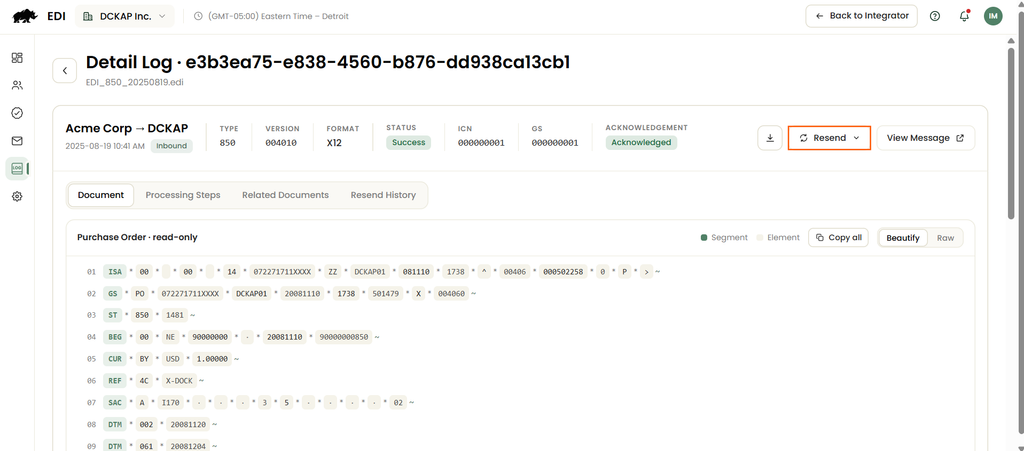
- On the message detail view, select Resend.
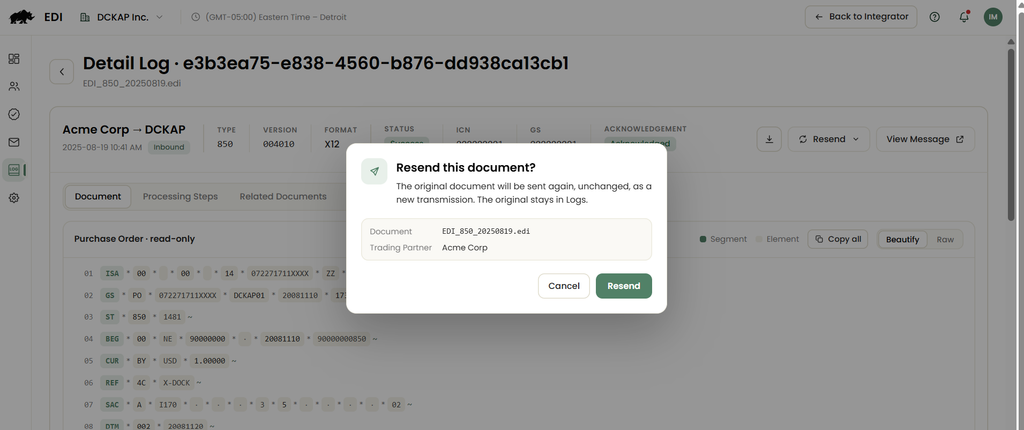
- In the confirmation dialog, confirm the action.
- Open the Resend History tab to monitor the attempt.
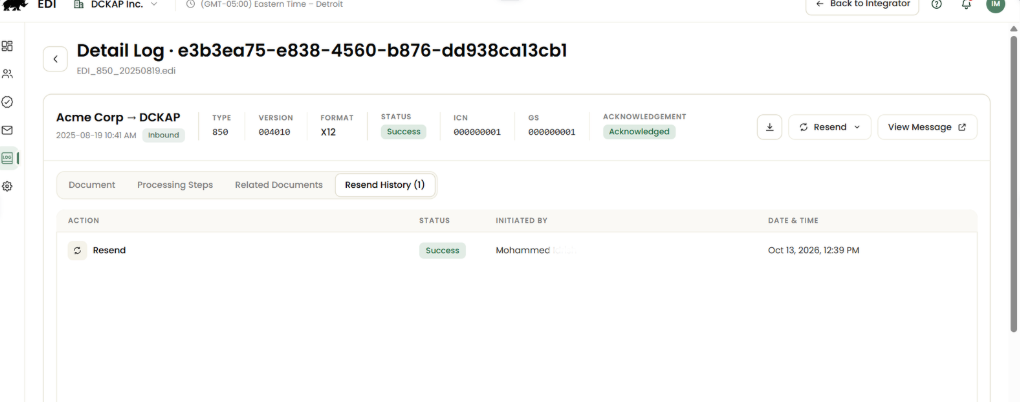
A new entry is added to the Resend History tab showing the status of the attempt.
Note: Outbound attempts remain In Progress until the trading partner’s MDN (delivery receipt) is received or the timeout is reached. The status then changes to Success or Failed.
Edit and Resend a message
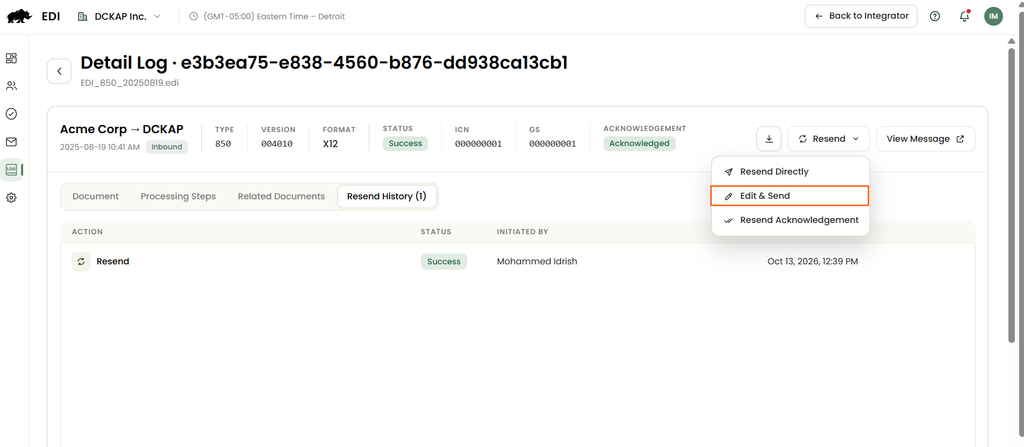
Edit & Resend opens the message’s raw EDI content in an editor so you can correct it. When you submit, the platform sends the corrected content as a new message with new control numbers. The original message is not changed.
Use Edit & Resend when:
- Data needs correction
- A trading partner reports an issue
- Business information must be updated
- The original content should not be resent unchanged
Editable and Locked Content
The platform protects EDI envelope information from user modification.
Locked Segments
The following segments cannot be edited:
- ISA
- ST
- SE
- GS
- GE
- IEA
These sections remain read-only.
Editable Content
Users may modify only the EDI document body.
Note: Control numbers are system-managed and cannot be manually entered or modified.
Automatic Control Number Generation
When Edit & Resend is submitted:
- Control Numbers are generated automatically.
- Values are assigned by the platform.
- Users cannot edit these values.
This helps prevent duplicate control numbers and trading partner conflicts.
Edit & Resend for Outbound Messages
When submitted:
- The edited content is validated.
- New control numbers are generated.
- A new outbound message is created.
- The new message is transmitted through AS2.
- The original message remains unchanged.
- A relationship is created between the original and new message.
How to Use Edit & Resend
- Open the outbound message.
- Select Edit & Resend.

- Review the EDI content.
- Make changes within editable sections only.
- Submit the update.
- Confirm the action.
A new outbound transaction is created and transmitted. The original transaction remains available for historical reference.
Edit & Resend for Inbound Messages
When submitted:
- The inbound content is copied.
- A new inbound message is created.
- A new file location is generated.
- The new message enters normal inbound processing.
- The original message remains unchanged.
- A retry relationship is established.

The supplied documents contain conflicting information regarding whether a new acknowledgment is generated during inbound Edit & Resend.
Send Acknowledgement
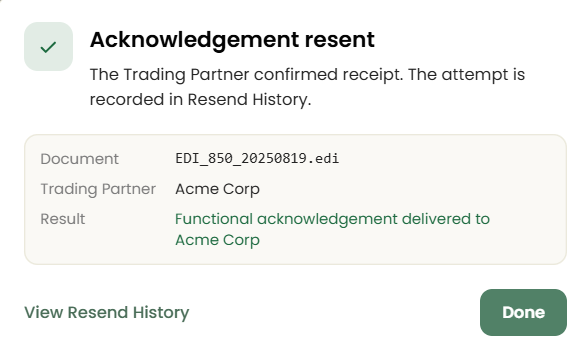
Send Acknowledgement regenerates and sends an acknowledgment for an inbound message without resending or reprocessing the original document.
This action is intended for acknowledgment-related recovery scenarios.
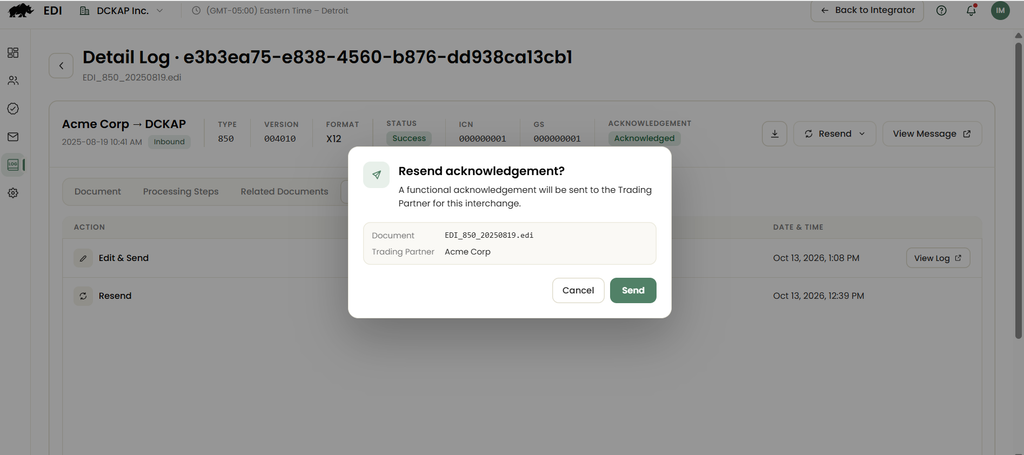
Use this action when:
- A partner reports an acknowledgment was not received
- The acknowledgment transmission failed
- Proof of acknowledgment delivery is required
Key Behavior
- Sends only the acknowledgment
- Does not resend the original document
- Does not reprocess the original document
- Is available only for inbound messages
Send Acknowledgement may be unavailable in situations where:
- The message itself is an acknowledgment transaction type
- No valid acknowledgment relationship exists
When unavailable, the interface displays an explanation instead of allowing the action.
Resend History
The Resend History tab provides visibility into all recovery actions associated with a message.
It serves as the primary audit view for message recovery activity.

Each entry includes:
| Field | Description |
| Action Type | Resend, Edit & Resend, or related recovery action |
| Status | Pending, In Progress, Success, Failed, or Cancelled |
| Triggered By | User who initiated the action |
| Triggered At | Time of execution |
| Resulting Message | Associated message created by the action |
| Error Details | Failure information, when applicable |
This history allows users to determine:
- What actions have already been attempted
- Who performed them
- Whether they succeeded
- What errors occurred
Related Documents
The Related documents panel helps users understand how transactions are connected.

Relationships include:
| Relationship Type | Purpose |
| ACKNOWLEDGMENT | Links messages and acknowledgments |
| RETRY | Links recovery-generated messages to their source |
Users can navigate directly between related records.
Troubleshooting
| Issue | Cause | Resolution |
| A Resend fails again. | The underlying cause, such as an unavailable partner endpoint, has not been resolved. | Review the error detail in the Resend History tab. Resolve the cause, then resend. |
| An error indicates the file or payload is missing or corrupted. | The stored content cannot be read. | The platform displays an explicit error. Contact your support team, as the message cannot be resent from its stored content. |
| An outbound attempt remains In Progress. | The platform is awaiting the partner’s MDN. | Wait for the MDN or the timeout. The status will change to Success or Failed. |
| Edit & Resend is rejected with a validation error. | The edited body contains invalid EDI. | Review the error message, correct the identified issue, and submit again. No message was created. |
| ISA, GS, GE, or IEA segments cannot be edited. | Envelope segments are locked by design. | No action required. Control numbers are generated automatically on submission. |
| Send Acknowledgement is disabled. | The message is an Acknowledgment type (such as a 997), or it has no associated Acknowledgment. | Refer to the tooltip on the action for the specific reason. |
| Resend or Edit & Resend is not visible. | Your role does not have Edit permission on the Message module. | Contact your administrator to request Edit permission. |
Frequently asked questions
Can I resend a message that was processed successfully?
Yes. Resend and Edit & Resend are available for every inbound and outbound message, regardless of status.
Does Resend create a duplicate record?
No. Resend reuses the existing message record and adds new processing steps to the same transaction log.
Will a trading partner treat a corrected message as a duplicate?
Edit & Resend always assigns new control numbers, which are designed to prevent duplicate detection by trading partners.
Does Resend send a new Acknowledgment?
No. To resend an Acknowledgment, use Send Acknowledgement.
What happens to the original message after Edit & Resend?
The original message and its file remain unchanged. It can still be resent at any time.
Can I edit control numbers or envelope segments?
No. The ISA, GS, GE, and IEA segments are locked. Control numbers are generated by the platform on submission.
Is there a limit on the number of resends?
No. This release does not include resend limits, throttling, or cooldown periods.
Can resends be scheduled or automated?
No. All resends in this release are triggered manually.
Glossary
| Term | Definition |
| Acknowledgment (ACK) | A message sent to a trading partner to confirm receipt of a document, such as a 997 Functional Acknowledgment. |
| AS2 | A secure protocol used to transmit EDI files to and from trading partners over the internet. |
| Control number | A unique identifier in the EDI envelope used to identify an interchange or group. Trading partners use it to detect duplicates. |
| Envelope | The header segments (ISA, GS) and trailer segments (GE, IEA) that enclose an EDI document. |
| GS06 | The Group Control Number, located in the GS segment. |
| ISA13 | The Interchange Control Number, located in the ISA segment. |
| MDN | Message Disposition Notification. A receipt returned by a trading partner to confirm an AS2 transmission was received. |
| Message Retry log | The record of all Resend and Edit & Resend attempts, displayed in the Resend History tab. |
| Related documents | The panel that displays linked messages, such as an original message and its corrected version, or a document and its Acknowledgment. |
| Transaction log | The record of a message and its processing steps. |