
Access to an account should never depend on a single person’s availability. This enhancement ensures that teams can regain access when an account owner leaves the organization or can no longer access their email account.
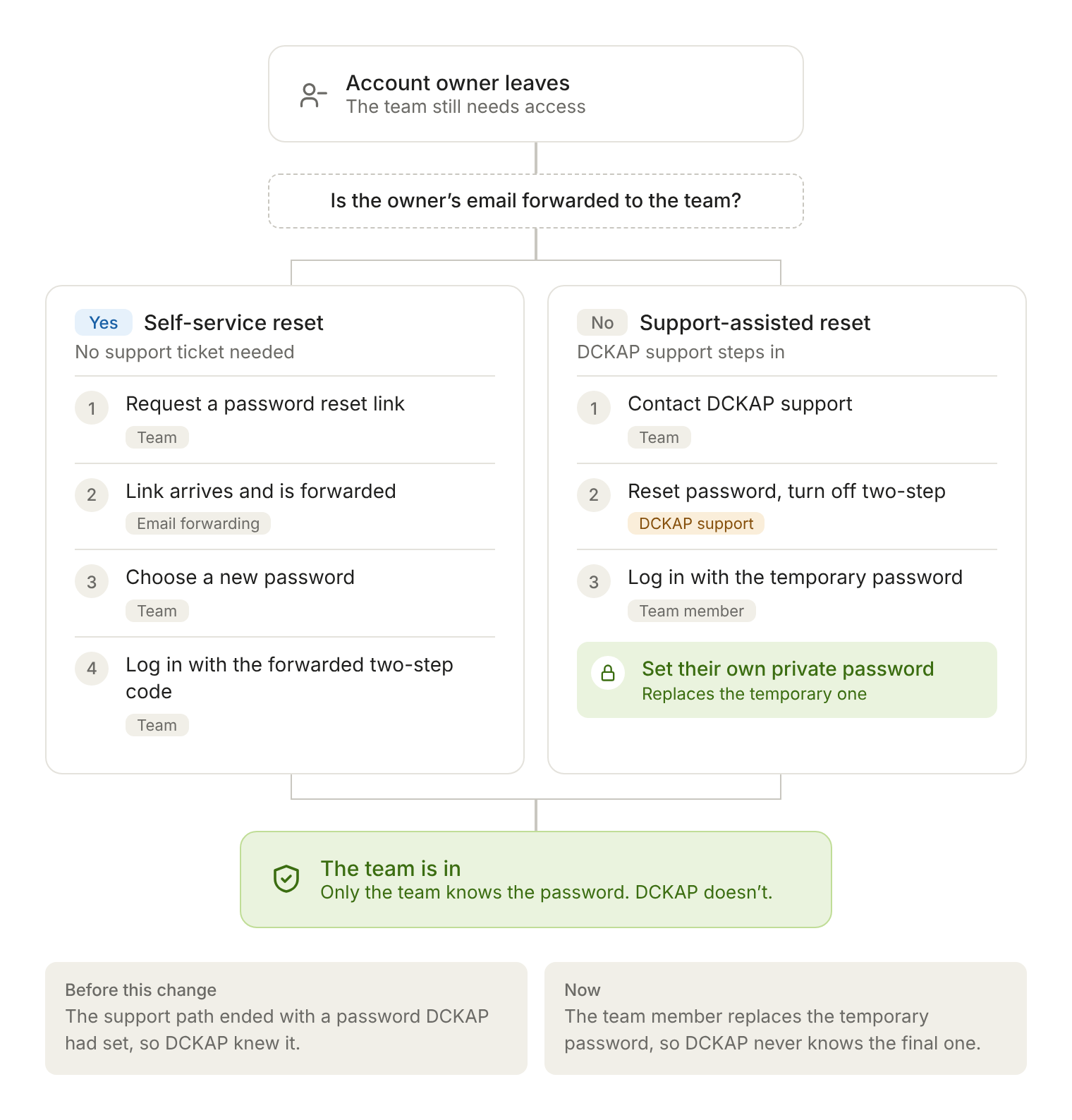
DCKAP Integrator supports two ways to recover access:
- Forgot Password: Use this when the owner’s email is forwarded to someone in your team.
- Support-assisted password reset: Contact DCKAP Support when the owner’s email inbox is not accessible.
Both methods let your team regain access and set a password only your team knows.
Which password recovery method should you use?
Your recovery method depends on whether your team can receive emails sent to the account owner’s mailbox.
| Situation | Recommended method |
| The owner’s emails are forwarded to a team member | Use Forgot Password |
| The owner’s email inbox cannot be accessed | Contact DCKAP Support |
| Two-step verification is enabled, but nobody has access to the verification code | Contact DCKAP Support to disable two-step verification |
Before you begin
Check whether the owner’s emails are forwarded to a teammate. This determines whether your team can complete the reset independently or needs help from Support.
Method 1: Reset the password using Forgot Password
Use this method when your team can receive emails forwarded from the account owner’s mailbox.
Step 1: Request a password reset
- Open the DCKAP Integrator login page.
- Click Forgot Password.
- Enter the account owner’s email address.
- Submit the request.
You should see a confirmation message: We’ve sent a password reset link to your email.
Step 2: Open the reset link
Check the owner’s mailbox or the forwarded email in your teammate’s inbox.
- Open the Reset Password email.
- Click the password reset link.
The reset link is valid for 15 minutes.
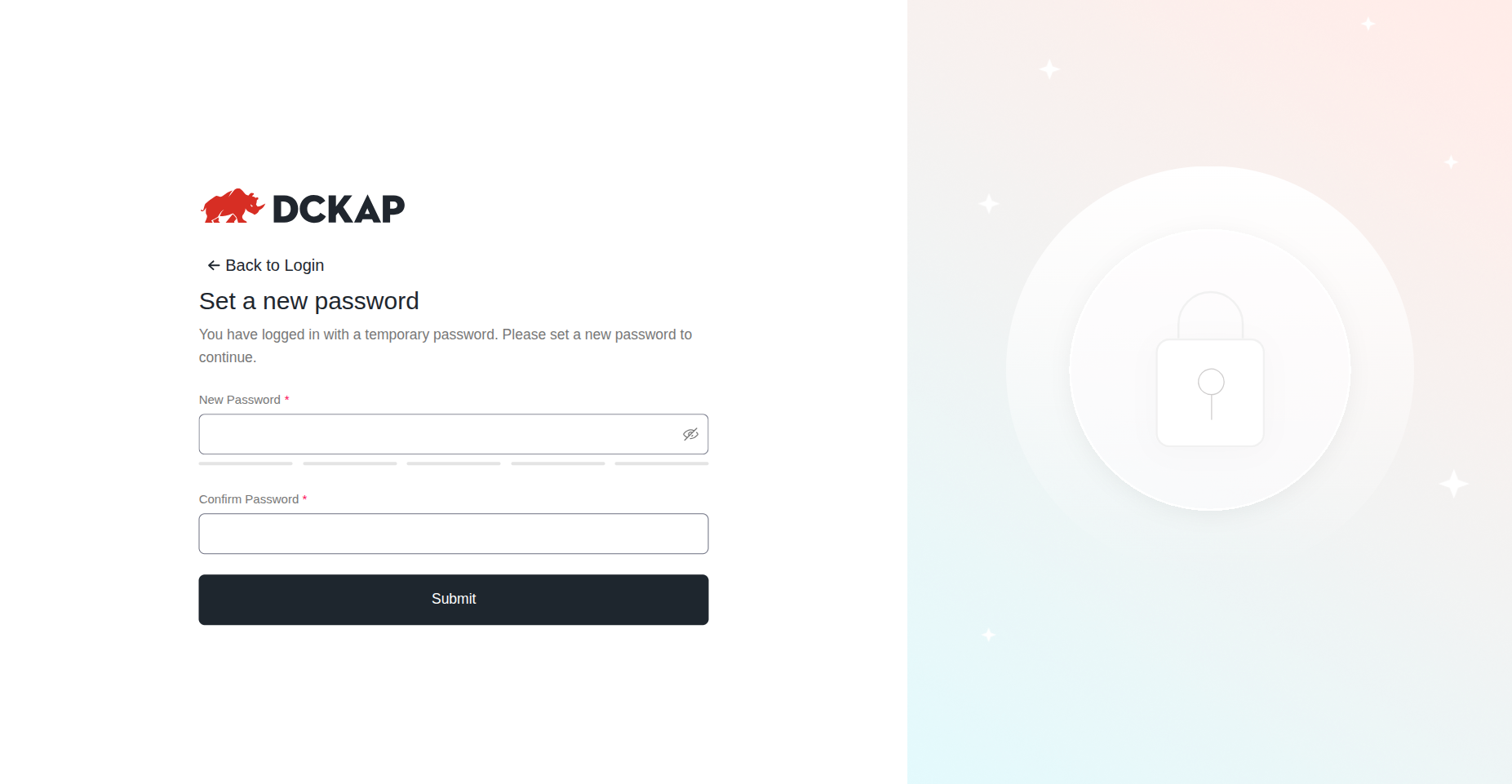
Step 3: Set a new password
Choose a new password that meets all the following requirements:
- 8 to 32 characters
- At least one uppercase letter
- At least one lowercase letter
- At least one number
- At least one special character
Your new password cannot be the same as the previous temporary password when completing a Support-assisted reset.
Once the password is set, you should see: Password set successfully
A Reset Password Successfully email is also sent to the owner’s mailbox.
Step 4: Log in to the account
- Return to the login page.
- Enter the account owner’s email address.
- Enter the new password.
- Complete two-step verification if it is enabled.
If two-step verification is enabled with email codes, the code is sent to the owner’s mailbox and must be forwarded to your team member.
Method 2: Reset the password with help from Support
Use this method when the owner’s email inbox is not forwarded or your team cannot access the required verification code.
In this situation, DCKAP Support resets the password through the Integrator admin panel and provides your team with a temporary password.
Step 1: Contact DCKAP Support
Contact DCKAP Support and request a password reset for the account you need to access.
Support will:
- Set a temporary password for the account.
- Turn off two-step verification if your team cannot access the verification code.
- Log the account out of all active sessions.
- Record which admin performed the reset and when it happened.
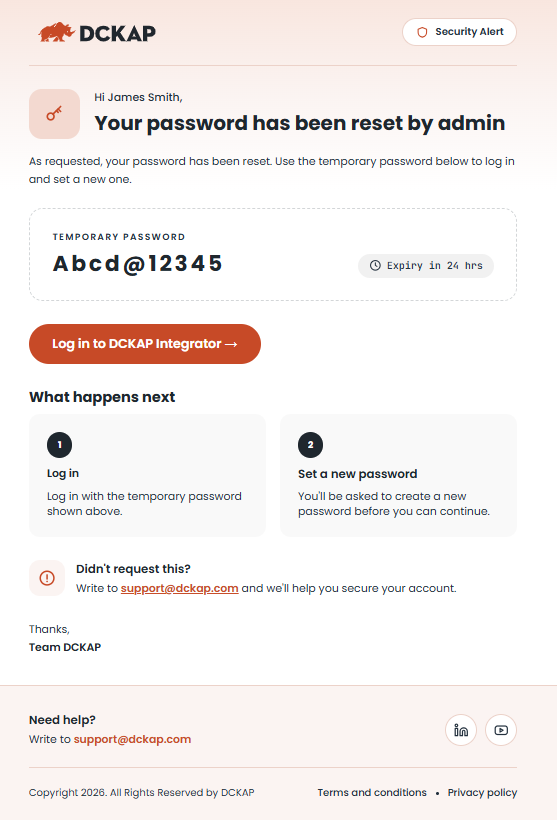
The temporary password email is sent to the owner’s email address. If your team cannot access that mailbox, Support provides the temporary password directly to your team member.
Step 2: Log in using the temporary password
- Open the DCKAP Integrator login page.
- Enter the account owner’s email address.
- Enter the temporary password provided by Support.
- Log in within 24 hours of receiving the temporary password.
The temporary password is valid for 24 hours.
Step 3: Set your own password
After logging in, you will see: Please set a new password to continue.
Set a new password that meets the password requirements. You cannot reuse the temporary password.
Once your new password is set, you can proceed into the account.
The temporary password stops working as soon as you set your new password. Support will no longer know the password you use to access the account.
Step 4: Re-enable two-step verification if needed
Two-step verification stays off after a Support-assisted reset if Support disabled it during the recovery process.
Once your team has regained access, you can enable two-step verification again from the account’s Security page.
Choose a verification method your team can reliably access:
- Authenticator app: Use a phone your team holds and can access.
- Email: Use this option only when the account owner’s email is forwarded to your team.
Understanding two-step verification
Two-step verification adds an extra step to login by requiring a verification code in addition to your password.
The recovery process depends on where your code is sent.
| Verification method | What happens during recovery |
| Email code with forwarding enabled | The code is forwarded to your team and can be used to log in. |
| Authenticator app on a phone your team has | Your team can generate and enter the code from that phone. |
| Authenticator app on a phone your team does not have | Contact Support to turn off two-step verification during the reset. |
| Two-step verification is already off | No code is required after the password step. |
Email forwarding and account recovery
Email forwarding plays an important role in account recovery when the original account owner is no longer part of your organization.
What is email forwarding?
Email forwarding is configured in your email provider, such as Gmail. It sends a copy of emails received by the account owner’s mailbox to another mailbox.
It is not configured in DCKAP Integrator, and DCKAP Support cannot see or change your email forwarding settings.
How email forwarding affects recovery
| Recovery activity | Forwarding enabled | Forwarding disabled |
| Forgot Password link | Received by the team | Remains in owner’s inbox |
| Password reset confirmation | Forwarded to the team | Remains in owner’s inbox |
| Email-based two-step verification | Code can be forwarded | Team cannot receive the code |
| Support-assisted reset | Temporary password email may be forwarded | Support shares temporary password directly |
If forwarding is enabled but an email does not arrive, check the spam or junk folders in both mailboxes.
Troubleshooting
| Issue | What you should do |
| Reset link expired | Request a new reset link and use the latest email. |
| Temporary password expired | Contact Support for a new reset or use Forgot Password if email forwarding is available. |
| Password setup session expired | Log in again using the temporary password and set your new password. |
| Verification code unavailable | Contact Support to disable two-step verification if your team cannot access the code. |
| Password reset email not received | Check spam/junk folders and verify email forwarding. |
Glossary
| Term | Definition |
| Temporary password | A password provided by Support for temporary access. It must be replaced at first login. |
| Two-step verification (2FA) | An additional login security step that requires a verification code. |
| Authenticator app | An app that generates verification codes for login. |
| Email forwarding | Automatically sends copies of emails from one mailbox to another. |
| Password reset link | An email link used to set a new password. |