What is a Snippet?
A Snippet is a reusable piece of logic that you build once and call from any workflow whenever needed. Instead of rebuilding the same steps repeatedly across multiple workflows, you define the logic in a Snippet, pass the required inputs, and get the result back — saving time and keeping your workflows clean and consistent.
How to Create a Snippet
Click on Add Snippet. Provide a Snippet Name and Description that clearly explains what the Snippet does.
You will find two sections:
1. Inputs
Click Add Inputs to define what data the Snippet needs to work with. For every input, configure:
| Field | Description |
|---|---|
| Label | Name shown in the Workflow when calling the Snippet |
| Key | Auto-generated reference key used inside the Snippet steps |
| Description | Explanation of what this input field expects |
| Data Type | String, Number, Boolean, or JSON |
| Required | Choose Yes if mandatory. If No, you will be prompted to enter a default value |
| Add Sample Data | Provide a sample structure of the expected input data |
2. Return Snippets
Data processed inside a Snippet is not directly accessible in the Workflow. Use Return Snippets to pass the required output back to the Workflow.
📌 Note: Snippets do not run automatically. They only execute when explicitly called from a Workflow. When calling a Snippet, data for its inputs is passed at that point.
Simple Example to experiment Snippet:
Step 1: Create a Batch Workflow. Click on Add Snippet. Give the name as “Hello Snippet” and Save.
Step 2: In the new screen that opens, let’s configure
- Inputs: Add Inputs
| Label | Data Type | Add Sample Data |
|---|---|---|
| Name | String | “” |
| Years of Experience | Number | 5 |
- Add a Console Step
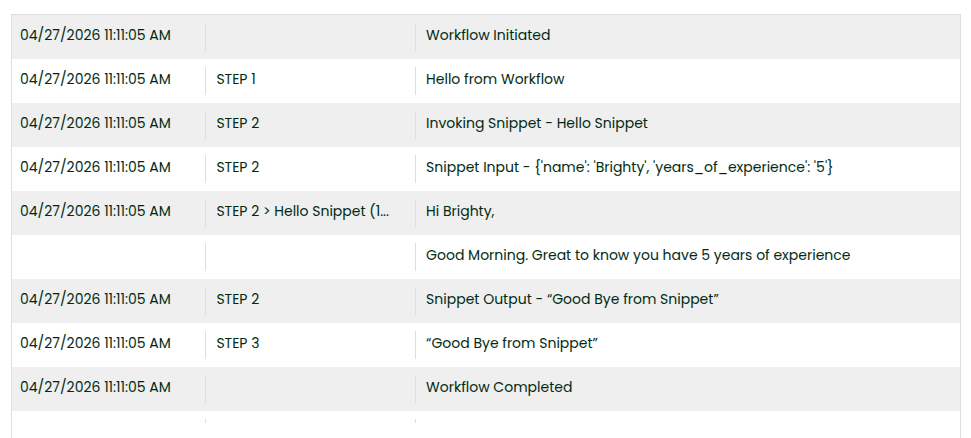
Hi {{inputs.name}},
Good Morning. Great to know you have {{inputs.years_of_experience}} years of experience
- Return Snippets: Value:
“Good Bye from Snippet”
📌 Note: The Key is auto-populated based on the Label you enter. This is what you will use to reference the input value in your steps — for example, {{inputs.years_of_experience}}
Step 3: Navigate to the main workflow. Add a console – “Hello from Workflow”
Step 4: Call the Snippet – Hello Snippet and pass value for name and years of experience.
Step 5: Add a Console Step and print snippet call step response – {{2}}
Step 6: Enable Console Logs for Workflow and at Step Level Enable Show in Console Log. Save and Sync the Workflow.