#### Create the Workflow
* Create a new Batch-type workflow
* Search for Shopify
* Select Shopify (Beta)
* Choose your credentials
* Select Create a New Product API
* Click Next
### Understand the API
* Click on the arrow next to Create a New Product API
* A window will open with API details
* Under For Mapping, you can view:
* Sample request structure
* Sample response structure
ℹ️ For more details, refer to Shopify’s official developer documentation
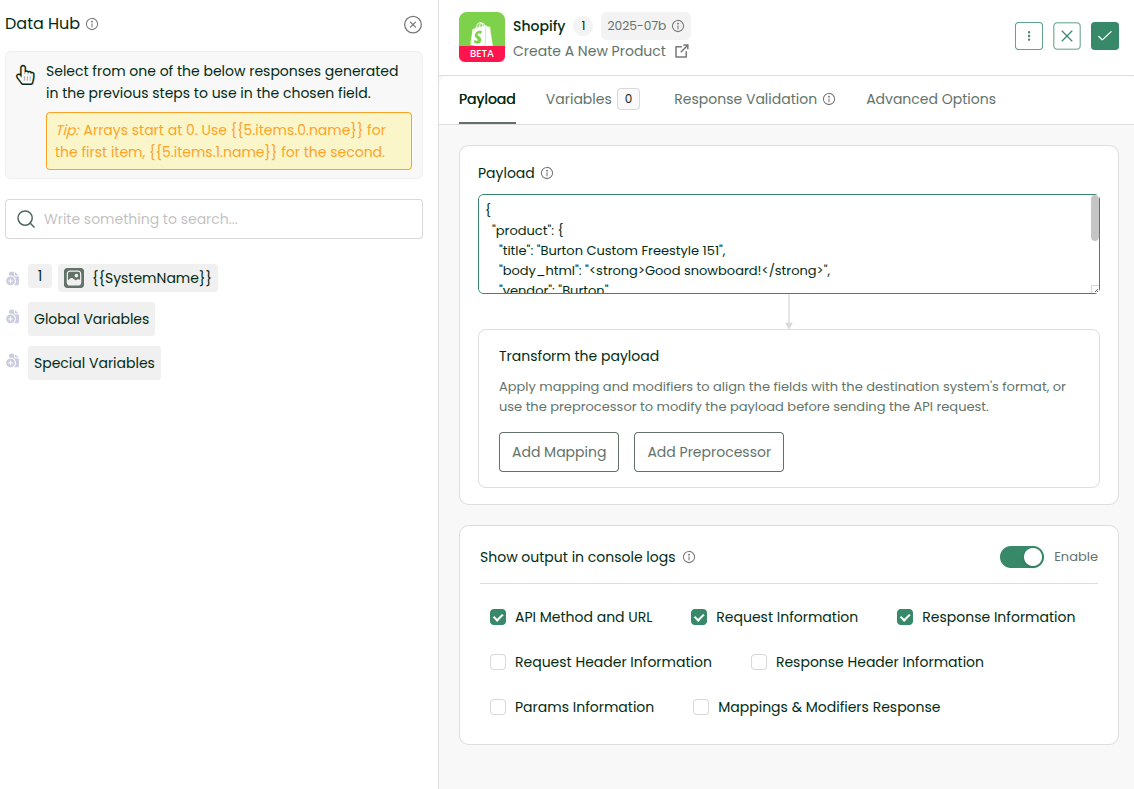
### Add the Request Payload
Shopify expects the product data in the following format:
{
 "product": {
   "title": "Burton Custom Freestyle 151",
   "body_html": "<strong>Good snowboard!</strong>",
   "vendor": "Burton",
   "product_type": "Snowboard",
   "status": "draft"
 }
}
* Copy the sample request
* Paste it into the Payload section in the workflow
* Enable Show Output in Console Logs
* Click the tick icon (top right) to save the step
### Enable Console Logs
* Save the workflow
* Go to Settings (top right)
* Enable Console Logs
### Run the Workflow
* Click Sync Now
* Go to Logs → View Console
* Wait a few moments for the logs to appear
#### 🏆 Congratulations, you have successfully created a new product in Shopify.